
When working with SQL Server, you might need to find where a specific string exists in a database. This is especially useful when working with large or unfamiliar schemas.
For example, you may want to check where a value like a username, email, or other data is stored without knowing which table or column contains it. This script automates that process by searching all tables and relevant columns in a database for your desired string.
This is particularly helpful when:
– You don’t know the exact table or column where the data is stored.
– You want to avoid manually inspecting each table.
– You need a quick count of how many times a value appears in each column.
The script dynamically searches all character-based columns for a specific value, and provides a way to search to certain column names if needed.
SQL Script to Find a String (Text) in Tables
This script has been in my toolbox for years. I couldn’t trace the original author, but it’s simple and works reliably for SQL Server 2019.
The script dynamically generates queries to scan all matching columns, focusing only on text-based data types like char, varchar, and nvarchar.
Inputs: @valueToFind: The string to search for, with optional wildcards (%) to expand the search. @columnName: Filters columns by name (use '%%' to search all columns).
I’m searching for my name with wildcards at both ends in this example.
The result is as expected within my test database, it contains 2 occurrences of my name.
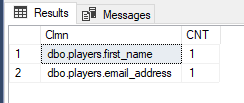
The script shows which tables and columns contain the string you searched for, along with how many times it appears in each. In this example it’s showing a row for each table that has name in it.
Now I’m going to check the data within those tables for the string I searched for.
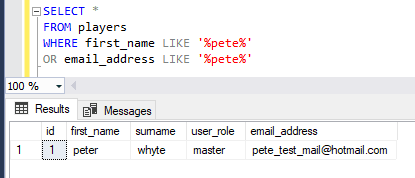
Instead of manually inspecting each table or using SSMS filters, this script I’m sharing automates the process. It’s good for one-off searches and provides a clear, actionable output. Just run the script in the database where you want to search, set the variables, and review the results. Perfect for those “I don’t know where this data lives” moments, hope it helps!
The Other Search: Finding a String Inside Your Code
Half the people who need this are not looking for a value in a table at all. They are looking for a string in the code: which stored procedure still references a table you want to drop, where a hardcoded server name got left behind, what will break if you rename a column.
The script above will never find those, because that text lives in object definitions rather than in data:
-- find a string in procedures, views, functions and triggers
SELECT  OBJECT_SCHEMA_NAME(m.object_id) AS [schema],
        OBJECT_NAME(m.object_id)        AS [object],
        o.type_desc
FROM    sys.sql_modules AS m
JOIN    sys.objects     AS o ON o.object_id = m.object_id
WHERE   m.definition LIKE N'%OldTableName%'
ORDER BY [schema], [object];
Use sys.sql_modules rather than the old syscomments for this. syscomments stores a definition split across multiple rows in chunks, so a search term that happens to straddle a chunk boundary is simply not found, and you get a confident empty result. sys.sql_modules.definition holds the whole definition in one value. On the instance I tested this on there was already an object with a definition longer than a single chunk, and that is a small database.
Two things it still will not see: SQL Server Agent job steps, which live in msdb.dbo.sysjobsteps, and anything encrypted with WITH ENCRYPTION, where definition is NULL.
Case Sensitivity Will Decide Your Results for You
LIKE obeys the collation of the column, not any setting in your query. Most installations are case insensitive, so this rarely surfaces until the one time it matters. Tested on SQL Server 2025 against a table holding Peter, peter and PETER:
-- default CI collation: returns Peter, peter AND PETER
SELECT v FROM @t WHERE v LIKE N'%peter%';

-- forced case sensitive: returns only 'peter'
SELECT v FROM @t WHERE v COLLATE Latin1_General_CS_AS LIKE N'%peter%';
So if you are searching a database restored from somewhere else, check what you are actually working with before you trust an empty result:
SELECT DATABASEPROPERTYEX(DB_NAME(), 'Collation');
Forcing COLLATE onto the column also makes the predicate non-sargable, so any index on that column stops being usable. On a wide scan like this it changes little, but it is worth knowing before you paste it into a query that matters.
Underscore and Percent Are Wildcards, Including in Your Search Term
This is the one that produces wrong answers rather than no answers, which makes it worse. Both tested on 2025.
An underscore matches any single character. Searching for a column named under_score also returns underXscore:
-- returns 'under_score' AND 'underXscore'
WHERE v LIKE N'under_score'

-- returns only 'under_score'
WHERE v LIKE N'under!_score' ESCAPE '!'
A percent sign in your search term is far worse. Looking for the literal text 50% in a table holding 50% off, 50 percent off and 500 items returned all three rows:
-- 3 rows: '50% off', '50 percent off', '500 items'
WHERE v LIKE N'%50%%'

-- 1 row: '50% off'
WHERE v LIKE N'%50!%%' ESCAPE '!'
Any escape character will do as long as it is one you know is not in your data. If you are searching for anything containing %, _ or [, escape it or you will be reading results that are quietly wrong.
Before You Run This on Production
Worth saying plainly, since the script is deliberately broad. It reads every character column of every table it matches. There is no index that helps a leading wildcard search, so every one of those is a full scan, and the whole lot goes through the buffer pool.
On a small database that is a few seconds. On a large one it is a lot of I/O and a lot of evicted cache, and the next query along pays for it. If you must run it against production, run it out of hours, and narrow it with the @columnName parameter rather than searching everything.
And know what a nil result does not prove. The script covers char, varchar and nvarchar. It does not look at text or ntext (deprecated, and they cannot be compared with LIKE without a cast), xml, sql_variant, or anything numeric or date typed where the value was stored as a number. So “not found” means “not found in the character columns it checked”, which is a narrower statement than it looks.