
$PSVersionTable. Do not use $host.Version, which reports the host application rather than PowerShell itself.
This guide explains how to check your PowerShell version on a Windows computer using the $PSVersionTable command.
Running the latest PowerShell version ensures access to new features and cmdlets. Some scripts may rely on commands not available in older versions, causing compatibility issues. We should keep it up-to-date making it part of your regular monthly patching.
1. Checking Your PowerShell Version
To check your PowerShell version, simply run PSVersionTable:
-- Check PowerShell Version
$PSVersionTable
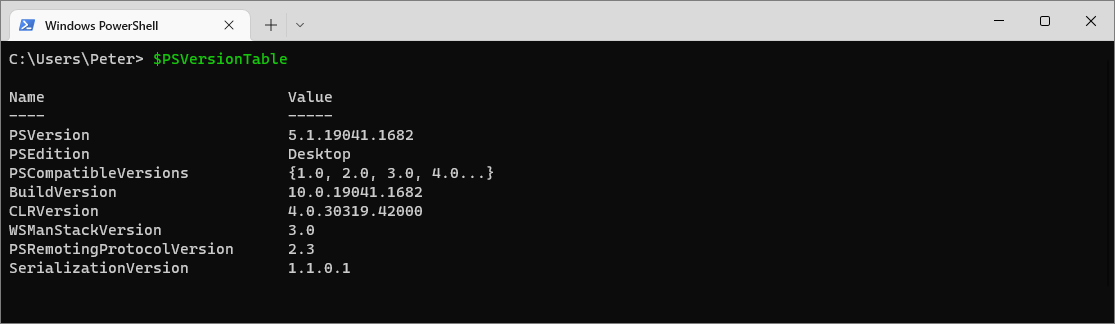
In this example, the system is running PowerShell version 5.1.19041. We should upgrade to pwsh version 7.
2. Upgrading PowerShell
Windows PowerShell 5.1 is the latest built-in version on Windows, but newer versions, such as PowerShell 7 are available. To install the latest version, follow Microsoft’s official guide: Installing PowerShell, which includes installing on Windows, MacOS and Linux.
Before looking at rolling out upgrades across several Windows hosts, we should look at the current Supported PowerShell Versions for Windows compatibility table from Microsoft.
Hope this guide was useful!
The Right Way
# the full table
$PSVersionTable

# just the version number
$PSVersionTable.PSVersion

# just the major version, which is what scripts usually branch on
$PSVersionTable.PSVersion.Major
$host.Version lies, more or less. It reports the version of the host program running PowerShell, such as the ISE or a console host, which is not necessarily the PowerShell engine version. $PSVersionTable.PSVersion is the authoritative answer.5.1 or 7? Both, Probably
This is the part worth understanding. Windows PowerShell 5.1 and PowerShell 7 are separate products that install side by side. They have different executables and different module paths:
powershell.exe   # Windows PowerShell 5.1, ships with Windows
pwsh.exe         # PowerShell 7+, installed separately
So “which version am I on” depends entirely on which one you launched. $PSVersionTable.PSEdition tells you which family you are in: Desktop for 5.1, Core for 7.
Checking Before You Run Something
# guard a script that needs PowerShell 7 features
if ($PSVersionTable.PSVersion.Major -lt 7) {
    throw "This script needs PowerShell 7 or later. Current: $($PSVersionTable.PSVersion)"
}

# or declare it properly at the top of the script
#Requires -Version 7.0
#Requires is the tidier option: PowerShell refuses to run the script at all rather than failing partway through.
Checking Remote Machines
Invoke-Command -ComputerName 'APPSRV01','APPSRV02' -ScriptBlock {
    $PSVersionTable.PSVersion
} | Select-Object PSComputerName, Major, Minor
Useful before rolling out a script to an estate: 5.1 is on every Windows machine, but 7 is only where someone installed it.
If SQL Server is part of your day job, my current work lives over at sqldba.blog: production DBA scripts, an error library and the SSMS guide.
Leave a Reply