
It’s a solid best practice to store temp db files on a separate drive, away from your C: drive. This is because temp db can grow very large, very quickly, sometimes within minutes depending on workloads. This growth affects both the temp db data (.ndf) and log (.ldf) files.
This post is a quick tutorial on how to move all temp db files from one location to another in SQL Server. Keep in mind that a planned maintenance window is required when performing this on production servers.
Demo: Moving Temp DB Database Files
1. Use the sp_helpfile system stored proc to view the logical names and file paths of your database files.
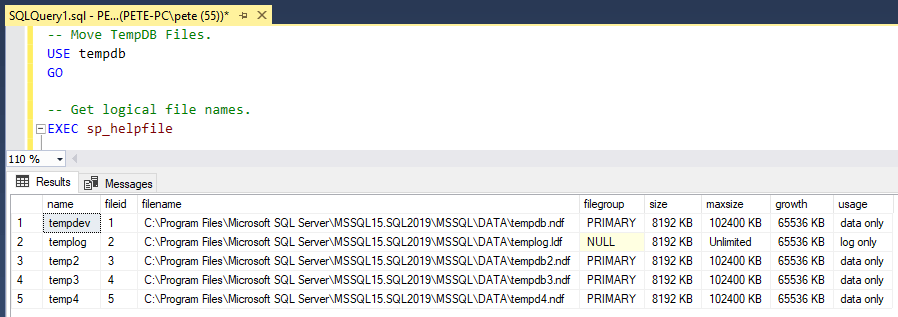
2. Use the SQL ALTER DATABASE statement to change the file paths for each temp db file. Update the name and full file path inside the single quotes as needed:
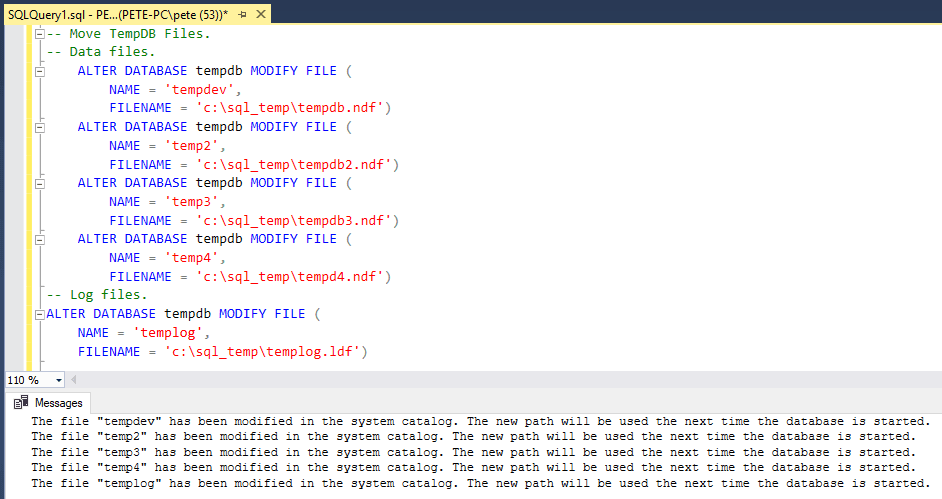
If you need to generate these statements quickly for multiple files, this should help you out:
3. After running the ALTER statements, you’ll notice the output message states that the changes will take effect the next time the database is started. Restart the SQL Server service to apply the changes.
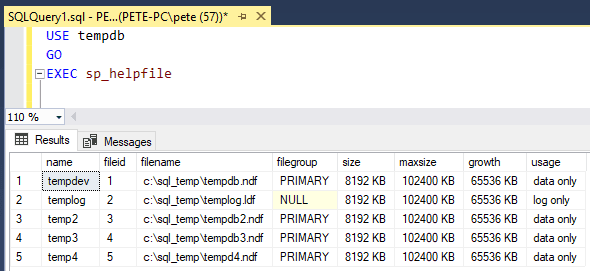
4. After restarting, verify that the files have been moved to the new location by running sp_helpfile again:
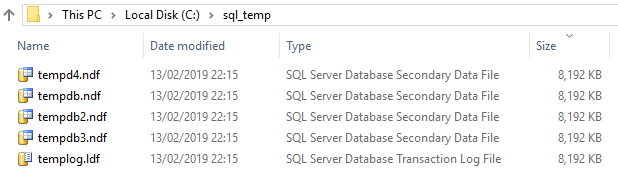
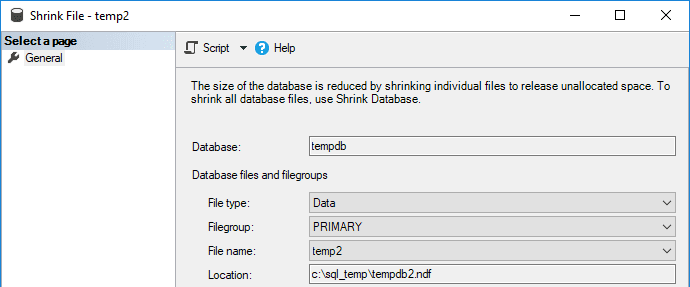
5. We can open the Shrink File window in SQL Server Management Studio (SSMS) to visually confirm the new file locations:
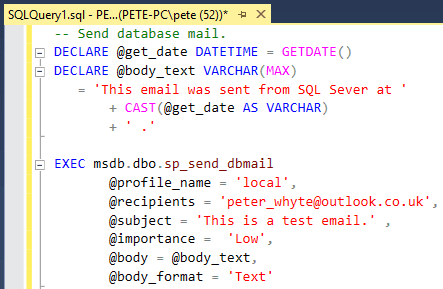
6. DBA’s will often send a test email after such changes to ensure this server functionality is running smoothly:
7. Finally, remember to delete the old temp db files from their original location. If the files are on the same disk, this cleanup is especially important to free up space.
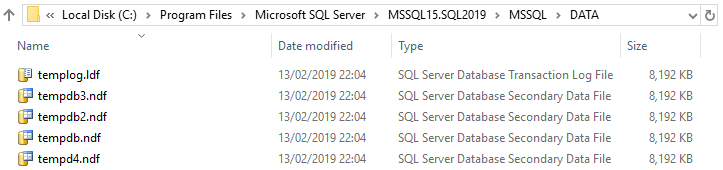
Note: You won’t be able to delete temp db files that are currently being used by an active SQL Server service. Ensure the files are no longer in use before attempting removal. We can also look at the last date modified on the files to verify activity.
Moving temp db files to a dedicated drive is a recommended best practice for optimizing SQL Server performance and ensuring stability under heavy workloads. Follow the steps above carefully, and always double-check the file locations and configurations after making changes.
Feel free to add a comment below if you have any questions or issues on this.
Modern tempdb Has More Than One Data File
The steps above are right, but they move one file. Since SQL Server 2016 the installer creates a data file per logical processor, up to eight, so a default install is very often eight files rather than one. On the instance I checked while writing this, sys.master_files showed exactly that:
name      type_desc  physical_name
tempdev   ROWS       ...\DATA\tempdb.mdf
templog   LOG        ...\DATA\templog.ldf
temp2     ROWS       ...\DATA\tempdb_mssql_2.ndf
temp3     ROWS       ...\DATA\tempdb_mssql_3.ndf
...
temp8     ROWS       ...\DATA\tempdb_mssql_8.ndf

DataFiles: 8    LogicalCPUs: 8
Every logical file needs its own ALTER DATABASE statement. Move tempdev and templog only, restart, and the other seven are still sitting on the drive you were trying to clear. The move looks like it worked, and most of tempdb never went anywhere.
Rather than typing them out, list what you actually have first, so you cannot miss a file somebody added after the install:
SELECT name, type_desc, physical_name
FROM   sys.master_files
WHERE  database_id = 2;   -- 2 is always tempdb
Then write one MODIFY FILE statement per row returned.
The Restart Is Where This Goes Wrong
ALTER DATABASE on tempdb changes metadata only. Nothing moves while SQL Server is running, because tempdb is in use. The files are recreated at the new path when the service restarts, which is why a maintenance window is needed.
That restart is the risky moment, and the failure is worse than people expect. If the new folder does not exist, or the SQL Server service account cannot write to it, the instance will not start at all. tempdb is required for startup, so you do not get a running server with a warning. You get a service that fails, on a path you just typed by hand.
Two things to do before the restart, both cheap:
- Create the folder first, and confirm the service account has full control on it. The account is visible in Configuration Manager, or from
sys.dm_server_services. - Read your own statements back from
sys.master_filesafter running them and before restarting. That view shows the new paths immediately, so a typo is visible while it is still harmless.
If it does fail to start, the recovery is to launch the instance with minimal configuration from the command line, which brings it up with a tempdb in the default location so you can correct the paths. Worth knowing that route exists before you need it at 7am.
The Old Files Are Still There
After a successful restart, SQL Server creates fresh tempdb files at the new location. It does not tidy up the old ones. They stay on the original drive at whatever size they had grown to, which on the C: drive is often the entire reason you did this.
So the job is not finished when the service comes back. Confirm tempdb is genuinely running from the new path, then delete the old files by hand:
-- run this AFTER the restart, from inside tempdb
USE tempdb;
SELECT name, physical_name FROM sys.database_files;
sys.database_files from inside tempdb shows where it is actually running, as opposed to sys.master_files which shows what it has been told. Once that reports the new drive, the old files are safe to remove.
While You Have the Outage, Fix the Configuration Too
A tempdb move needs a restart, and the restart is the expensive part. It is worth spending it on more than the file paths.
The file count is the one that matters most. Too few data files produces allocation contention that shows up as PAGELATCH waits rather than as anything mentioning tempdb, which is why it goes unrecognised for so long. I have written that up properly on sqldba.blog in PAGELATCH_EX and tempdb contention, and there is a script for auditing what you currently have in get tempdb configuration.
Two more worth checking while the window is open:
- All data files the same size, with the same growth increment. Uneven files defeat the proportional fill algorithm, so one file takes most of the load and you keep the contention you were trying to remove. The file balance script shows whether yours are actually even.
- Size them up front rather than letting them grow. Autogrowth on tempdb means paying for file growth during your busiest queries, and the files start over at their initial size on every restart anyway.
Leave a Reply