
This guide explains how to check which features are installed on a SQL Server instance.
When downgrading from SQL Server Enterprise to Standard, checking the installed features is crucial to ensure compatibility and avoid losing critical functionality. Some Enterprise features may not be available in the Standard edition, so reviewing installed components helps you identify what needs to be removed or adjusted.
Additionally, this process is important for troubleshooting, verifying licensing compliance, and optimizing resources. By checking installed features, you can ensure a smooth transition, maintain security standards, and plan for future growth without unexpected disruptions.
Steps to Discover Installed Features
1. Locate SQL Server Installation Files
You can find the SQL Server installation files within the Setup Bootstrap folder. For example:
C:\Program Files\Microsoft SQL Server\150\Setup Bootstrap\SQL2019
Alternatively, you may already have the installation ISO handy.
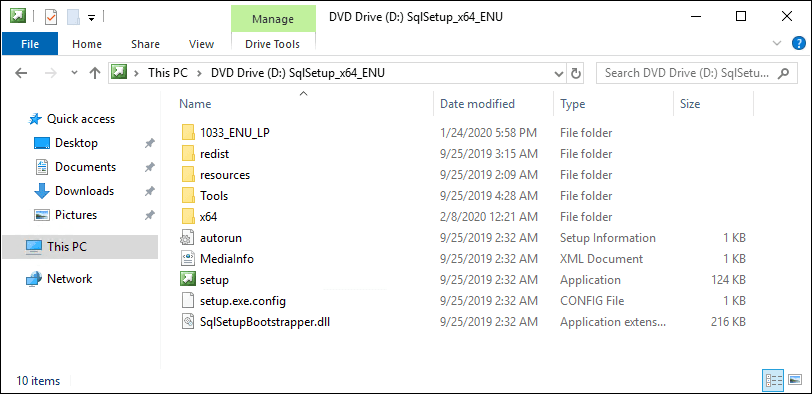
2. Open Command Prompt
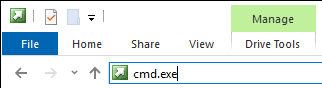
Navigate to the folder containing the SQL Server installation files. From the top navigation bar, open cmd.exe.
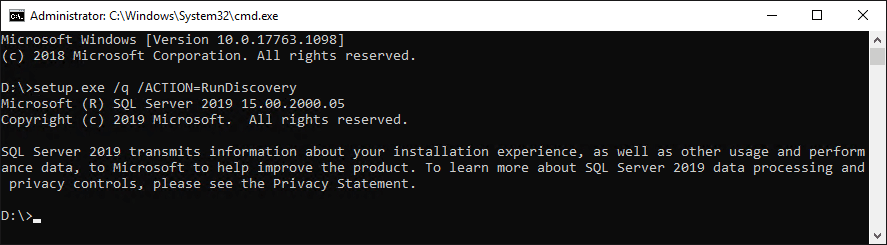
3. Run Setup.exe with the Discovery Parameter
Execute the following command to generate the discovery report:
Setup.exe /ACTION=RunDiscovery
>> For reference, see Microsoft Docs: Installation Parameters.
4. Locate the Discovery Report
The discovery report is saved to the following location:
%ProgramFiles%\Microsoft SQL Server\<nnn>\Setup Bootstrap\Log\<last Setup Session>
Replace <nnn> with the version number of SQL Server:
– SQL Server 2012: 110
– SQL Server 2014: 120
– SQL Server 2016: 130
– SQL Server 2017: 140
– SQL Server 2019: 150
– SQL Server 2022: 160
– SQL Server 2025: 170
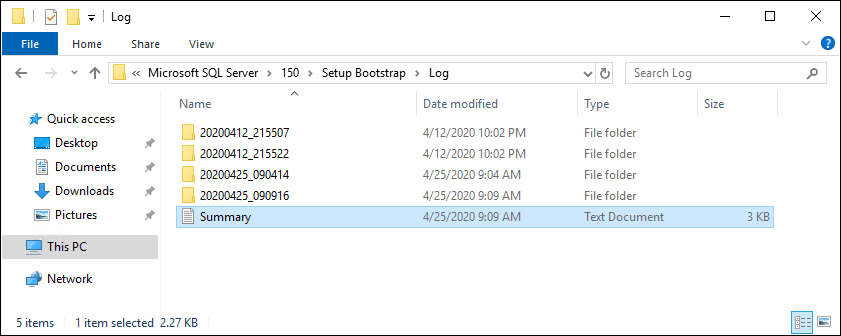
5. Review the Discovery Report
Open the discovery report to see the installed features. It highlights components such as the Database Engine Services or Reporting Services.
If you prefer PowerShell, use Get-Content to navigate through the log files and locate the summary:
# show sql upgrade/installation summary file
Get-Content "C:\Program Files\Microsoft SQL Server\<nnn>\Setup Bootstrap\Log\<last Setup Session>\Summary.txt"
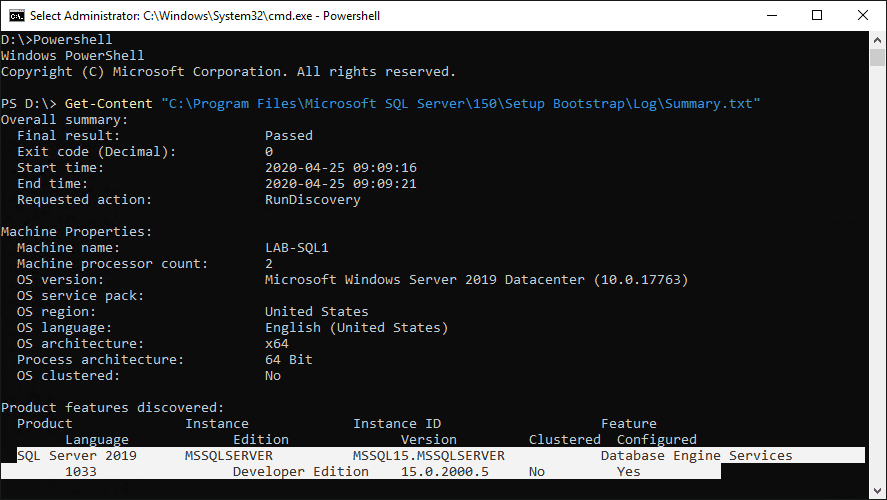
The highlighted sections in the discovery report will show installed features. For instance, the report may indicate that only the Database Engine Services are installed for SQL Server 2019 Developer Edition.
By following these steps, you can efficiently determine the features installed on your SQL Server instance. This is especially useful for troubleshooting or verifying the configuration of your environment.
Verified on SQL Server 2025
The screenshots above are from SQL Server 2019, so I re-checked the whole process against a SQL Server 2025 instance before updating this post. The pattern holds. The version folder is 170, the setup files sit under Setup Bootstrap\SQL2025, and the discovery output lands in 170\Setup Bootstrap\Log. If you are not sure which version you are even looking at, sqldba.blog has the quick reference in How to Check SQL Server Version.
Summary.txt from a discovery run on 2025 opens with Requested action: RunDiscovery and a features table like this, which took about eight seconds to generate:
Product          Instance     Feature                              Edition                       Version
SQL Server 2025  MSSQLSERVER  Database Engine Services             Enterprise Developer Edition  17.0.4075.5
SQL Server 2025  MSSQLSERVER  AI Services and Language Extensions  Enterprise Developer Edition  17.0.4075.5
Worth knowing: the same report is also written as SqlDiscoveryReport.htm in the date-stamped session folder next to Summary.txt, and the HTML version is the one to attach when someone in licensing or a migration project asks what is installed. Note the AI Services row too. On 2025, features you did not consciously choose can be present, which is exactly why a discovery report beats memory.
Check From T-SQL Without Touching Setup
If the instance is up, you can get most of the answer without running setup.exe at all. Both of these are tested on SQL Server 2025:
-- Which SQL Server services exist on this box, and their state
SELECT servicename, status_desc
FROM sys.dm_server_services;

-- Feature flags the engine exposes directly
SELECT SERVERPROPERTY('IsFullTextInstalled')      AS FullText,
       SERVERPROPERTY('IsPolyBaseInstalled')      AS PolyBase,
       SERVERPROPERTY('IsIntegratedSecurityOnly') AS WindowsAuthOnly;
On my instance the first query returns the engine, Agent and Launchpad services, and the SERVERPROPERTY flags return 0 for Full-Text and PolyBase, matching the discovery report. The limitation is that these views cover services and a handful of flagged features, not the full component list. Reporting Services and client tools will not show up here, so the discovery report remains the authoritative answer. T-SQL is the quick check, discovery is the audit.
If This Is for an Edition Downgrade
The discovery report tells you which features are installed, but for an Enterprise to Standard downgrade there is a second question that matters more: which Enterprise-only features are actually in use inside your databases. Compression, partitioning and similar features will block a downgraded database from coming online, and no setup report will warn you. The documented check is sys.dm_db_persisted_sku_features, run per database.
I keep a ready-made script for this on sqldba.blog in DBA Scripts: Get Edition Feature Usage, which sweeps the instance rather than one database at a time. And if the downgrade is really happening, the full order of operations, including the licensing checks and rollback points, is written up in the SQL Server Edition Change Runbook. Run the discovery report first, then the feature usage check, and you will know the size of the job before anyone commits to a date.
When the Instance Is Down, Read the Folders
Discovery needs setup files and T-SQL needs a running engine. When you have neither, the folder layout still tells a story, and the naming convention is consistent: each instance gets a folder named MSSQL<major version>.<instance name> under C:\Program Files\Microsoft SQL Server. On my 2025 default instance that is MSSQL17.MSSQLSERVER, verified against the live instance’s own reported data path. A machine with MSRS13.MSSQLSERVER sitting next to MSSQL13.MSSQLSERVER is telling you Reporting Services 2016 was installed alongside the engine, whether or not either service currently runs.
Treat the folder read as a hint rather than proof, since uninstalls leave directories behind. But as a first pass on an unfamiliar or half-dead server, five seconds in Explorer narrows down what you are dealing with before you commit to running anything.
Leave a Reply