
Get-TimeZone reads it, Set-TimeZone changes it, and Get-TimeZone -ListAvailable shows every valid ID.
The Get-TimeZone cmdlet in PowerShell retrieves the current time zone of a computer. It can also list all available time zones, which is helpful if you’re planning to make changes to the system’s time zone settings.
In this post I’m sharing two examples of how to check the local time zone with PowerShell:
> Get Time Zone using PowerShell
> Script to Output Available Time Zones to a CSV File
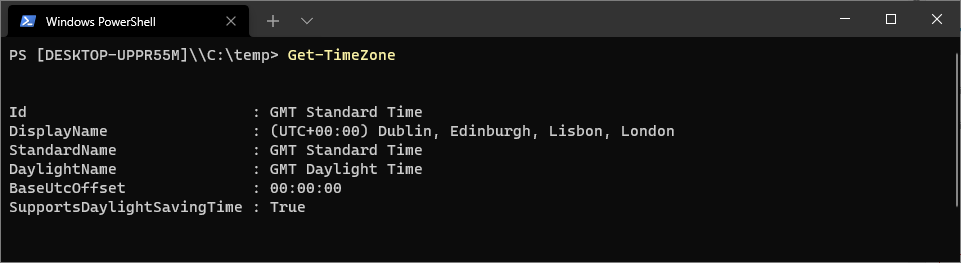
Get the Time Zone using PowerShell
Running Get-TimeZone in PowerShell will return the currently set timezone of the local Windows Computer.
# get timezone powershell
Get-TimeZone
Script to Output Available Time Zones to a CSV File
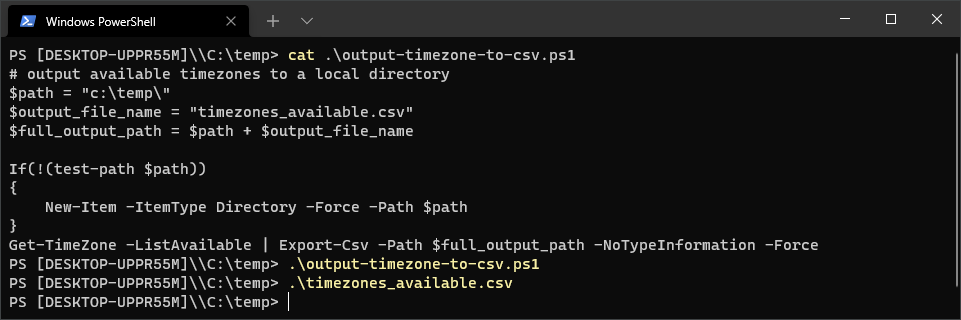
The following PowerShell script outputs all available time zones to a CSV file in a specified directory:
# output available timezones to a local directory
$path = "c:\temp\"
$output_file_name = "timezones_available.csv"
$full_output_path = $path + $output_file_name

If(!(test-path $path))
{
    New-Item -ItemType Directory -Force -Path $path
}
Get-TimeZone -ListAvailable | Export-Csv -Path $full_output_path -NoTypeInformation -Force
I saved this script to my c:\temp folder and ran it:
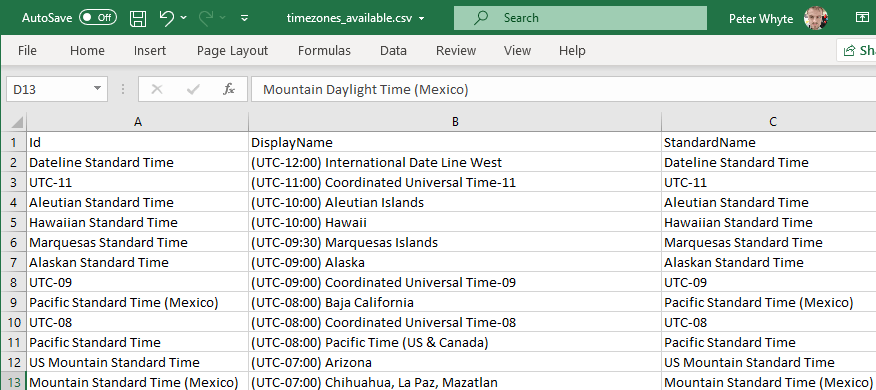
The CSV will contain all time zones available:
This isn’t really a regular or task that you’d be doing often. I’m more just noting a different way of saving this info.
Reading and Setting
# current time zone
Get-TimeZone

# just the ID, which is what you need for scripting
(Get-TimeZone).Id            # GMT Standard Time

# find the ID you want
Get-TimeZone -ListAvailable | Where-Object Id -like '*Pacific*'

# change it. Needs an elevated session
Set-TimeZone -Id 'GMT Standard Time'
Checking a Group of Servers
This is where it actually matters. A server in the wrong time zone produces logs that do not line up with everything else, and scheduled jobs that fire an hour out:
$servers = 'APPSRV01','APPSRV02','SQLSRV01'

Invoke-Command -ComputerName $servers -ScriptBlock {
    [pscustomobject]@{
        TimeZone   = (Get-TimeZone).Id
        LocalTime  = Get-Date
        UtcOffset  = (Get-TimeZone).BaseUtcOffset
    }
} | Select-Object PSComputerName, TimeZone, LocalTime, UtcOffset | Format-Table -AutoSize
BaseUtcOffset is the zone’s standard offset and ignores daylight saving. For the offset in effect right now, use (Get-Date).ToString('zzz'), or compare (Get-Date) with (Get-Date).ToUniversalTime().Converting Between Zones
$utc = (Get-Date).ToUniversalTime()
$tz  = [TimeZoneInfo]::FindSystemTimeZoneById('Eastern Standard Time')
[TimeZoneInfo]::ConvertTimeFromUtc($utc, $tz)
For anything that spans time zones, the rule that saves the most pain is to store and compare in UTC and convert only for display.
If SQL Server is part of your day job, my current work lives over at sqldba.blog: production DBA scripts, an error library and the SSMS guide.
Leave a Reply