
\\wsl.localhost\<distro>\ (the older \\wsl$\ still works). The steps below remain valid.If you work with Windows Subsystem for Linux (WSL), you may need to open WSL files in Windows File Explorer for easier file management. This post gives some tips, providing two simple methods to achieve this.
Best Practices for Managing WSL Project Files
For best performance, always store project files on the same operating system as your development tools. If you’re developing an application in Linux using WSL, keep your files inside the Linux file system (e.g., /home/user/project) rather than using Windows-mounted directories (/mnt/c/Users/etc).
We should always consider using source control (e.g., Git or Bitbucket) to manage your WSL application code instead of manually copying files between Windows and WSL.
Ways to Open WSL Files in Windows File Explorer
1. Quick Command Method (Recommended)
The fastest way to open WSL files in Windows Explorer I’ve found is through the terminal. While inside a WSL session, run the following command:
# open windows explorer from within wsl
explorer.exe .
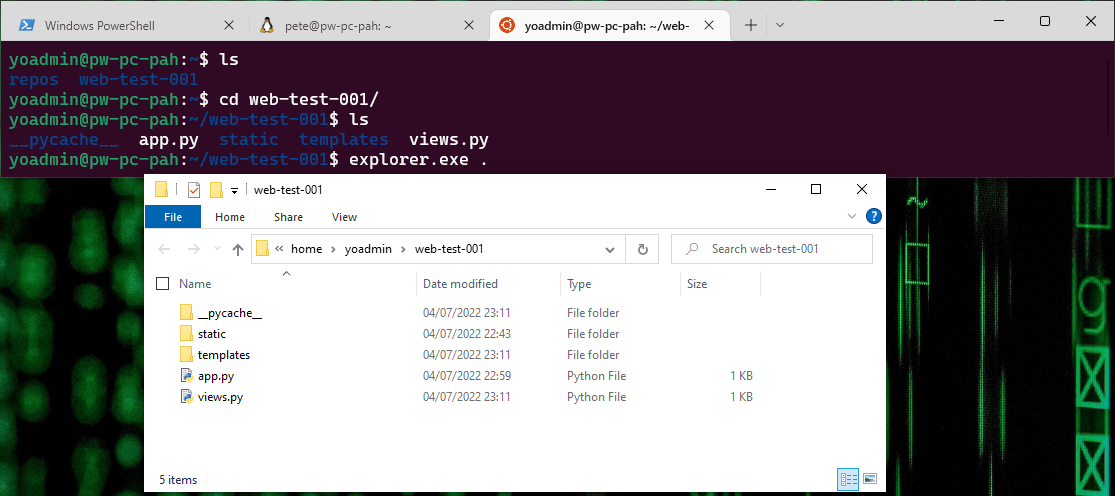
This will launch File Explorer, displaying the current directory inside your WSL environment.
2. Manual Navigation via File Explorer
Alternatively, you can manually access WSL files from Windows Explorer:
1. Open File Explorer.
2. In the address bar, enter \\wsl$\
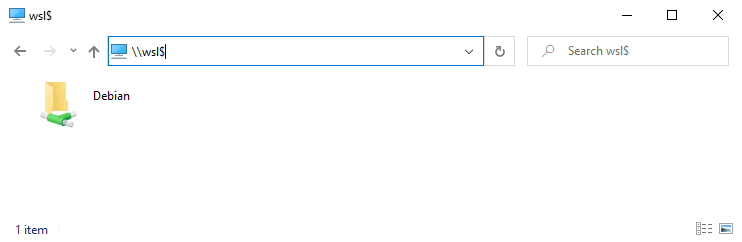
The \\wsl$\ path only displays active WSL distributions. If you have multiple installed distros but only one appears, ensure it’s running by opening a new WSL terminal session.
For this demo, I’m going to start the Ubuntu 20.04 distro on my machine by opening a new tab in Windows Terminal:

Now I can see both WSL Linux Distribution files in the Windows Explorer:
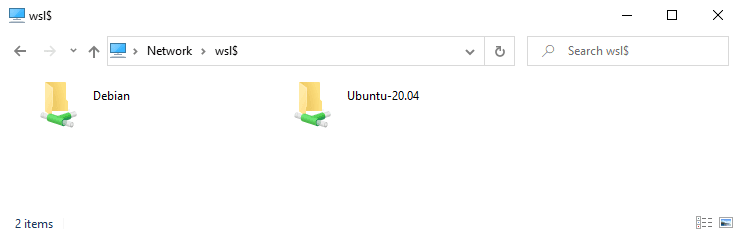
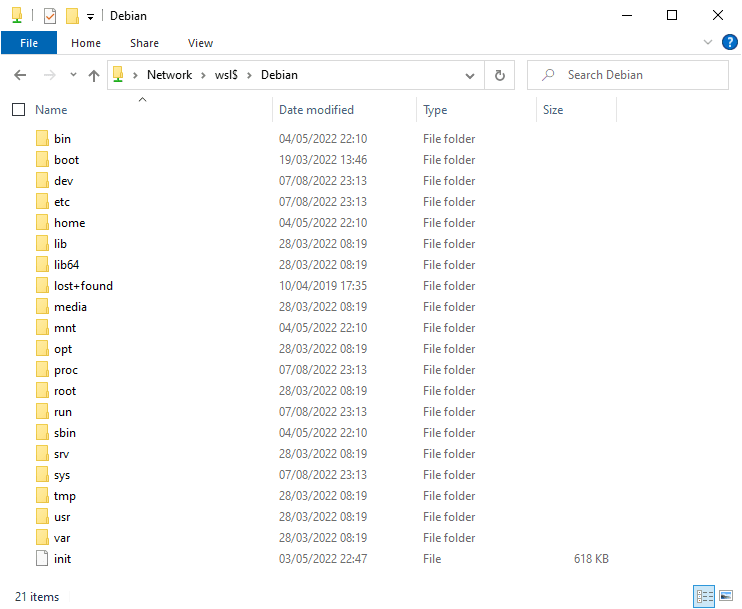
From here we can drill into the folders and navigate into any of the Linux directories:
I hope this was useful for you, cheers!
When explorer.exe . Does Nothing
The command is one line, so when it fails there is nothing to debug and it is easy to assume WSL is broken. It is almost always one of three things.
Interop is switched off. Check /etc/wsl.conf inside the distro:
cat /etc/wsl.conf
If you see [interop] with enabled = false, no Windows executable will run from inside WSL and explorer.exe is a Windows executable. If you see appendWindowsPath = false, interop still works but the Windows PATH is not appended, so the shell cannot find explorer.exe by name. That second one is the more confusing of the two, because other things still work. The full path gets you moving without changing the config:
/mnt/c/Windows/explorer.exe .
You are running as root. Explorer opens in the context of the Windows user, and launching it from a root shell inside WSL is a common way to get nothing at all or a window pointing somewhere unexpected. Run it as your normal user.
The trailing dot matters. explorer.exe on its own opens your Windows home directory, which looks like it worked and is not what you asked for. The . is what says “this directory, the one I am standing in”.
Which Direction You Cross Matters More Than the Method
Both methods above cross the boundary from Linux out to Windows, and that is the cheap direction. The expensive one is the reverse: keeping your project on the Windows drive and working on it from inside WSL through /mnt/c/.
Files on the Windows drive are reached over a network file protocol rather than a local filesystem. For a handful of files you will not notice. For anything that touches thousands of small files, and that is most of what development does, you will. A git status in a large repository, an npm install, a build that stats every file in a tree: these are the operations that go from instant to a wait.
The rule is simple and it is worth following even when it feels like overkill:
- Linux tools, Linux files. Keep the project in
/home/<user>/and work on it from the WSL shell. - Windows tools, Windows files. Keep it in
C:\and work on it from Windows. - Crossing over is for convenience, not for work. Opening Explorer to drag one file out is exactly what these methods are for. Running a build across the boundary is not.
If you have inherited a repository sitting in /mnt/c/ and it feels slow, moving it into the Linux filesystem is usually the single change that fixes it.
Going the other way, reaching Windows files from inside a distro, is covered in Access Local Files from Windows Subsystem for Linux (WSL).
What Editing From Windows Can Break
Reaching Linux files from Windows through \\wsl.localhost\ is supported and safe. There is one thing that is not, and it is worth being explicit about because the two look similar from a file manager.
Never open the distro’s virtual disk directly. The ext4 filesystem lives in a .vhdx file under your Windows user profile. Browsing to that folder and editing what is inside it, rather than going through \\wsl.localhost\, is how people corrupt a distro. The UNC path exists precisely so that Windows talks to a running Linux filesystem through a service that understands it, instead of writing to the disk image underneath.
Beyond that, three things behave differently across the boundary and catch people out:
- Permissions. A file created or saved by a Windows editor will not necessarily keep the Linux mode bits you expect. A shell script that was executable can stop being executable, which surfaces later as “permission denied” on something that worked yesterday.
- Line endings. A Windows editor that writes CRLF into a shell script produces errors that read as though the script itself is wrong. If a script fails on its first line for no visible reason, check the line endings before you check the logic.
- Symlinks. Linux symlinks do not survive a round trip through every Windows tool. Copying a tree out and back is not always the same tree.
None of this is a reason to avoid the UNC path. It is a reason to use it for looking, moving and copying, and to keep editing on the side that owns the file.