
This post contains a guide on how to connect to SQL Server with Windows Authentication, but using a different Domain User other than your own.
The regular Windows SQL Server User connects & runs their queries via SQL Server Management Studio (SSMS). If you’re in a corporate environment, you’ll likely be logged into your computer with an Active Directory (AD) User. If we open SSMS and connect to SQL Server, it’ll try with our currently logged-in AD User account. This is useful info if in this scenario and you want to connect to an alternative Domain. Also good for when testing permissions on AD Users as a DBA.
Steps to Connect to SQL Server on Another Domain
Open SSMS as a Different Domain User
- Right-click the SSMS application icon
- Hold CTRL and right-click again
- Select Run as a Different User from the menu
- Enter the domain credentials for the account you want to use
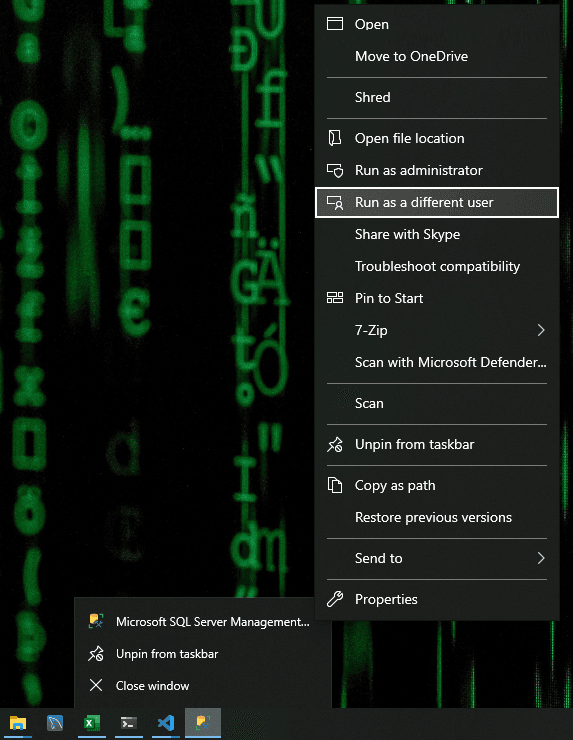
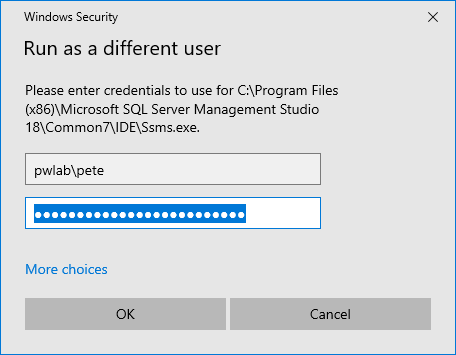
When SSMS opens, it will use the provided credentials to authenticate your connection. Although the connection dialog may show your local domain, the alternate account details are used for authentication.
For those who do this frequently, automating the process with a PowerShell script is a time-saver. A script can directly launch SSMS with the desired credentials, eliminating the need for manual input each time. Check out my latest post on this, Opening SSMS as a Different Domain User for more info.
When the Domains Do Not Trust Each Other: runas /netonly
Run as a Different User works when the machine can validate the account you type. Across an untrusted domain boundary, or from a non-domain laptop towards a domain instance, that validation fails and the prompt rejects perfectly good credentials. The tool for that situation is runas /netonly:
runas /netonly /user:OTHERDOMAIN\peter.admin "C:\Program Files\Microsoft SQL Server Management Studio 22\Release\Common7\IDE\SSMS.exe"
That path is where SSMS 22 installs on my machine, and older versions live under similar version-numbered folders. The key behaviour of /netonly is that the credentials are only used for network connections, so your local machine never checks the password. SSMS starts immediately either way, and a typo in the password only surfaces later, as a failed login when you actually connect. Do not read a successful SSMS launch as proof the credentials were right.
In both approaches the connection dialog keeps showing your local greyed-out account name. That is expected, as covered above, and the alternate account is what goes over the wire. Server-side auditing will see the account you supplied, not the one on your badge.
The Errors You Will Meet
Two errors dominate this scenario, and they point at different problems.
Error 18452, “Login failed. The login is from an untrusted domain and cannot be used with Integrated authentication”, means Windows authentication itself could not be negotiated. Despite the wording it is usually an SPN, trust or NTLM configuration issue rather than a wrong password. I keep a full write-up on sqldba.blog in Login Failed: The Login Is From an Untrusted Domain (Error 18452).
Error 18456, “Login failed for user”, means authentication reached SQL Server and was rejected. The trap is that the client always sees State 1, and the real state number, which names the actual cause, is only written to the SQL Server error log. The state-by-state breakdown is on sqldba.blog in Troubleshoot Login Failed for User (Error 18456).
Verify Who You Actually Connected As
Once connected, do not assume. Ask the server who it thinks you are and how you authenticated. Tested on SQL Server 2025:
-- Which login is this session using, and which auth scheme
SELECT SUSER_SNAME() AS login_name,
       c.auth_scheme
FROM sys.dm_exec_connections AS c
WHERE c.session_id = @@SPID;
SUSER_SNAME() returns the DOMAIN\user the session authenticated as, which is the fastest way to confirm the alternate credentials actually took. auth_scheme tells you whether the connection negotiated Kerberos or fell back to NTLM, and cross-domain connections often land on NTLM. On my test connection it reported NTLM, which is normal for a non-domain setup. If you are testing permissions as a DBA, run this first, before concluding anything from what a query can or cannot see.
One last practical note. Credentials entered for Run as a Different User can be cached by Windows, so a password change on the alternate account may not bite until the cached ticket expires. If a connection that worked yesterday starts throwing 18456 after a password rotation, clear the stored credentials in Credential Manager before blaming SQL Server.
Leave a Reply