
This is a note on how to silently install SQL Server Management Studio (SSMS) via command (PowerShell).
SSMS is a tool most people use when working with SQL Server. If you need to install SSMS on multiple computers, you may want to use the silent installation feature for automating the process.
This ‘silent‘ installation allows you to install SSMS without any user interaction, making it quick and easy to deploy on multiple computers. In this demo, we are using the /quiet Command-Line Option.
Installing SSMS Silently
To install SSMS silently, you will need a copy of the SSMS installation files which can be downloaded here.
Once you have a copy of the latest SSMS version:
1. Open your PowerShell terminal as Admin.
2. Navigate to the directory you have placed the SSMS install media.
3. Type in the SSMS.exe filename and add in the /q parameter, as shown below.
# Navigate to directory with ssms download
cd ssms
gci

# Install SSMS (silently)
.\SSMS-Setup-ENU.exe /q
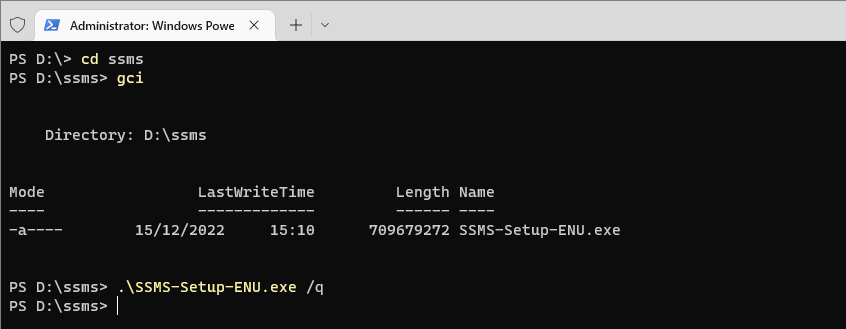
Using the /q parameter means that SSMS can install in the background and your command prompt will return to a command-ready state when the installation has been completed.
Hope this helps! Feel free to check out my other post, Download & Install SSMS which includes added tips!
The Installer Above Is Not the One You Download Today
This post was written against SSMS-Setup-ENU.exe, and that file is still the right one if you are deploying SSMS 20 or earlier. From SSMS 21 onward Microsoft moved SSMS onto the Visual Studio Installer platform, and the download became a bootstrapper called vs_SSMS.exe. The switches changed with it. They are now VS style double dash parameters, not /q:
.\vs_SSMS.exe --quiet --norestart --wait
This is the failure that brings most people to a page like this one. You download the current SSMS, run /q against it, and get the interactive installer opening on screen instead of a silent install. Nothing errors. It just does the opposite of what you asked for.
There is a scripted alternative worth knowing, though it runs through the same Visual Studio Installer underneath and still needs an elevated session:
winget install Microsoft.SQLServerManagementStudio.22
Your Script Does Not Wait, and That Is the Expensive Part
I said above that the prompt returns when the installation has completed. That is not what happens, and it is worth correcting properly rather than quietly. Both installers are GUI subsystem executables. Launching one from PowerShell hands you the prompt back immediately, while the install carries on in the background.
On an interactive machine you will never notice. In a deployment script it is the whole problem: the next line runs against a machine that does not have SSMS on it yet, so the configuration step fails, or the verification step reports the install failed when it was merely still going.
Two ways to actually wait, depending on which installer you are on:
# Works for either installer, and gives you the exit code
$p = Start-Process .\SSMS-Setup-ENU.exe -ArgumentList '/install','/quiet','/norestart' -Wait -PassThru
$p.ExitCode

# SSMS 21+ has its own wait switch
.\vs_SSMS.exe --quiet --norestart --wait
Microsoft’s own examples for the old installer wrap it in start "" /w for this exact reason, and the new bootstrapper documents --wait as being for automation. If you take one thing from this page, take this one.
The Exit Codes That Look Like Failure and Are Not
Once you are capturing an exit code, you need to know which ones are real. The usual if ($p.ExitCode -ne 0) { throw } will fail perfectly good installs:
- 0 success.
- 3010 success, but a reboot is required. This is the one that gets miscounted as a failure across a whole fleet.
- 1641 success, and a reboot has been initiated.
- 1618 another installation is already running. Classic when an endpoint agent is mid install on the same box. Retry rather than fail.
- 8006 SSMS processes are running. It will not upgrade underneath an open SSMS.
- 1001 a Visual Studio installer process is already running.
- 8010 the operating system is not supported.
- 740 elevation required. Worth knowing that
--quietis documented as unavailable to standard users programmatically, so in automation you get this code rather than a UAC prompt.
So the honest success test is 0, 3010 and 1641, with 1618 queued for a retry.
Suppress the Reboot, or the Fleet Will Choose Its Own Moment
A silent install is allowed to restart the machine on its own. --norestart delays any reboot it decides it needs, and it has to be paired with --quiet or --passive to mean anything. The old installer had /norestart for the same reason.
Leave it off and you are trusting an unattended installer to pick a good time to reboot somebody’s workstation. It will not pick a good time. Suppress it, read the exit code, and reboot on your own schedule.
What the Silent Install Leaves on the Machine
The old version is still there. SSMS major versions install side by side under their own install roots. Pushing 21 or 22 out silently does not remove 18, 19 or 20, so the fleet keeps running the version you believed you had replaced, along with anything unpatched in it. Removal is a separate job you have to schedule deliberately.
You have installed more than SSMS. SSMS 21 and later bring the Visual Studio Installer platform onto the machine and enrol SSMS in an update channel with its own servicing behaviour. If you were expecting to manage a single executable, you are now managing a channel.
There is no screen, so know where the logs are. A silent failure and a slow install look identical from outside. SSMS 21 and 22 write logs into %TEMP% with names starting ssms_bootstrapper, ssms_client and ssms_setup. On the old installer a log only exists if you asked for one:
# Old installer: ask for a log, you will want it
.\SSMS-Setup-ENU.exe /install /quiet /norestart /log C:\temp\ssms_install.log

# SSMS 21+: logs land here on their own
Get-ChildItem $env:TEMP -Filter 'ssms_*' | Sort-Object LastWriteTime -Descending | Select-Object -First 5
One historical note, if you are looking at an old build. Silent installs of the SSMS 19.x era also installed Azure Data Studio unless you passed DoNotInstallAzureDataStudio=1. A silent install of one product quietly delivered two. Azure Data Studio was retired in February 2026, so this only matters if you are still deploying that vintage.
Leave a Reply