
As a SQL Server DBA, it’s important that we have quick and efficient ways to check SQL Services. We need to ensure our SQL Services are always available, and we often need to restart or make changes to them in SQL Server Configuration Manager. This includes the SQL Server Engine, Agent, and any other service you are relying on.
There are many ways to check running SQL Services, including via PowerShell, SQL Server Configuration Manager, or by querying SQL DMVs. In this blog post, I’m showing how to check SQL Services on Windows, which includes the following:
1. SQL Query to Check Services Information
2. Checking Services in SQL Server Configuration Manager
3. Other Methods to Check SQL Server Services
1. SQL Query to Check Services Information
Using a SQL query to check services information is the go to choice for a Database Admin. We need to have good eyes on this information, and if any of my critical SQL Servers were to go down, we need an alert.
Run the following query to show a snapshot of SQL Server services, including the SQL Agent and key information:
-- SQL Server Services Info
SELECT servicename, process_id, startup_type_desc, status_desc,
last_startup_time, service_account, is_clustered, cluster_nodename, [filename],
instant_file_initialization_enabled -- New in SQL Server 2016 SP1
FROM sys.dm_server_services WITH (NOLOCK) OPTION (RECOMPILE);
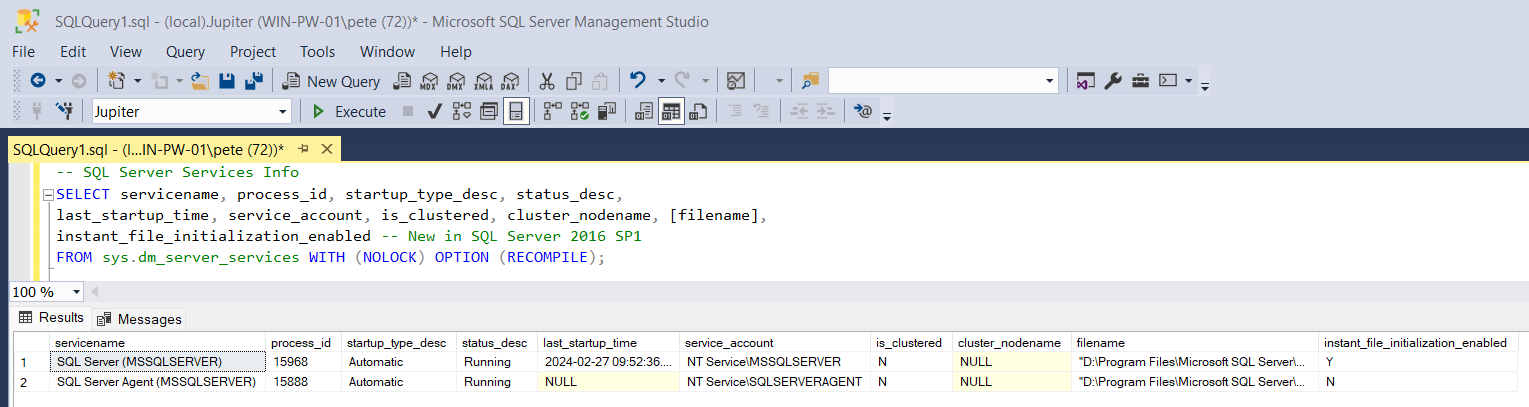
We’re querying the sys.dm_server_services DMV, which returns the following (and more):
servicename: The name of the SQL Server serviceprocess_id: The process ID for the servicestartup_type_desc: The startup type (e.g., Automatic, Manual)status_desc: Current service status (e.g., Running, Stopped)last_startup_time: Timestamp of the last service startupservice_account: The account the service is running underis_clustered: Whether the service is clusteredcluster_nodename: Name of the cluster node (if clustered)filename: Path of the service executableinstant_file_initialization_enabled: Whether instant file initialization is enabled (available from SQL Server 2016 SP1)
2. Checking Services in SQL Server Configuration Manager
SQL Server Configuration Manager is the best place and practice for managing and checking SQL Server services. It is the tool we should use for starting and stopping (and configuring) services, as apposed to doing via Services.msc.
If you’re working in a high-availability environment with Always On Availability Groups (AGs), you’ll often be managing services through Failover Cluster Manager to ensure proper failover and service health.
SQL Server Configuration Manager should be installed on your machine if it has SQL Server installed. If you can’t find it by searching for the app, it can be found in the following locations:
SSMS 18C:\Program Files (x86)\Microsoft SQL Server Management Studio 18\Common7\IDE\Extensions\ApplicationSSMS 19C:\Program Files (x86)\Microsoft SQL Server Management Studio 19\Common7\IDE\Extensions\ApplicationSSMS 20C:\Program Files (x86)\Microsoft SQL Server Management Studio 20\Common7\IDE\Extensions\Application
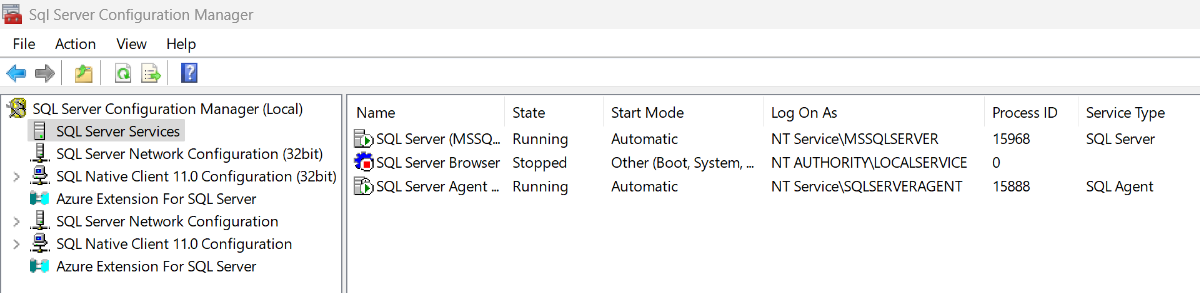
You can restart and manage your MSSQL services within here.
3. Other Methods to Check SQL Server Services
Aside from using the SQL query and SQL Server Configuration Manager, there are some other ways we can view and manage SQL Server services, including:
PowerShell
We can use Get-Service, Start-Service, Stop-Service and Restart-Service cmdlets.
Services.msc
As mentioned within this post we can view and restart SQL Server services within Windows Services, but it’s not the recommended way (it’ll be fine, don’t worry).
Hope all this was useful and what you were looking for. Feel free to checkout other links around for more random tips from a SQL Server DBA!
The DMV Does Not Show You Every SQL Service
This is the limitation worth knowing before you rely on that query as your check, and it is easy to demonstrate. On the instance I tested this on, sys.dm_server_services returned three rows:
SQL Server (MSSQLSERVER)            Running
SQL Server Agent (MSSQLSERVER)      Running
SQL Server Launchpad (MSSQLSERVER)  Running
Windows, on the same machine, had six:
Get-Service | Where-Object Name -match 'SQL'

MSSQLLaunchpad   Running   Automatic
MSSQLSERVER      Running   Automatic
SQLBrowser       Stopped   Disabled     <-- not in the DMV
SQLSERVERAGENT   Running   Automatic
SQLTELEMETRY     Running   Automatic    <-- not in the DMV
SQLWriter        Running   Automatic    <-- not in the DMV
The DMV is scoped to the instance, so anything that is not part of it is invisible to that query. Two of the three it missed are ones you would want to know about:
- SQL Browser. Resolves named instances and instances on dynamic ports. On the machine above it is Stopped and Disabled, which is fine for a default instance on 1433 and breaks named instance connections the moment somebody adds one. The symptom is a connection failure that looks like a network problem.
- SQL Writer. The VSS provider. When it is not running, snapshot and image based backups of the volume cannot quiesce SQL Server properly. Nobody notices until a restore.
It also will not show you other instances on the same box, or SSIS, SSAS and SSRS. If your check needs to cover those, it has to come from Windows rather than from inside the engine.
Checking Across Many Servers at Once
The query in section 1 answers for one instance you are already connected to. The question a DBA usually has is the fleet-wide one, and that has to come from PowerShell:
$servers = 'SQLPROD01','SQLPROD02','SQLTEST01'

Get-CimInstance -ClassName Win32_Service -ComputerName $servers -Filter "Name LIKE 'MSSQL%' OR Name LIKE 'SQLAgent%' OR Name = 'SQLSERVERAGENT'" |
    Select-Object PSComputerName, Name, State, StartMode, StartName |
    Sort-Object PSComputerName, Name |
    Format-Table -AutoSize
Win32_Service gives you StartName, the account each service runs as, which is the thing you actually want when you are auditing rather than firefighting. It also crosses instances on the same host, which the DMV cannot.
Running Is Not the Same as Available
Worth being clear about, because a green Running is reassuring and it is not an answer. The Windows service being up means the process started. It does not mean the engine is accepting your connections.
A database mid-recovery, an instance that has hit its connection limit, a login failing on permissions rather than availability: all of these sit behind a service that reports Running quite happily. If your monitoring checks the service state and stops there, it will tell you everything is fine during an outage.
The check that means something is a connection that runs a statement:
# service state is a precondition, not a health check
Invoke-Sqlcmd -ServerInstance 'SQLPROD01' -Query 'SELECT 1' -ConnectionTimeout 5
Two Details That Catch People
You need VIEW SERVER STATE to read the DMV. Confirmed on the test instance. Without it the query does not return a filtered result, it errors, so a monitoring account that works everywhere else can fail here specifically.
Stop and start from Configuration Manager, not services.msc. They look like the same thing and they are not. Configuration Manager applies the correct registry permissions and service account changes; the Windows Services applet does not do that work for you. This matters most when you are changing the service account rather than simply restarting.
One small reading note on the query above: instant_file_initialization_enabled only means anything for the database engine row. On the test instance it read Y for the engine and N for Agent and Launchpad, and those N values are not a finding. IFI is a property of how the engine creates data files, so there is nothing for the other services to enable.
Leave a Reply