
SQL Server Management Studio (SSMS) offers a quick filtering feature that lets you narrow down your search by criteria such as name, schema, or creation date, which will definitely save you some time.
When working with large databases with a lot of objects in SQL Server, finding specific objects like tables, views, or logins can be more of a challenge. It can take a while scrolling through a big list manually. While we do have the option of using the Object Explorer Details Pane in SSMS, this filtering guide is often a quicker way for finding a specific object.
Steps to Filter Objects in SSMS
While the example demonstrates filtering SQL logins, the process is the same for other SQL objects, such as tables, views, stored procedures (SPs), and more.
1. Open the SSMS Object Explorer and expand the container your object resides in..
2. Right-click Logins and select Filter Settings.
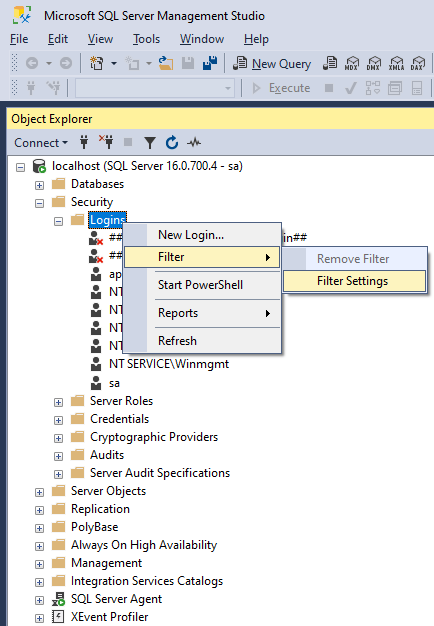
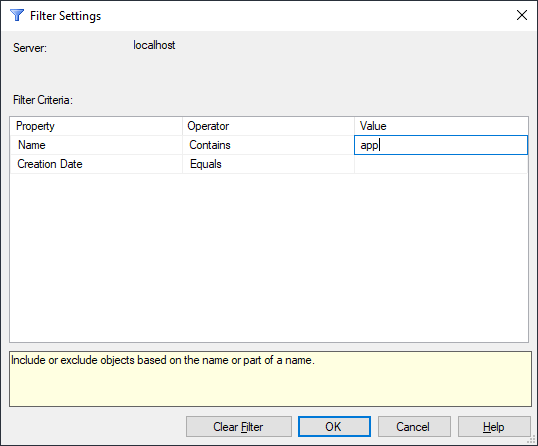
3. Apply the Filter in the prompted window. Click OK and the Object Explorer will show only the objects that match your criteria.
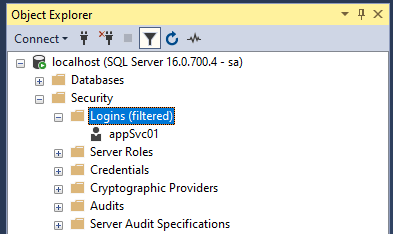
4. You should now see your filtered object(s) in the SSMS Object Explorer.
5. To remove the filter, right-click the object type again and select Remove Filter.
The Filter Sticks Until You Remove It
The trap with Object Explorer filters is not applying them, it is forgetting them. A filtered node keeps its filter until you remove it or reconnect, and the only visual clue is the word (filtered) appended to the node name. Miss that label and the symptoms look like a real problem: tables appear to be missing, a login you created seconds ago is nowhere to be seen, and a refresh changes nothing.
If objects ever seem to have vanished from Object Explorer, check the node label before anything else. It is a ten second check that has saved plenty of people from re-running a CREATE script against a database that already has the object. Step 5 above, right-click and Remove Filter, puts everything back.
What the Filter Can and Cannot Match
For name and schema the filter dialog offers Equals, Contains and Does not contain, and the creation date property gets its own date comparisons. That covers the common cases, but know the limits before relying on it:
One filter per node. You cannot OR two name patterns together, so finding tables matching either of two prefixes means filtering twice or going to T-SQL. The filter also only applies to the node you set it on. Filtering Tables does nothing to Views, and a filter set in one database does not follow you to the next one.
Filtering also does not search across databases, which is usually the actual job on a busy instance. For that, a query wins.
When the Filter Is Not Enough, Use T-SQL
Both of these are tested on SQL Server 2025 and cover the two cases from this post, database objects and logins:
-- Find objects by name pattern in the current database
SELECT SCHEMA_NAME(schema_id) AS schema_name, name, type_desc
FROM sys.objects
WHERE name LIKE '%invoice%'
ORDER BY name;

-- Find logins across the whole instance
SELECT name, type_desc
FROM sys.server_principals
WHERE name LIKE '%svc%'
ORDER BY name;
The type_desc column is the bonus over the GUI filter, telling you at a glance whether a match is a user table, a view or a system object. Swap the LIKE pattern for whatever fragment you remember, and add type = 'U' to sys.objects if you only want user tables back.
If a lookup like this is something you run all day, SSMS can bind it to a keyboard shortcut so it runs against whatever you have highlighted, and I wrote that setup on sqldba.blog in SSMS Query Shortcuts. The rest of my day-to-day SSMS setup, filters included, is collected in the SSMS Complete Guide over there too, which is where my current writing on the tool lives.
One More Option: Object Explorer Details
The Object Explorer Details pane linked at the top of this post deserves a second mention here, because it is the middle ground between filtering and writing a query. Press F7 with a node selected and you get a list view with a search box, and the search covers everything beneath the selected node rather than a single object type. That makes it the better tool when you do not know whether the thing you are hunting is a table, a view or a procedure.
The trade-off is speed on large trees, since searching from a high-level node walks everything under it. My working split after years of SSMS: filter when I know the object type and part of the name, Details pane when I only half remember what I am looking for, and T-SQL when the answer needs to cover more than one database. All three get you there, the difference is how many clicks and how much waiting.
Leave a Reply