
Set the action to powershell.exe and pass -NoProfile -ExecutionPolicy Bypass -File "C:\path\script.ps1" as arguments. Most scheduled-script failures are this line being wrong.
Automating PowerShell scripts is a much needed task for Windows Administrators. The Task Scheduler provides a reliable way to execute scripts on a predefined schedule, eliminating the need for manual intervention. This guide covers both the command and GUI methods for how to run PowerShell scripts from Task Scheduler.
Whether you are automating system maintenance, log collection, or other administrative tasks, using Windows Task Scheduler will serve you well. As a SQL Server DBA, I would usually have my PowerShell & SQL scripts running on a schedule using the SQL Agent. However, as I’ve mentioned in my other post, we need to use other methods like the Task Scheduler for achieving automation when on the SQL Server Express Edition.
Topics Covered:
> Create a Scheduled Task using PowerShell
> Create a Scheduled Task for a PowerShell Script (GUI Option)
> More Tips for Automating PowerShell Scripts
Create Scheduled Task using PowerShell
1. Create Your PowerShell Script
Write the PowerShell script you want to schedule. For this example, the script logs the system’s average CPU usage with a timestamp into a text file. Save your script, e.g., avg_cpu_collector.ps1, in C:\temp\PowerShell_Scripts.
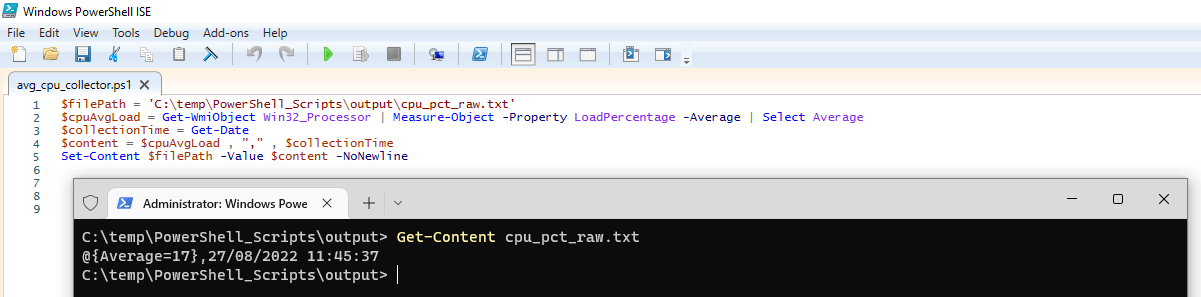
2. Create the Scheduled Task
Use the following PowerShell code to create a scheduled task that runs your script daily at 8:05 AM:
$actions = (New-ScheduledTaskAction -Execute 'C:\temp\PowerShell_Scripts\avg_cpu_collector.ps1')
$principal = New-ScheduledTaskPrincipal -UserId 'Administrator' -RunLevel Highest
$trigger = New-ScheduledTaskTrigger -Daily -At '8:05 AM'
$settings = New-ScheduledTaskSettingsSet -WakeToRun
$task = New-ScheduledTask -Action $actions -Principal $principal -Trigger $trigger -Settings $settings
$taskPath = '\Admin\'
# create new scheduled task as per parameters above
Register-ScheduledTask 'DailyPSCollector' -InputObject $task -TaskPath $taskPath
3. Verify the Task
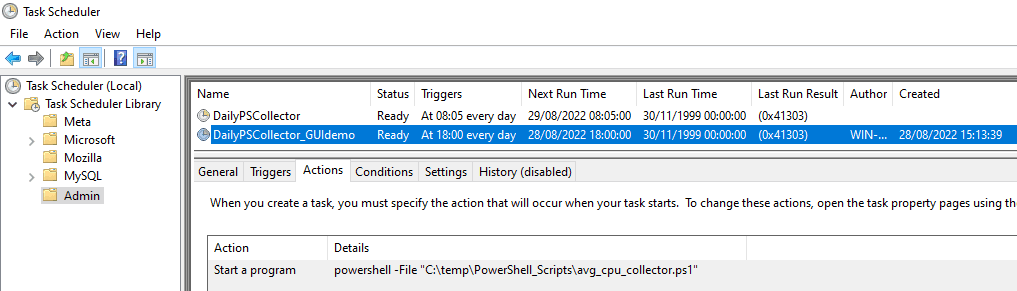
Open Task Scheduler to confirm the task was created under the specified path (\Admin\).
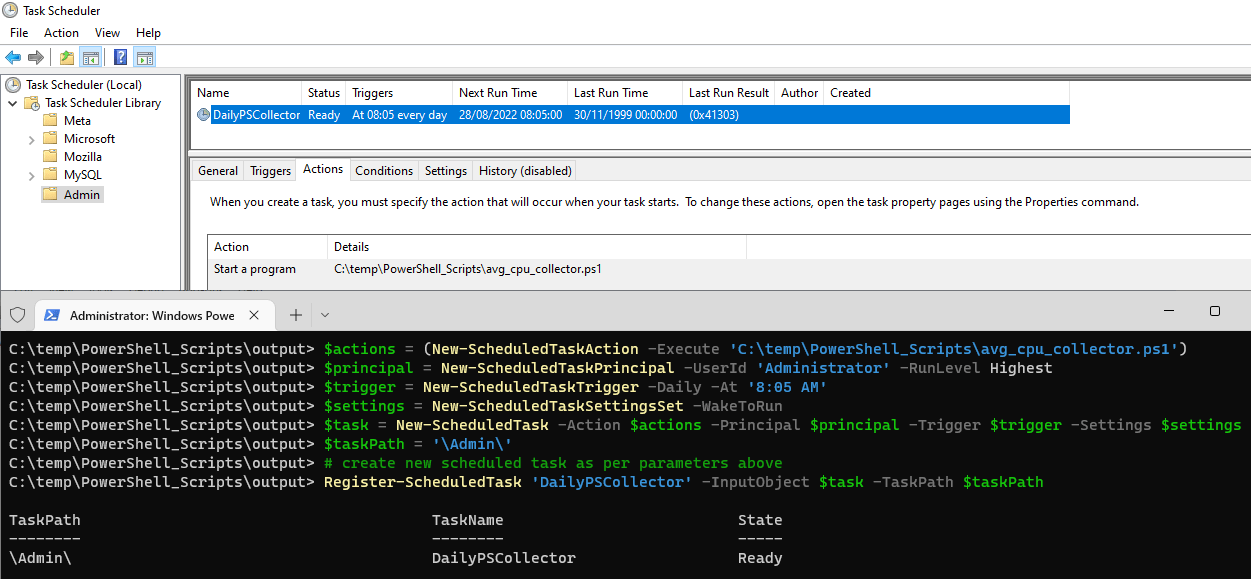
Create a Scheduled Task for a PowerShell Script (GUI)
1. Open Task Scheduler
Open the Task Scheduler application from the Start Menu.
2. Create a New Task
> Right-click in the empty area and select Create Task.
> In the General tab, enter a name (e.g., DailyPSCollector).
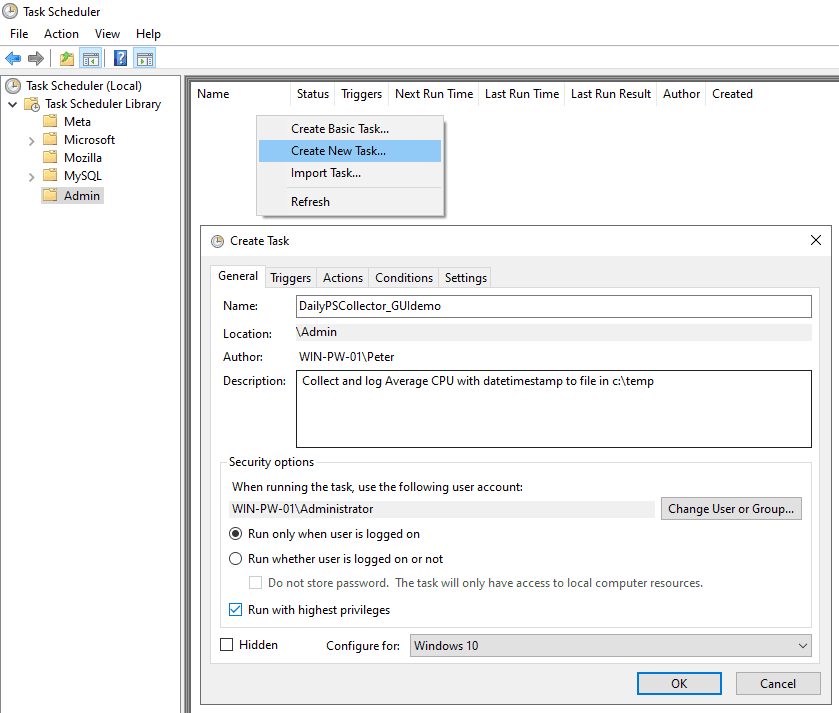
3. Set the Trigger
> Choose Daily and set the time to 8:05 AM (or your preferred schedule).
> Go to the Triggers tab and click New.
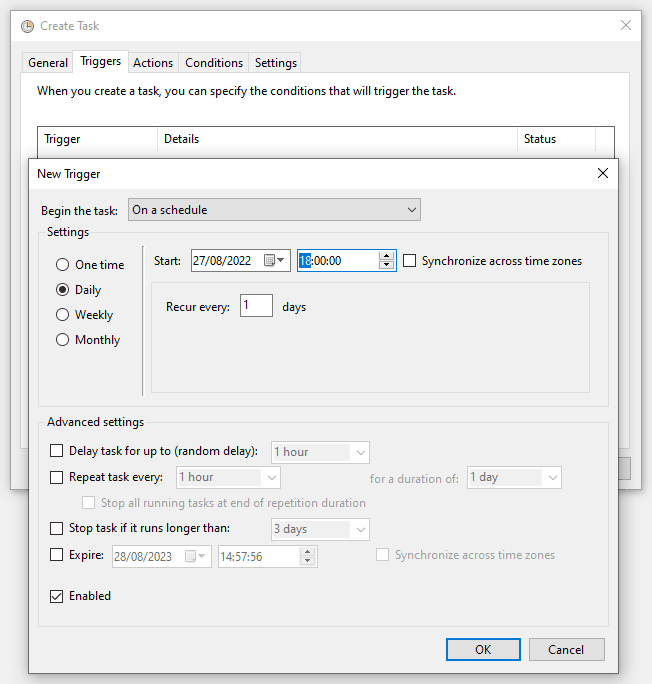
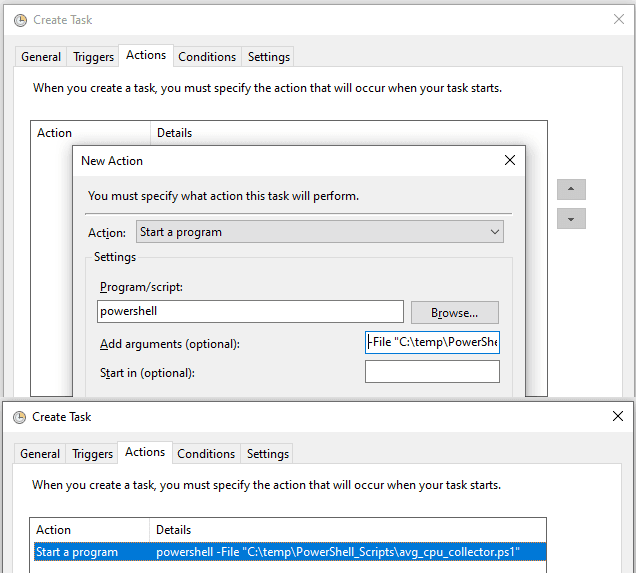
4. Define the Action
> Action: Start a program
> Program/script: powershell
> Arguments: -File “C:\temp\PowerShell_Scripts\avg_cpu_collector.ps1”
5. Review the Settings
> Click OK to save.
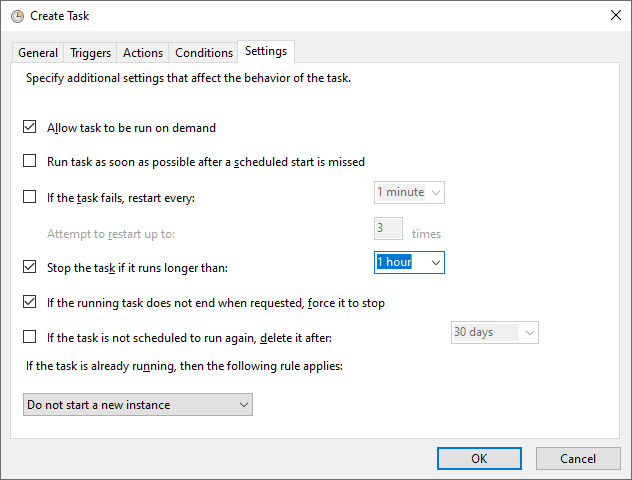
> Check the Settings tab for additional options like allowing the task to run on demand.
6. Verify Your Task
You’ll now see the task listed in the Task Scheduler main window.
More Tips for Automating PowerShell Scripts
> Use Proper Permissions: Run your scheduled tasks with a user account that has the necessary permissions.
> Test Your Script First: Before scheduling, run your PowerShell script manually to ensure it works as expected.
> Consider Logging: Add logging to your script to track its execution and troubleshoot any issues.
> Backup Your Tasks: Use PowerShell to export your scheduled tasks for backup or migration.
The Argument String That Works
Nearly every “it runs manually but not in Task Scheduler” problem comes down to how the action is configured. Use exactly this shape:
Program/script:   powershell.exe
Arguments:        -NoProfile -ExecutionPolicy Bypass -File "D:\Scripts\job.ps1"
Start in:         D:\Scripts
Each part earns its place:
-NoProfile              # do not load your profile: faster, and the service account has none anyway
-ExecutionPolicy Bypass # the script is trusted because you scheduled it
-File "..."             # quote the path. A space in it breaks the task silently
Start in: D:\Scripts     # relative paths inside the script resolve from here
C:\Windows\System32, so any relative path in your script points somewhere unexpected. If your script writes a log next to itself, this is why the log never appears.Creating the Task From PowerShell
Clicking through the wizard is fine once. Scripting it is repeatable, and is how you deploy the same job to several servers:
$action  = New-ScheduledTaskAction -Execute 'powershell.exe' `
             -Argument '-NoProfile -ExecutionPolicy Bypass -File "D:\Scripts\job.ps1"' `
             -WorkingDirectory 'D:\Scripts'
$trigger = New-ScheduledTaskTrigger -Daily -At 2am
$set     = New-ScheduledTaskSettingsSet -StartWhenAvailable `
             -DontStopIfGoingOnBatteries -ExecutionTimeLimit (New-TimeSpan -Hours 2)

Register-ScheduledTask -TaskName 'Nightly Log Tidy' -Action $action `
    -Trigger $trigger -Settings $set -User 'DOMAIN\svc_account' -Password 'xxx' -RunLevel Highest
Working Out Why It Failed
Task Scheduler reports a result code, not an error message, so the first move is to make the script tell you itself:
# check the last result for a task
Get-ScheduledTaskInfo -TaskName 'Nightly Log Tidy' |
    Select-Object TaskName, LastRunTime, LastTaskResult, NextRunTime

# make the script log its own output, which Task Scheduler will not do for you
Start-Transcript -Path "D:\Scripts\logs\job-$(Get-Date -f yyyyMMdd).log" -Append
# ... your script ...
Stop-Transcript
A LastTaskResult of 0 is success. 0x1 is a general failure, usually the script erroring. 0x41303 simply means the task has never run.
If SQL Server is part of your day job, my current work lives over at sqldba.blog: production DBA scripts, an error library and the SSMS guide.
Leave a Reply