
Remove-Item, and always run it with -WhatIf first. Deleted files do not go to the Recycle Bin.
This post covers how to delete files and folders with PowerShell, from the one-liner through to the traps that make a delete quietly do nothing. Every command below was run before it was written up.
This post covers the following:
> PowerShell: Delete a File
> PowerShell: Delete a Folder
> PowerShell: Delete Files in Subfolders Recursively
> PowerShell: Delete Files Older Than X Days
> Deleting Safely, and Three Traps
PowerShell: Delete a File
Remove-Item is the cmdlet that deletes files and folders. Its alias is rm, and del and erase work too, so most examples you find online are the same cmdlet wearing a different name.
# delete a file in the current directory
Remove-Item .\testFile.txt

# delete a file by full path
Remove-Item -Path C:\temp\demoFolder\testFile.txt

# delete every .tmp file in a directory
Remove-Item -Path "C:\temp\*.tmp"

# a path containing spaces must be quoted
Remove-Item -Path "C:\temp\my demo folder\testFile.txt"
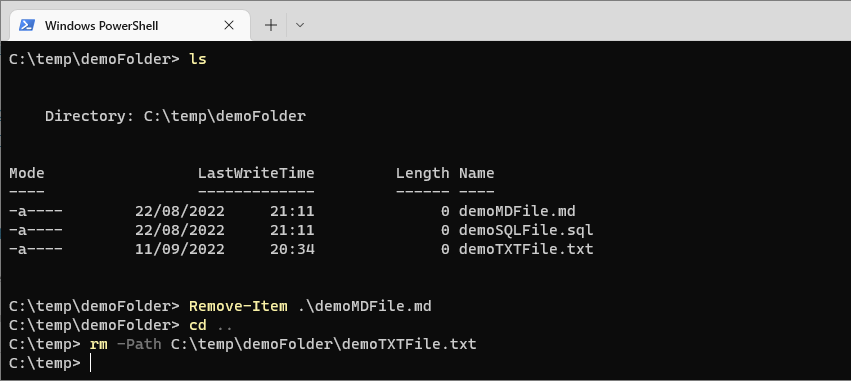
A common example doing the rounds is
Remove-Item -Name file.txt. It does not work. Remove-Item accepts -Path and -LiteralPath, and running it with -Name fails with "A parameter cannot be found that matches parameter name 'Name'". Use -Path, or just pass the path positionally as the first example does.PowerShell: Delete a Folder
Same cmdlet. The difference with a folder is what is inside it: if the folder is not empty, Remove-Item prompts for confirmation unless you add -Recurse.
# delete an empty folder in the current directory
Remove-Item .\demoFolder

# delete a folder and everything in it, no prompt
Remove-Item -Path "C:\temp\demoFolder" -Recurse -Force

# only if it exists, which keeps a script from erroring
$path = "C:\temp\demoFolder"
if (Test-Path -LiteralPath $path) {
    Remove-Item -LiteralPath $path -Recurse -Force
}
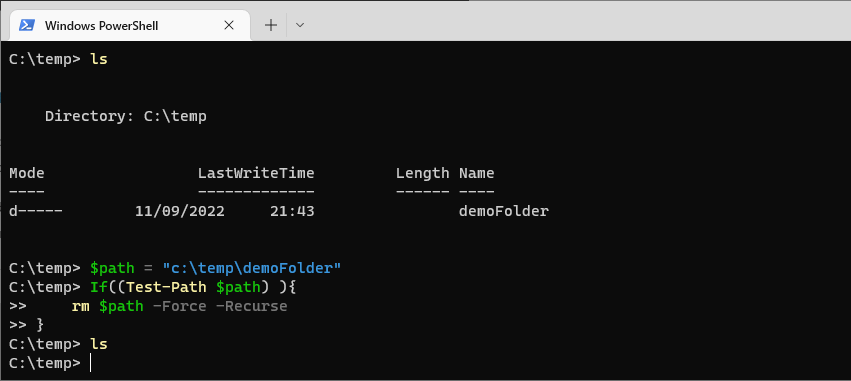
-Force is doing two jobs here. It suppresses the confirmation prompt, and it lets the cmdlet delete files that are read-only, hidden or system. Without it, a single read-only file inside the folder stops the whole operation with “You do not have sufficient access rights to perform this operation or the item is hidden, system, or read only.”
PowerShell: Delete Files in Subfolders Recursively
To delete files of one type across a folder tree, pipe Get-ChildItem into Remove-Item. This deletes the matching files and leaves the folder structure alone.
# delete every .txt file in a folder and all its subfolders
$path = "C:\temp\demoFolder"
Get-ChildItem -Path $path -Filter *.txt -File -Recurse | Remove-Item -Force
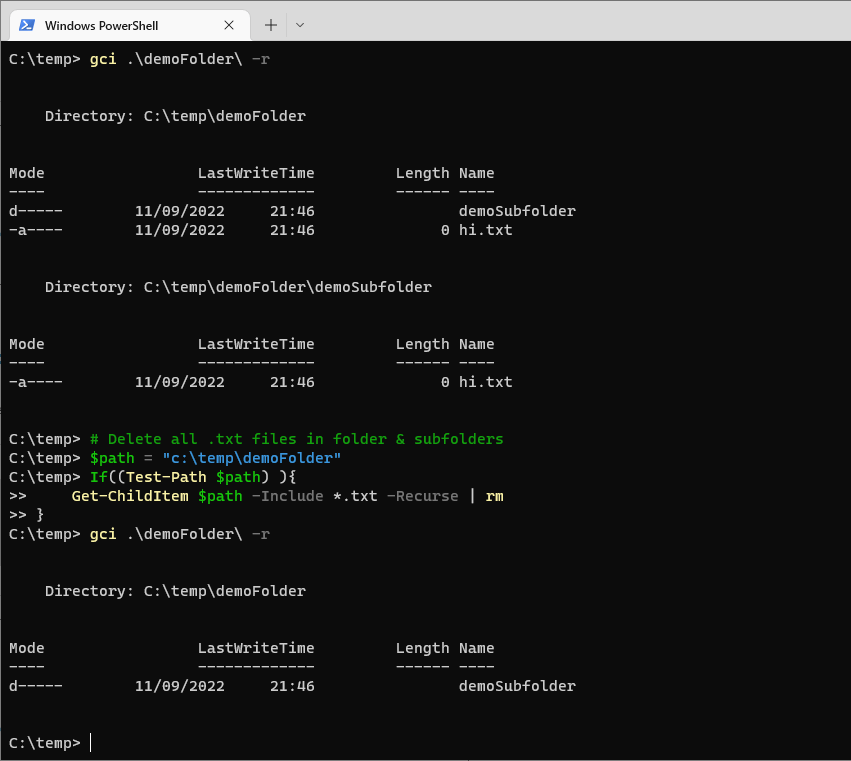
Plenty of examples use
Get-ChildItem $path -Include *.txt. On its own that returns zero items, silently. -Include only applies when the path ends in a wildcard or when -Recurse is present. Tested on the same folder: -Include alone returned 0 items, with -Recurse it returned 3, and with a wildcard path it returned 2. Use -Filter instead where you can, it is both faster and less surprising.PowerShell: Delete Files Older Than X Days
This is the one most people are actually looking for, usually for log or backup cleanup. Filter on LastWriteTime before piping into Remove-Item.
# delete .log files last written more than 30 days ago
$path = "C:\temp\logs"
$cutoff = (Get-Date).AddDays(-30)

Get-ChildItem -Path $path -Filter *.log -File -Recurse |
    Where-Object { $_.LastWriteTime -lt $cutoff } |
    Remove-Item -Force

# check what it would remove first
Get-ChildItem -Path $path -Filter *.log -File -Recurse |
    Where-Object { $_.LastWriteTime -lt $cutoff } |
    Select-Object FullName, LastWriteTime
Note -File. Without it Get-ChildItem returns directories as well, and a directory whose LastWriteTime is old enough would be passed to Remove-Item along with everything inside it. That is the difference between clearing old logs and clearing the log folder.
Swap LastWriteTime for CreationTime if you care about when the file appeared rather than when it was last changed. For a retention job the two can differ by a lot on files that get appended to.
Deleting Safely, and Three Traps
Use -WhatIf before anything destructive
-WhatIf prints exactly what the command would delete and changes nothing. On a folder of four files it lists all four and leaves them in place. It costs one word and it is the difference between a cleanup and an incident.
Remove-Item -Path "C:\temp\demoFolder" -Recurse -WhatIf
What if: Performing the operation "Remove File" on target "C:\temp\demoFolder\file1.txt".
What if: Performing the operation "Remove File" on target "C:\temp\demoFolder\file2.txt".
What if: Performing the operation "Remove File" on target "C:\temp\demoFolder\file3.txt".
-Confirm is the interactive version, prompting per item. Useful when you want to keep a few of the matches.
Trap 1: Remove-Item does not use the Recycle Bin
-WhatIf is worth the extra run, particularly with -Recurse, and doubly so on a path built from a variable.There is no undo. Remove-Item deletes permanently, which surprises people who expect the behaviour of deleting in File Explorer. If you want the Recycle Bin, PowerShell will not give it to you directly, and the usual answer is the Microsoft.VisualBasic file operations or a module such as Recycle. For a scheduled cleanup, permanent is normally what you want, but know which one you are getting.
Trap 2: Square brackets in a filename make the delete silently do nothing
This is the one worth remembering. -Path accepts wildcards, and square brackets are wildcard syntax, a character class. So a file genuinely named report[2024].txt does not match the pattern report[2024].txt, because the pattern means “report, then one of the characters 2, 0, 4, then .txt”.
Tested on a real file of that name: Remove-Item -Path left the file in place and raised no error at all. The command reports success and the file is still there. -LiteralPath takes the path exactly as written and removes it.
# silently does nothing, no error
Remove-Item -Path "C:\temp\report[2024].txt"

# actually deletes it
Remove-Item -LiteralPath "C:\temp\report[2024].txt"
The same applies to Test-Path, Get-Item and Set-Content. If a script deals with filenames you did not generate yourself, use -LiteralPath as the default and reach for -Path only when you actually want wildcard matching.
Trap 3: -Recurse and -Force together, on a variable path
Remove-Item -Path $path -Recurse -Force is the standard cleanup line, and it will do exactly what it is told. If $path is empty or unset, the path resolves to the current directory. Guard it with Test-Path, as in the folder example above, and run it once with -WhatIf before it goes anywhere near a schedule.
A note on aliases
The full parameter list is in Microsoft’s Remove-Item documentation, which is worth a look for -Exclude and -Stream if you need them.
None of the scripts above use gci, which is an alias of Get-ChildItem, or rm for Remove-Item. Aliases are fine when you are typing at a prompt. In a script that someone else will read, or that you will read in a year, the full cmdlet name is worth the extra characters. Aliases can also be redefined, which is a debugging session nobody enjoys.
If SQL Server is part of your day job, my current work lives over at sqldba.blog: production DBA scripts, an error library and the SSMS guide.
Leave a Reply