
Linked Servers in SQL Server allow you to query external databases, such as remote SQL Server instances, Oracle, ODBC or MS Access databases. It provides easy query access to another database server for users, however it’s not the most efficient ways to do it.
The following steps should help walk you through creating a Linked Server to another SQL Server:
> 1, Test Connectivity to the Remote Server
> 2. Create a SQL Login for Linked Server
> 3. Create a Linked Server to SQL Server
1. Test Connectivity to the Remote Server
An important step before we begin the SQL Server configuration, we need to confirm we have line-of-sight to the remote server. On this local setup, I have nothing to worry about, it’s localhost\sql-instance01 connecting to localhost\sql-instance02.
The network information we’ll need for this includes:
– Remote Server Address (IP Address or FQDN)
– Port Number (The SQL Server default port is 1433)
Once you have this info, amend the following Test-NetConnection cmdlet and run it:
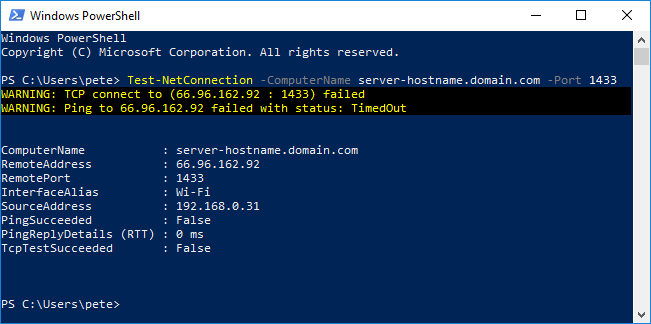
In this example, both the Ping and TCP tests are succeeding. You’ll find that it has a delay when failing, maybe it’s 30 seconds.
If it fails, you’ll have to review things like the Local Firewall Rules, Security Groups, and External Firewalls (contact the network folks).
If using Windows 8 / Windows Server 2012 or Older:
Use the script in this other blog post, or if you’d like to see some added info on this.
Here’s some other note-worthy default database server ports to have as a note:
– PostgreSQL (5432)
– MySQL (3306)
– Oracle (1521)
– Sybase (5000)
– DB2 (50000)
2. Create a SQL Login for the Linked Server
We’ve verified we have network connectivity to the remote server, now we need to create a SQL login for the Linked Server.
We need a new user on the server we’re linking to. I’m using my PETE-PC\SQL2019 SQL Instance as my main server, creating the new login on the PETE-PC Named Instance below: .
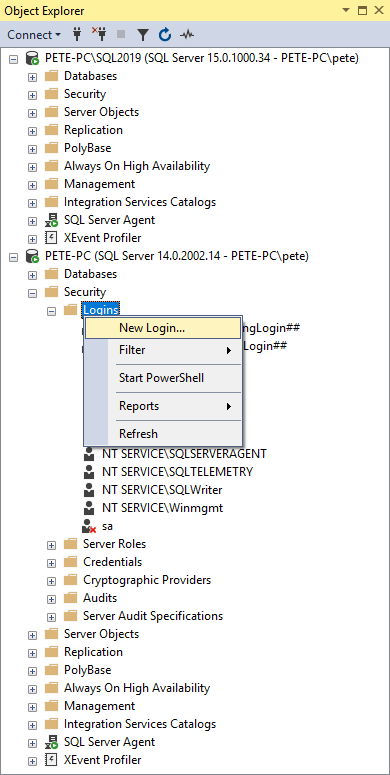
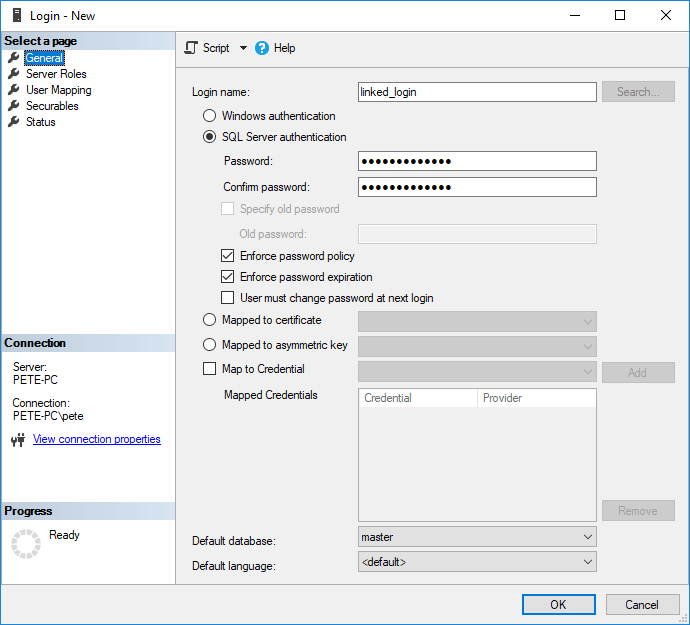
Select SQL Server authentication:
Set the required permissions.
For this example I only need read access, so I’ll select db_datareader on the database:
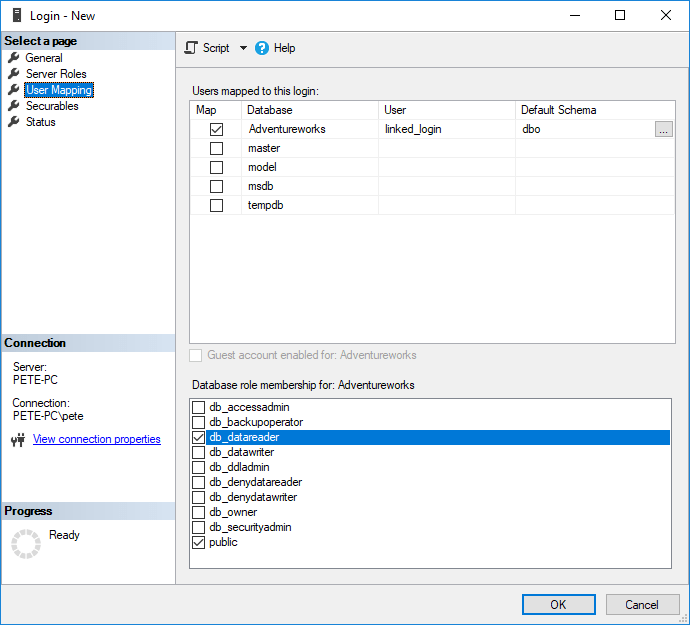
Once you have this set you can click OK and proceed to the next steps.
3. Create a Linked Server to SQL Server
To create a Linked Server to another SQL Server:
1. Open SQL Server Management Studio (SSMS) and connect to your server,
2. Expand Server Objects.
3. Right-click Linked Servers.
4. Select New Linked Server.
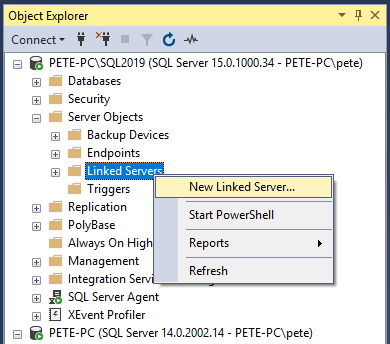
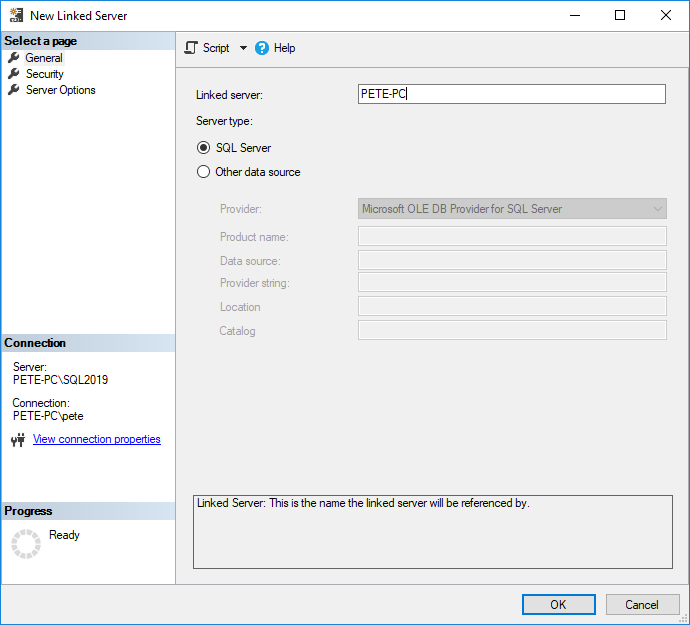
5. A New Linked Server window will prompt.
Select SQL Server as the server type and enter the the remote SQL Server Name.
Into the Security tab next, enter the remote login details (as created above).
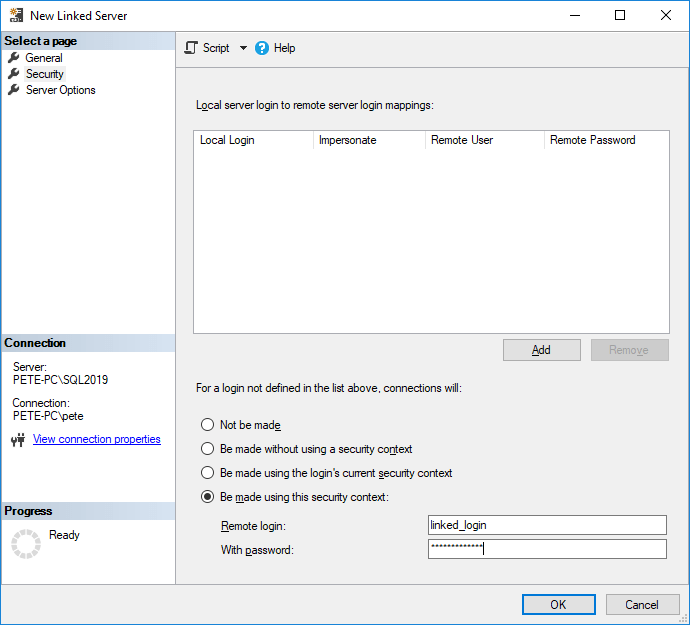
6. Click OK to confirm.
We can also script this configuration out to a T-SQL query window before running it.
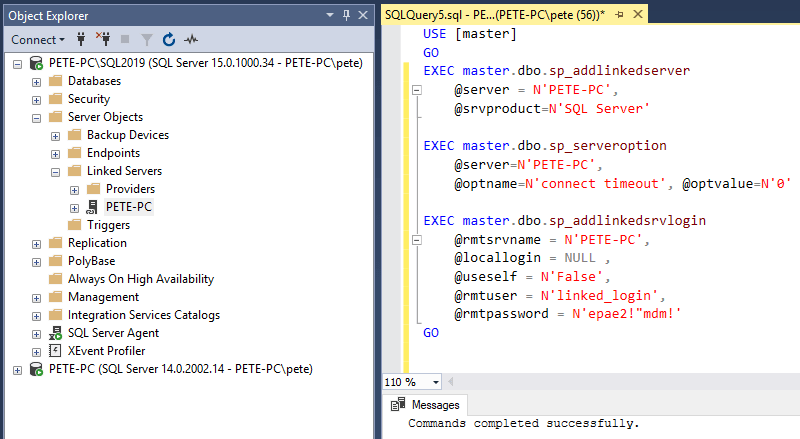
To create this Linked Server it’s using the following Stored Procs:
> sp_addlinkedserver
> sp_serveroption
> sp_addlinkedsrvlogin
7. Verify Linked Server.
We can verify the link by querying the new Linked Server Database:
-- query linked server database
SELECT *
FRMO [linked-server-name].[database-name].[schema-name].[table-namme];
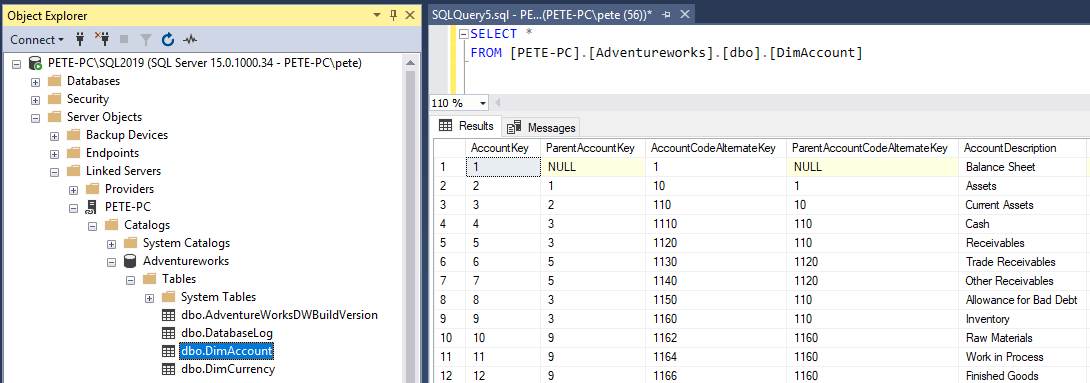
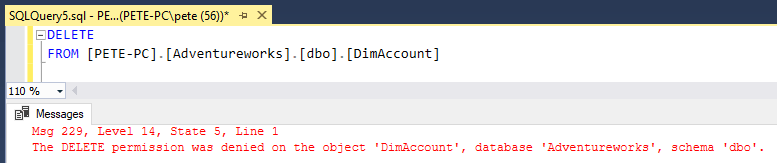
8. And finally, as a DBA we should be verifying permissions:
Related
Login Failed for NT AUTHORITY\ANONYMOUS LOGON
If you hit one problem with linked servers, it is this one, and the error text sends people looking in entirely the wrong place. The linked server was created without complaint. Querying it from your own SSMS session works. The same query fails for anyone connecting from their own machine.
That is the double hop. You authenticate to Server A, Server A tries to pass your Windows credentials on to Server B, and Windows will not forward a credential a second time unless it has been explicitly configured to. So the connection arrives at Server B as anonymous, and Server B rejects it.
It works from your own session because that is only one hop: you are on the box, or SSMS is talking to A directly. The moment a third machine is involved, it breaks.
There are two honest fixes. Configure Kerberos properly, which means correct SPNs on both instances and constrained delegation from A to B, and is a domain admin conversation rather than a SQL one. Or sidestep it entirely by giving the linked server a fixed identity:
-- every local user connects to the remote server as ONE named login
EXEC sp_addlinkedsrvlogin
     @rmtsrvname  = 'REMOTE_SERVER',
     @useself     = 'FALSE',
     @locallogin  = NULL,        -- NULL = applies to all local logins
     @rmtuser     = 'linked_server_user',
     @rmtpassword = '...';
The trade off is real and worth stating out loud: everyone arrives at the remote server as the same login, so the remote audit trail cannot tell them apart, and whatever permissions that login holds are held by everyone who can reach the linked server. Give it the least it needs. A read only account on the specific database is usually correct, and it is not what people reach for when they are trying to make the error go away.
RPC Out Is Off by Default, So EXEC … AT Will Fail
Verified on SQL Server 2025 by creating a linked server with the defaults and reading back what was set:
SELECT is_rpc_out_enabled, is_data_access_enabled,
       is_collation_compatible, uses_remote_collation
FROM   sys.servers WHERE name = 'REMOTE_SERVER';

-- freshly created, with no options specified:
-- rpc_out = 0   data_access = 1   collation_compatible = 0   remote_collation = 1
Data access is on, so ordinary four part queries work immediately. RPC out is off, so the moment you try to run a procedure on the far end it fails, and the error does not obviously say “you need to turn on a setting”:
-- needs RPC Out
EXEC ('SELECT COUNT(*) FROM dbo.Orders') AT REMOTE_SERVER;

EXEC sp_serveroption 'REMOTE_SERVER', 'rpc out', 'true';
Why Linked Server Queries Get Slow, and What To Do
The intro to this post says linked servers are not the most efficient way to do this. This is the mechanism behind that, and it is the difference between a query that returns in a second and one that runs for ten minutes.
With four part naming, SQL Server decides where the work happens, and it often decides badly. It has no reliable statistics for the remote object, so a join between a local table and a remote one can pull the entire remote table across the network and filter it locally. The plan looks innocent. The network traffic does not.
-- may drag the whole remote table over the wire, then filter here
SELECT * FROM REMOTE_SERVER.SalesDB.dbo.Orders WHERE OrderDate >= '2026-01-01';

-- OPENQUERY runs the text ON the remote server, and only results come back
SELECT * FROM OPENQUERY(REMOTE_SERVER,
    'SELECT * FROM SalesDB.dbo.Orders WHERE OrderDate >= ''2026-01-01''');
OPENQUERY is the tool when the remote table is large and the filter is selective, because the filtering happens at the far end. The cost is that the string is fixed, so parameterising it means building dynamic SQL, with all the care that implies.
The collation_compatible setting above is part of the same story. It defaults to 0, which tells SQL Server it cannot assume the two servers collate strings the same way, so string comparisons are less likely to be pushed to the remote side. Setting it to true when the collations genuinely match can help considerably, and setting it when they do not will give you wrong results. Check before you touch it.
Two More Worth Knowing
Writing through a linked server pulls in MSDTC. An INSERT, UPDATE or DELETE against a linked server inside an explicit transaction escalates to a distributed transaction, which needs the Distributed Transaction Coordinator running and correctly configured on both machines, plus the firewall rules to match. If your write works standalone and fails inside BEGIN TRAN, that is what you are looking at.
Test the definition, not just the network. Step 1 of this post proves you have line of sight. This proves the linked server itself can authenticate and fetch:
EXEC sp_testlinkedserver 'REMOTE_SERVER';
It either succeeds quietly or raises the actual underlying error, which is a good deal more useful than a failing query buried in an application log.
Leave a Reply