
/mnt/c as shown below. Two extras worth knowing now: run explorer.exe . inside WSL to open the current Linux folder in File Explorer, and wslpath converts between the two path styles.Accessing local Windows files from a WSL distribution allows integration between workflows, our local Windows environment and (WSL) Linux environments.
This is done by navigating to the /mnt/c/ directory within your WSL Linux terminal.
Alternatively, you can enter WSL directly from any Windows directory using a terminal. Both approaches provide straightforward ways to integrate your workflows across both platforms.
Additionally, for more advanced workflows, you can create a symbolic link between Windows and WSL directories. Check out my other post, Create a Link Between Local Windows Files and WSL, for a detailed guide.
Navigate in Terminal to /mnt/c/
In a WSL environment, Windows drives are mounted under the /mnt/ directory. For example, the C: drive is accessible at /mnt/c/.
Here’s how you can navigate and interact with local Windows files:
# navigate to home (wsl) linux folder
cd ~

# navigate c:\temp folder on local windows computer
cd /mnt/c/temp
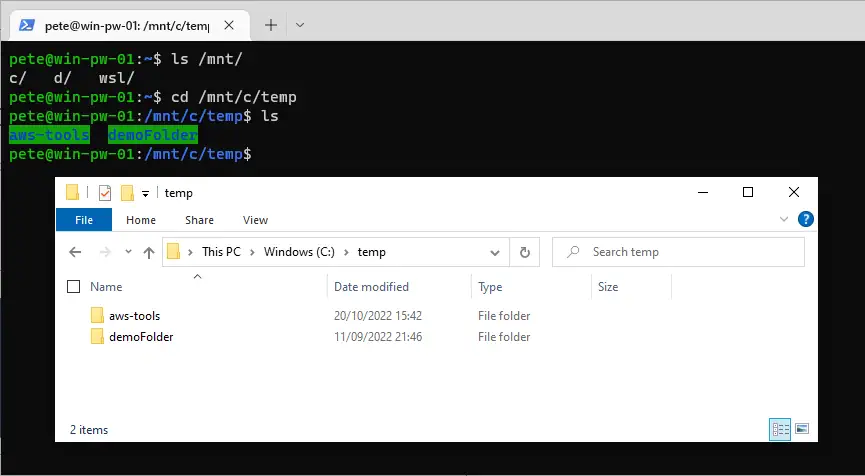
In the example above, we accessed the C:\temp folder from within the WSL environment. The /mnt/ directory reflects the local Windows drives, allowing you to browse and manipulate files seamlessly.
Open WSL from PowerShell with a Specific Directory
You can also launch WSL directly from a PowerShell terminal while being in any Windows directory.
This method sets the active path in WSL to match the directory you’re working in from Windows. Here’s an example:
# create folder and go to it
mkdir C:\temp\newfolder
cd C:\temp\newfolder

# enter wsl
wsl
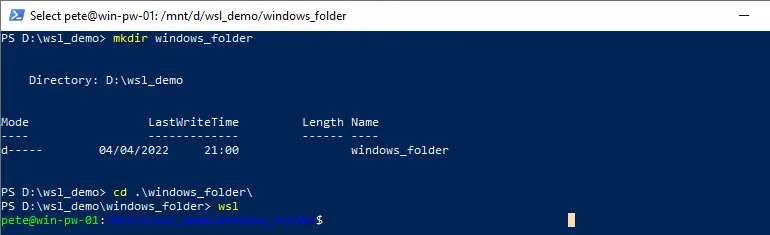
Once inside WSL, your default Linux distribution will start, and the working directory will be mounted at the corresponding path, in this case, /mnt/c/temp/newfolder. This is an efficient way to ensure your Linux session begins in a specific Windows directory.
Working Under /mnt/c Is Slow, and It Is the Usual Reason WSL Feels Sluggish
Everything above works. The thing nobody mentions is what it costs, and it is the single most useful fact about WSL 2 file access.
Your Linux files live in a virtual disk with a real Linux filesystem on it. Windows files under /mnt/c do not. Every read and write there crosses between the two operating systems through a translation layer, and that crossing is dramatically slower than the native Linux filesystem. It is not a small overhead.
You notice it on anything that touches thousands of small files rather than one big one. A git status on a large repository, an npm install, a build, a grep across a source tree. Same work, same machine, and it can be the difference between seconds and minutes.
The rule that follows: keep files you work on inside the Linux filesystem, and use /mnt/c for moving things across. Clone into ~/projects, not into /mnt/c/Users/you/projects. If a project already lives on the Windows side and feels slow, moving it is usually the entire fix.
Going the Other Way: Windows Reading Linux Files
This post covers Linux reading Windows. The reverse comes up just as often, and there is exactly one supported route. How to Open WSL Projects in Windows File Explorer works through it in full, including what to do when explorer.exe . does nothing:
# in Explorer or PowerShell, browse a running distro
\\wsl.localhost\Ubuntu\home\yourname

# older builds used, and still accept
\\wsl$\Ubuntu\home\yourname
Two conditions attach to it. The distro has to be running, or the path is not there. And going through the UNC path is the only safe way in.
Never go looking for the distro’s virtual disk file and open it directly. People find the ext4.vhdx, mount it or edit it from Windows tools, and corrupt the filesystem. WSL has to be the one mediating access, because it is the thing that understands what is in there.
There is also a switch for starting where you want, which saves a lot of cd:
# open the distro already sitting in a Windows folder
wsl --cd C:\Projects\myapp

# or in a Linux path, or the Linux home directory
wsl --cd /var/log
wsl --cd ~
Two Things That Look Like Bugs and Are Not
Everything under /mnt/c reports permission 777. Run ls -l there and every file appears world writable, which is alarming the first time and is not what is actually enforced. Windows security is what governs those files; the Linux permission bits are a default the mount presents because there is nothing meaningful to map them onto. If you need real Linux permissions on that mount, they have to be turned on with the metadata option in /etc/wsl.conf, and that is a per distro configuration change rather than a default.
Scripts edited in Windows fail with a strange error. Edit a shell script in a Windows editor, save it, run it in WSL, and you may get something like bad interpreter: /bin/bash^M: No such file or directory. The ^M is the giveaway: the file has Windows CRLF line endings and the shell is treating the carriage return as part of the interpreter path. Convert it, or set your editor to LF for that project:
dos2unix script.sh

# or, without installing anything
sed -i 's/\r$//' script.sh
The same cause explains a git repository that suddenly shows every file as modified when you switch between working on it from Windows and from WSL.
Related
- How to Open WSL Projects in Windows File Explorer
- Create a Link Between Local Windows Files and WSL
- How To Install Windows Subsystem for Linux (WSL)
- How to Restart Windows Subsystem for Linux (WSL)
- How to Uninstall a Linux Distro in WSL
If SQL Server is part of your day job, my current work lives over at sqldba.blog: production DBA scripts, an error library and the SSMS guide.