
If your Windows Subsystem for Linux (WSL) instance encounters errors or you’ve updated the .wslconfig file (e.g., to modify memory limits), restarting your WSL distributions may be necessary. This guide covers the 3 ways to restart WSL, lightest first:
> (One Distro) Run the wsl --terminate Command
> (Everything) Run the wsl --shutdown Command
> (Last Resort) Restart the WSL Service, or your Computer
If you have already run one of these and it looks like nothing happened, start at It Said It Stopped, Then Started Again by Itself.
This is a guide on how to restart a Windows Subsystem for Linux (WSL) distribution on your local machine.
This might be needed if your WSL instance or app within has thrown an error message, or you are changing the .wslconfig file/memory limits as described in MS Docs.
Restart One Distro with wsl --terminate
If only one distribution is misbehaving, you don’t need to take everything down. wsl --terminate stops a single distro and leaves the rest alone, which matters more than it used to: if you run Docker Desktop, it lives in WSL too, and a full shutdown takes your containers with it.
# check wsl distros & status
wsl -l -v

# stop just one distro (leave the others running)
wsl --terminate Ubuntu

# start it again
wsl -d Ubuntu
Run the wsl --shutdown Command
It’s a basic WSL command we need to run to shutdown a WSL distro, wsl --shutdown
In the example below I’m also checking the status before and after running this command.
# check wsl distros & status
wsl -l -v

# shutdown the running wsl host
wsl --shutdown

# check wsl distros & status
wsl -l -v

The shut-down command above immediately terminates all running distributions and the WSL 2 virtual machine behind them. When I list the WSL distros again for the second time, we see they are all ‘Stopped’.
If you’re restarting because you changed .wslconfig, wait about 8 seconds after the shutdown before starting WSL again, Microsoft’s docs call this out so the new settings actually load.
To start up your WSL distribution, enter WSL as you would normally.
This’ll be done by re-opening Linux tab in Windows Terminal, or by running ‘wsl‘ to enter a new WSL session.
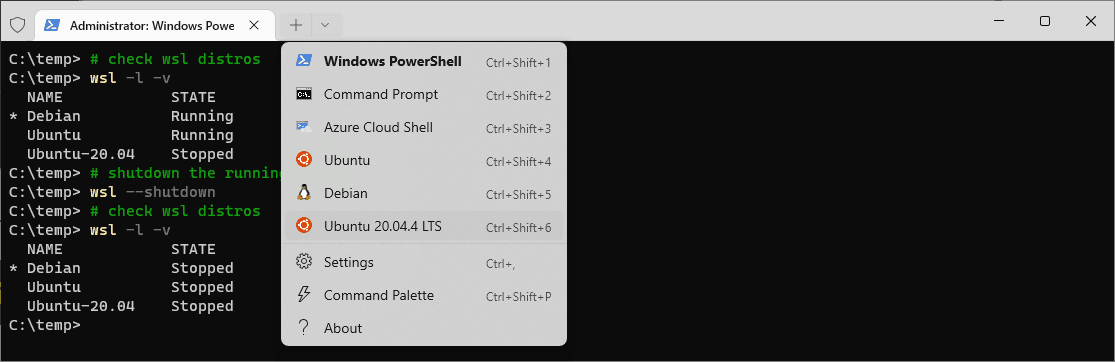
It Said It Stopped, Then Started Again by Itself
This is the most common “the restart did not work” report, and nothing has actually gone wrong.
A distro starts the moment anything touches it. VS Code with a WSL window open, a Windows terminal sitting in \\wsl$, Docker Desktop, a background service, an Explorer window pointed at a Linux path. You run the shutdown, something reconnects a second later, and wsl -l -v shows it Running again as though you never tried.
So check the state rather than assuming, and close the things holding it first:
# STATE should read Stopped
wsl -l -v
If it flips back to Running with no window open, the usual culprit is Docker Desktop, which restarts its own WSL distros automatically.
If You Changed .wslconfig, --terminate Will Not Do It
This one wastes real time, because the command appears to succeed and the setting simply does not take.
The 2 config files live at different levels, and that decides which restart you need:
.wslconfigin your Windows user folder configures the virtual machine that hosts every distro. Memory limits, processor count, swap, networking mode./etc/wsl.confinside a distro configures that distro. Mount options, the default user, whether systemd runs.
wsl --terminate restarts a distro. It does not restart the virtual machine. So if you have just capped memory in .wslconfig, terminating the distro changes nothing, and it looks as though the setting was ignored. The VM has to go down, which means a full shutdown:
# .wslconfig change: the whole VM must restart
wsl --shutdown

# /etc/wsl.conf change: this distro only is enough
wsl --terminate Ubuntu
If you are here because a memory or CPU cap did not take effect, the settings themselves are covered in How to Limit WSL 2 Memory and CPU Usage. The default user lives in /etc/wsl.conf and is covered in How to Change the Default User in WSL.
Neither Command Is Graceful
Worth being plain about, because the wording in the help text is stronger than most people expect. --shutdown is documented as immediately terminating all running distributions and the WSL 2 virtual machine. Not “asks them to stop”. Immediately.
In practice that means anything mid-write inside the distro is cut off: a database being written to, a build part way through, an editor holding an unsaved buffer on the Linux side. If you have work in flight, save it before you run either command rather than after you discover the difference.
There is also a --force option, and its own documentation says it terminates the VM even if an operation is in progress and can cause data loss. It exists for when the normal shutdown hangs. It is not a way to make the command faster, and it should not be your habit.
What a Full Shutdown Takes With It
Because --shutdown stops the shared virtual machine rather than one distro, everything else living in that VM goes too. That is the part people find out afterwards.
Docker Desktop is the big one. On a Windows machine with the WSL 2 backend, Docker runs as WSL distributions. Run wsl -l -v on a machine with Docker installed and you will see docker-desktop sitting there in the list like any other distro. A full shutdown stops your containers, and anything depending on them, with no separate warning from Docker.
Mounted disks detach. Physical or virtual disks attached with wsl --mount belong to the VM, so they are gone after a shutdown and need mounting again.
Which is the real argument for reaching for --terminate first. It fixes the majority of single-distro problems and leaves everything else alone. Use --shutdown when you actually need the VM restarted, and know what you are stopping when you do.
Restart the WSL Service, or Restart Your Computer
The service behind WSL changed name along the way: the current Store-distributed WSL runs under WSLService, while the old in-Windows version used LxssManager. Restarting the service is the heavier hammer, everything WSL stops.
Run the following command in PowerShell as Admin to restart the WSL service:
# restart the WSL service (current Store-based WSL)
Get-Service WSLService | Restart-Service

# on the old in-Windows WSL the service was named LxssManager instead
Get-Service LxssManager | Restart-Service
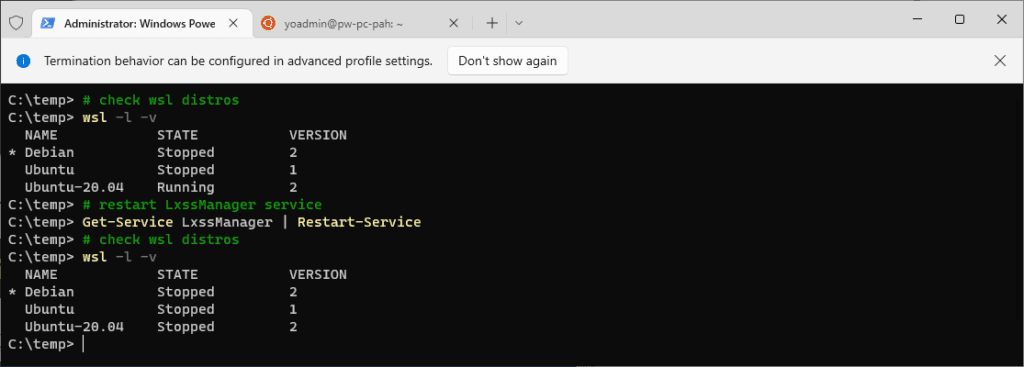
The screenshot above shows the older LxssManager variant doing its job, the service restart stopped the Ubuntu-20.04 distro. Same effect with WSLService today.
If you’ve gone this far, you should be rebooting your computer if you have continued issues with a WSL instance/distro.
Quick Reference
- One distro is misbehaving →
wsl --terminate <Distro> - You edited
/etc/wsl.conf→wsl --terminate <Distro> - You edited
.wslconfig→wsl --shutdown - Networking or the VM itself is wrong →
wsl --shutdown - Shutdown hangs and will not complete →
wsl --shutdown --force, accepting the risk - Still broken after all of it → restart the WSL service or the machine, as described above
Reviewed and updated for the Store version of WSL (2.x) in September 2026. Every command on this page was checked against WSL version 2.7.10 on Windows 11.
Hope this helps, if you do have issues feel free to add a comment below I’d be glad to help if I can. If SQL Server is part of your day job, my current work lives over at sqldba.blog.
Leave a Reply