
This article provides a step-by-step demo for creating a new User in Redshift and promoting it to a Superuser. I’ll include useful tips, best practices, and links to AWS Docs to help streamline the process.
In Amazon Redshift, a Superuser has the highest level of permissions, equivalent to the master user created during cluster setup. You’ll need to have this permission to be able to run the commands in this post.
Superuser access should only be granted in specific scenarios, such as local test environments or temporary infrastructures. In production environments, it’s best to follow the Principle of Least Privilege (PoLP) to ensure security and control.
1. Creating a New User in Redshift
Run the CREATE USER SQL command to create the user:
-- create new user redshift
CREATE USER sysadmin_guy PASSWORD 'wdoajdajde3123EAK';
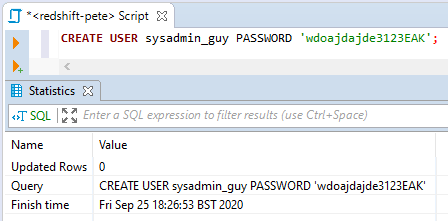
Note: Prefer underscores (_) over hyphens (-) in usernames. A hyphenated name is not a valid bare identifier, so it has to be double-quoted every single time it is referenced in SQL. An underscored name never does.
Once the user is created, you can check their attributes in the pg_user system table:
SELECT *
FROM PG_USER;
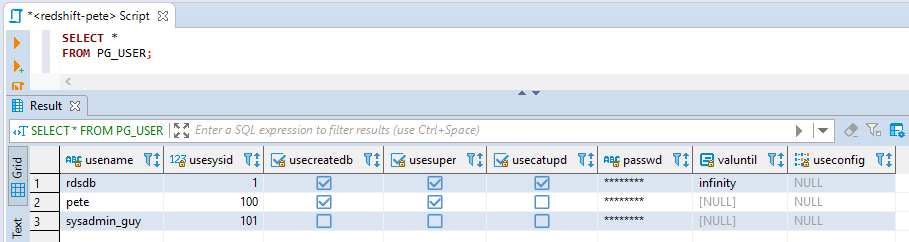
The usesuper column indicates whether the user has superuser privileges (a tick in the fourth column).
2. Promoting the User to Superuser
To grant superuser access, use the ALTER USER command:
-- promote user to superuser
ALTER USER sysadmin_guy CREATEUSER;
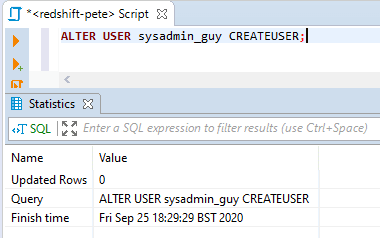
Now, if you check the pg_user table again, we can check that the usesuper column is set to true for the user.
This query will show all superusers on your cluster:
-- show all superusers in redshift
SELECT usename, usesuper
FROM PG_USER
WHERE usesuper = TRUE;

Remember that these permissions should be handled with caution. Granting superuser access should be limited and based on specific needs to maintain security and control over your Redshift environment. Always adhere to the principle of least privilege, especially in production systems.
Hope this helps. Feel free to checkout my other random AWS Redshift blog posts, from someone who isn’t a Redshift DBA!
If SQL Server is part of your day job, my current work lives over at sqldba.blog: production DBA scripts, an error library and the SSMS guide.
CREATEUSER Does Not Mean “Can Create Users”
This is the sentence I would want somebody to read before running the command above. AWS documents CREATEUSER as creating a superuser with all database privileges, including CREATE USER. The keyword names one of the privileges it grants, not the limit of what it grants.
If you have come from PostgreSQL this reads as something much smaller than it is. There, CREATEROLE is a narrow, delegated grant. In Redshift, CREATEUSER is the whole cluster. There is no partial version of it.
What you have actually handed over:
- Every row of the system tables. Superusers see all rows in system tables and views, where regular users see only their own. AWS’s own note on this is blunt:
STL_QUERYandSTL_QUERYTEXTcontain the full text of INSERT, UPDATE and DELETE statements, which might contain sensitive user generated data. Promotion is a data exposure event, not an admin convenience. - GRANT and REVOKE stop applying to them. A superuser retains all privileges regardless of what you grant or revoke afterwards. You cannot fence them back in without removing the superuser flag.
- Connection limits stop applying. If the account was created with a
CONNECTION LIMIT, that limit is not enforced for superusers. It is silently no longer in force. - You cannot disable a superuser’s password. That matters if you are moving toward IAM credentials only, because the lockdown path you were planning changes once the account is promoted.
Taking It Back Is Harder Than Giving It
Removing the flag is easy enough. Removing the user is where people get stuck, and it is worth knowing before you create service accounts casually.
-- demote, without dropping
ALTER USER sysadmin_guy NOCREATEUSER;
DROP USER fails while the user still owns objects or holds privileges. The part that turns this into an afternoon is that those objects can live in other databases on the same cluster, which are not visible from the database you happen to be connected to. So the error tells you the user cannot be dropped, you look around the current database, find nothing, and the message does not change. Cleanup means connecting to each database on the cluster in turn.
Why the CREATE USER Above Might Be Rejected
Two reasons, and the first one catches a lot of people because it collides with corporate password rules.
The password rules are specific. A clear text password must be 8 to 64 characters and contain at least one uppercase letter, one lowercase letter and one digit. It can use most printable ASCII, but not ', ", \, / or @. That last exclusion is the one that bites, because plenty of organisations mandate a special character and people reach for @ first.
Unquoted names are folded to lowercase. Create "SysAdmin_Guy" with double quotes and the capitals are preserved, but every later unquoted reference resolves to sysadmin_guy, which does not exist. You get a user not found error for an account you can plainly see in pg_user. Either quote it consistently everywhere or, far easier, keep names lowercase.
A correction to my own tip further up this page. I suggested avoiding underscores in favour of hyphens. That is the wrong way round and I would rather say so than leave it. Standard identifiers are letters, digits and underscores, so sysadmin_guy needs no quoting at all, while sysadmin-guy forces you to double quote it every single time it appears. Underscores are the safe choice.
You also need to be a superuser, or hold the CREATE USER privilege, to run either command. If you are hitting permission errors at the very first step, that is why.
The Password You Just Typed Goes Into the System Tables
STL_UTILITYTEXT captures the text of non SELECT commands run on the database, and AWS’s documented capture list explicitly includes CREATE, ALTER and DROP USER. The statement is stored in chunks of its literal text.
To be careful about what I am claiming here: AWS documents no redaction of the password literal, and I have not observed a live cluster to confirm what is visible in practice. What is documented is the mitigation, and the existence of that mitigation is itself the tell. AWS provides hashed password forms specifically as a more secure alternative to passing the password as clear text:
-- pass a hash rather than the password itself
-- (md5 and sha256 forms are both documented, with worked examples)
CREATE USER sysadmin_guy PASSWORD 'md5 followed by the computed hash';
If you are creating accounts on anything shared or audited, use the hash form. It costs you one extra step and removes the question entirely.
Leave a Reply