
Want to quickly check whether your Windows Firewall is enabled or disabled? This guide shows you how to use PowerShell to get the status of your local Windows Firewall for each profile.
PowerShell cmdlets follow a standard format: verb-noun. The verb describes the action, and the noun specifies what the cmdlet acts on. In this case, we’ll use the Get-NetFirewallProfile cmdlet to show if Windows Firewall is enabled or disabled.
Check the Firewall Status
Steps:
1. Open PowerShell with administrative privileges.
2. Run the following command to check the firewall status for all profiles:
# get local firewall status powershell
Get-NetFirewallProfile | Format-Table Name, Enabled
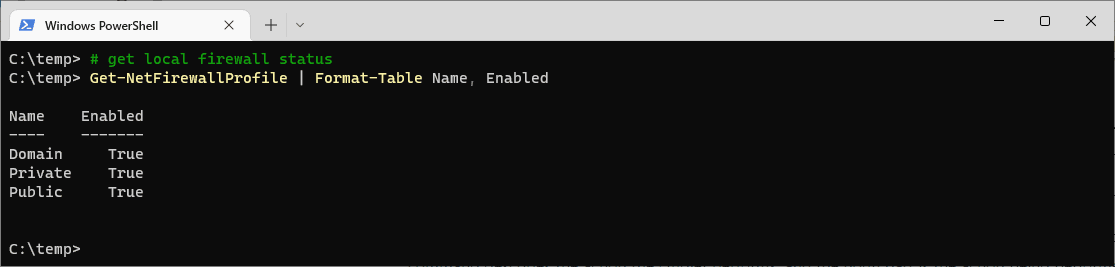
This command retrieves the firewall status and formats it into an easy-to-read table showing the profile name and whether it is enabled (True) or disabled (False).
The Windows Firewall on this demo computer is enabled, for all profiles. If you want more info on Windows Firewall Profiles, check out this Microsoft Docs link.
If SQL Server is part of your day job, my current work lives over at sqldba.blog: production DBA scripts, an error library and the SSMS guide.
You Do Not Need Admin to Read This
Step 1 above says to open PowerShell as administrator. For reading the firewall state that is not required, and it is worth knowing because it changes who can run your check.
Tested on Windows 11 in a non elevated session, Get-NetFirewallProfile returned all three profiles without complaint:
Name    Enabled
----    -------
Domain     True
Private    True
Public     True
Elevation is needed to change firewall state with Set-NetFirewallProfile, not to look at it. So a monitoring account or a scheduled inventory job does not need admin rights just to report on this, which is a meaningful difference when you are trying to keep privileges tight.
Enabled True Is Not the Whole Answer
Two reasons that table can tell you something other than what the machine is doing.
It reads the local store, not what is enforced. Plain Get-NetFirewallProfile reports the local persistent configuration. On a domain joined machine the effective state can come from Group Policy instead, and the two can disagree with no warning. The store that answers the real question is the ActiveStore, which aggregates every policy source actually applied:
# what is actually being enforced
Get-NetFirewallProfile -PolicyStore ActiveStore | Format-Table Name, Enabled -AutoSize
If those two disagree, something above you is managing it, and Windows Security will say so in words: some settings are managed by your organization.
Enabled is only one property of several that matter. The command in this post selects Name and Enabled and throws the rest away. Ask for the whole profile and you get the parts that decide behaviour. Real output from one profile:
Name                  : Domain
Enabled               : True
DefaultInboundAction  : NotConfigured
DefaultOutboundAction : NotConfigured
LogAllowed            : False
LogBlocked            : False
LogFileName           : %systemroot%\system32\LogFiles\Firewall\pfirewall.log
Two things fall out of that. NotConfigured means no explicit default has been set, so the built in behaviour applies, which is to block inbound traffic that has no allow rule and permit outbound. And logging is off, which is the detail worth having before you need it.
Turn Logging On Before You Need to Diagnose Something
LogBlocked : False means dropped packets are not being recorded anywhere. When somebody reports that a connection stopped working, there is no evidence to look at, and the firewall becomes the thing you rule out by guesswork rather than by reading.
# record dropped connections (needs elevation, unlike reading)
Set-NetFirewallProfile -All -LogBlocked True

# then read the log
Get-Content "$env:SystemRoot\system32\LogFiles\Firewall\pfirewall.log" -Tail 20
The default log is capped at a modest size and rolls over, so switch it on ahead of an investigation rather than during one.
What This Looks Like From the Application Side
Worth connecting up, because the firewall is almost never what the error mentions. A blocked port produces a message from whatever was trying to connect, and it usually reads like a server problem.
For SQL Server specifically, an inbound block on TCP 1433 typically surfaces as a network path or connection error rather than anything naming a firewall, which is why people spend an afternoon inside the database engine before checking the host. I have written up that specific failure over on sqldba.blog, in SQL Server Error 53, network path not found, and the companion piece on enabling TCP connections in SQL Server covers the other half of the same problem.
The quick way to tell a firewall block from a service that is simply not listening is to test the port from the client rather than inspecting the server:
Test-NetConnection -ComputerName SQLPROD01 -Port 1433
Checking a Fleet Rather Than One Machine
The command in this post answers for the machine you are sitting on. For an estate, use a CIM session so you get one table covering everything:
$s = New-CimSession -ComputerName 'SQLPROD01','SQLPROD02','SQLTEST01'
Get-NetFirewallProfile -CimSession $s -PolicyStore ActiveStore |
    Select-Object PSComputerName, Name, Enabled |
    Sort-Object PSComputerName, Name |
    Format-Table -AutoSize
Note the -PolicyStore ActiveStore is still there. Auditing an estate against the local store is exactly the situation where Group Policy is most likely to be the thing actually in charge.
Leave a Reply