
Windows Firewall is an essential security feature that protects your system from unauthorized access and threats. If it has been disabled for testing or mistakenly turned off, you can quickly re-enable it using PowerShell.
This guide provides a straightforward process to restore your firewall settings and ensure a secure environment. To enable Windows Firewall with PowerShell, follow these steps:
> Step 1: Understanding Windows Firewall Profiles
> Step 2: Check Current Firewall Status
> Step 3: Enable Windows Firewall
Step 1: Understanding Windows Firewall Profiles
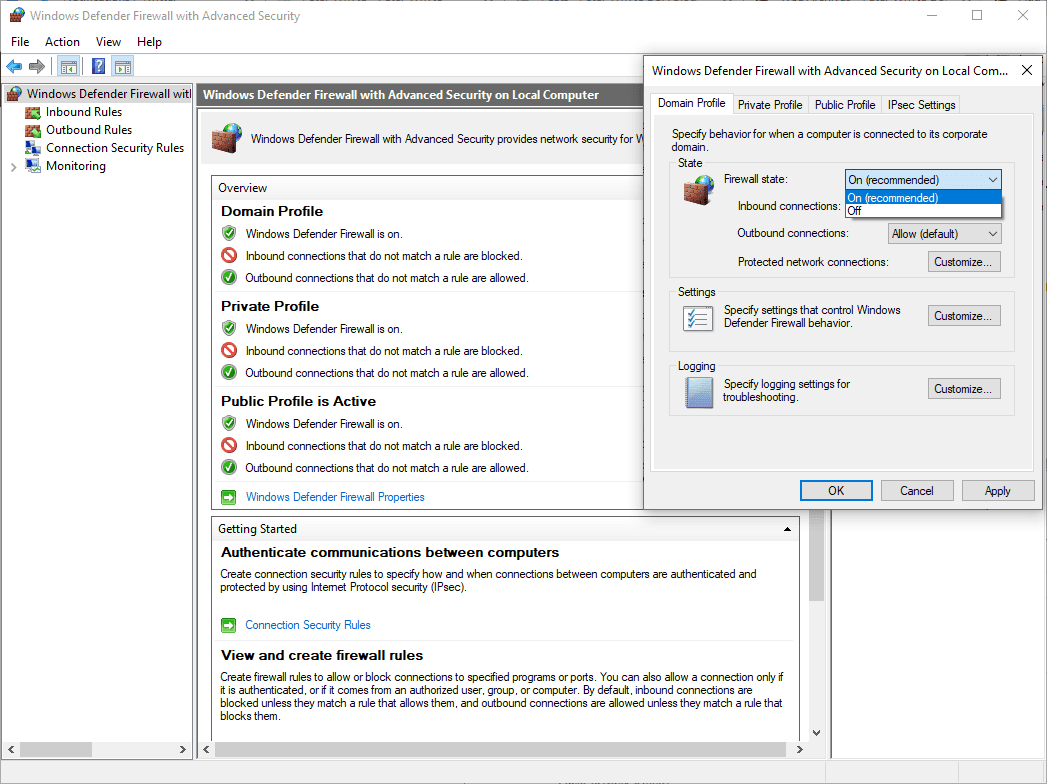
Before running scripts or commands on a computer, it’s important for us to understand what each step is doing. We are enabling the Windows Firewall for all Profiles:
> Domain: For when you are connected to a Domain Controller (computer connected to AD).
> Private: For your home or private networks.
> Public : For public WIFI locations such as coffee shops etc.
Make sure you understand which profile applies to your scenario before proceeding. You can also manage these settings via the GUI for additional clarity:
Step 2: Check Current Firewall Status
Before enabling the firewall, check its current status using the following PowerShell command:
# get local firewall status
Get-NetFirewallProfile | Format-Table Name, Enabled
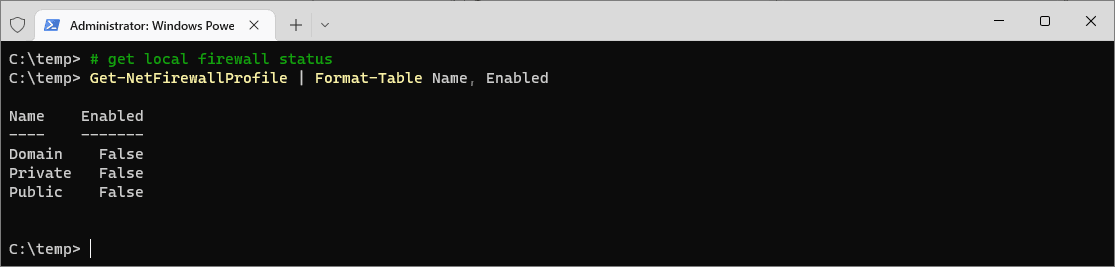
This command retrieves the status of all firewall profiles and displays whether they are enabled (True) or disabled (False).
Step 3: Enable Windows Firewall
To enable the Windows Firewall for all profiles, use the Set-NetFirewallProfile cmdlet. Run the following command in PowerShell or Windows Terminal with admin privileges:
# disable local firewall
Set-NetFirewallProfile -Profile Domain,Public,Private -Enabled True

# get local firewall status
Get-NetFirewallProfile | Format-Table Name, Enabled
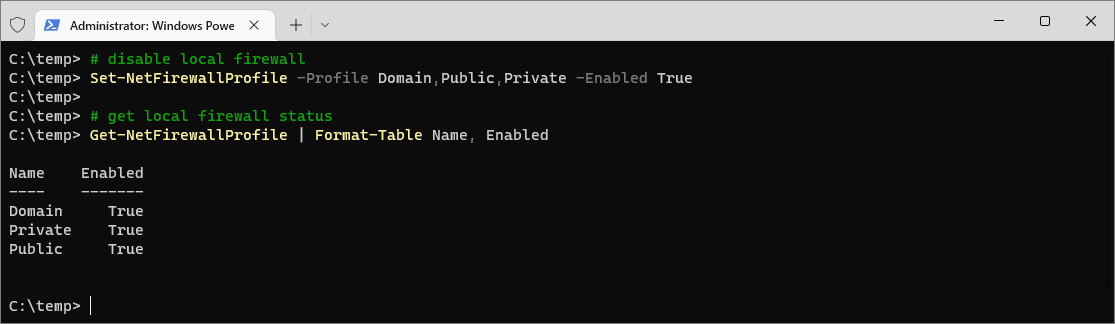
By enabling the firewall, you significantly improve your system’s defense against unauthorized access and potential cyber threats. However, enabling the firewall may block some desired connectivity, requiring you to create new firewall rules to allow specific traffic while maintaining overall security. For detailed guidance on advanced configurations and creating firewall rules, refer to the official Microsoft documentation on the Windows Firewall.
If SQL Server is part of your day job, my current work lives over at sqldba.blog: production DBA scripts, an error library and the SSMS guide.
The Verification Above Can Lie to You
The check in that snippet, plain Get-NetFirewallProfile, reads the local persistent store. That is the same store Set-NetFirewallProfile just wrote to, so re-running it tells you your command was recorded. It does not tell you the machine is enforcing it.
On a domain joined box that difference matters, because Group Policy wins. If firewall state arrives by GPO, your local change is written, reports back exactly as you expected, and is not what the machine is doing. There is no error to notice.
The store that answers the real question is the ActiveStore, which is the aggregate of every policy store actually applied:
# What is actually being enforced, not what I wrote
Get-NetFirewallProfile -PolicyStore ActiveStore | Format-Table Name, Enabled
If the two disagree, something above you is managing it. The GUI confirms this in words: Windows Security will say some settings are managed by your organization.
Two smaller versions of the same theme. Without an elevated session the cmdlet fails with an access denied error rather than doing nothing quietly, so if you got no error you were almost certainly admin. And if a third party firewall or AV suite has registered itself as the firewall with Windows Security Center, Defender Firewall is not the product governing traffic at all, so toggling its profiles changes very little. Windows Security names the vendor product when that is the case.
What Stops Working the Moment You Enable It
Windows Firewall’s default posture is to block inbound connections that do not match an allow rule, and allow outbound. So the second that profile flips on, every service on the box without an allow rule stops accepting connections.
The reason this is worth its own section is that none of the symptoms say “firewall”. What you get instead is a SQL Server connection timeout, a file share that has gone missing, a monitoring check that has started failing. Somebody then spends an afternoon inside SQL Server looking for a problem that is not there.
The ones I would check for before enabling on anything that matters:
- TCP 1433. Blocked inbound, SSMS gives you a connection error that reads exactly like a server side problem.
- Ping stops answering. Inbound ICMP echo has no allow rule by default, so “is it up” checks and a good deal of monitoring go dark while the machine is perfectly healthy.
- Remote management, if you are on a Public profile. The WinRM firewall exception is restricted to the local subnet on Public networks. Enable the firewall remotely on a Public profiled NIC and you can cut off the session you are doing it from.
Check Which Profile Actually Applies First
Profile state and rules apply per network category, and a NIC classified as Public gets the strictest posture of the three. This is where “enabling all profiles” produces breakage that looks random: the machine you thought was Domain or Private is sitting on a Public classification, usually because it was misclassified when the connection first came up.
# Which category is this NIC actually in
Get-NetConnectionProfile

# Correct it if it is wrong
Set-NetConnectionProfile -InterfaceAlias 'Ethernet' -NetworkCategory Private
Worth thirty seconds before, rather than an hour after.
Enabling Is Not a Clean Slate
Turning a profile back on does not give you a firewall in a default state. It reactivates every enabled rule in that profile, including ones added years ago by software that has since been uninstalled. Installers add allow rules and frequently do not remove them.
So the posture you end up with is whatever that rule set says, not what you would have designed. If the firewall has been off for a while, it is worth looking at what comes back with it:
# Inbound allow rules that are live, newest looking first
Get-NetFirewallRule -Direction Inbound -Enabled True -Action Allow |
    Select-Object DisplayName, Profile, DisplayGroup |
    Sort-Object DisplayGroup
Two Notes on Older and Broken Machines
Older than Windows 8 or Server 2012. The NetSecurity module and Set-NetFirewallProfile do not exist there. The equivalent is the older netsh syntax, which still works everywhere:
netsh advfirewall set allprofiles state on
If the service has been stopped. Where somebody has previously “turned the firewall off” by disabling the Windows Defender Firewall service (MpsSvc), the cmdlets cannot manage profile state at all. Microsoft’s own guidance is that disabling the service is not a supported way to turn the firewall off and that it should be left running. Check the service before you debug the cmdlet.
Leave a Reply