
New-NetFirewallRule. At minimum give it a -DisplayName, a -Direction, an -Action, and whatever you are allowing, such as -LocalPort.
In this bog post I’m sharing a guide on how to create a new Firewall Rule with PowerShell. We’ll create a new inbound rule using a PowerShell script for the local Windows Firewall, to allow SQL Server (port 1433).
Script to Create a New Firewall Rule for SQL Server
The PowerShell script below creates a new inbound rule on the local server which allows port 1433 (default Microsoft SQL Server port). It ensures that only devices from a specific subnet (e.g., 10.19.24.0/24) can access SQL Server.
Before running the script, make sure to open PowerShell as Administrator, otherwise the script won’t execute.
# Define the allowed IP range (Modify as needed)
$AllowedIPRange = "10.19.24.0/24"

# One variable for the name, so the check and the rule can never drift apart
$RuleName = "Allow Inbound SQL (1433)"

# Check if the rule already exists; if not, create it
if (-not (Get-NetFirewallRule -DisplayName $RuleName -ErrorAction SilentlyContinue)) {
    New-NetFirewallRule `
        -DisplayName $RuleName `
        -Direction Inbound `
        -Protocol TCP `
        -LocalPort 1433 `
        -Action Allow `
        -RemoteAddress $AllowedIPRange
}
Get-NetFirewallRule check and the New-NetFirewallRule call use even slightly different display names, the check can never match and the rule is created every time the script runs. Windows allows duplicate display names, the unique key is the Name property, so you quietly accumulate copies rather than getting an error. Thanks to James in the comments for catching this one.This script is checking if the Firewall Rule already exists before creating it.
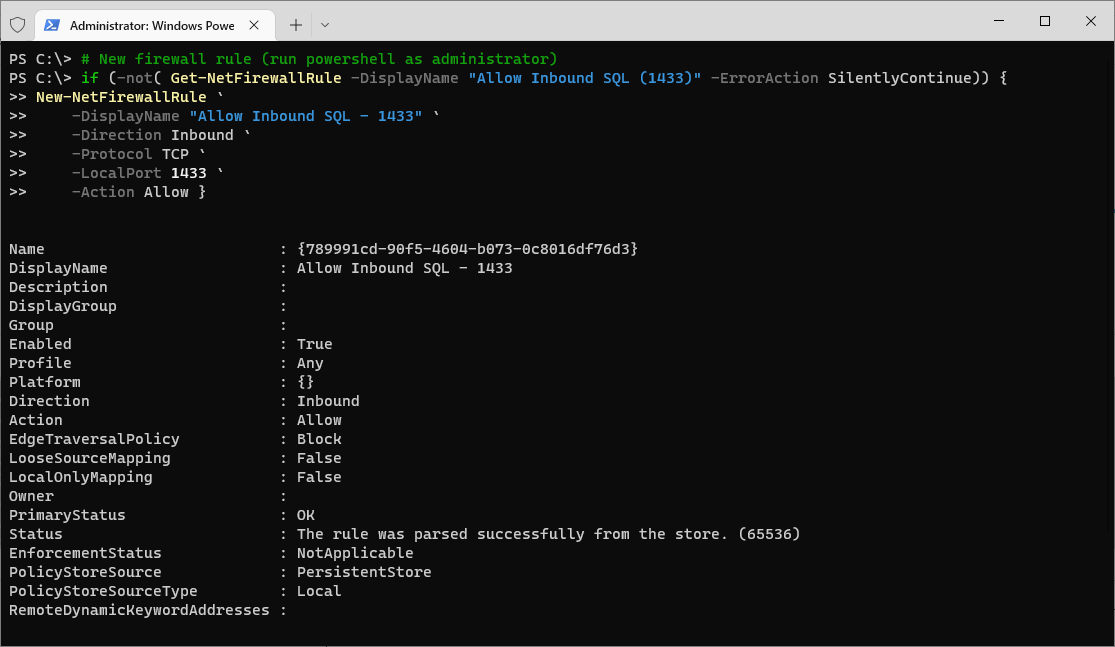
For better security, always restrict firewall rules to trusted IP ranges instead of allowing all inbound traffic. The screenshot shows allowing all IPs on 1433, if troubleshooting an issue you could temporarily disable the Windows Firewall and quickly perform your connection test.
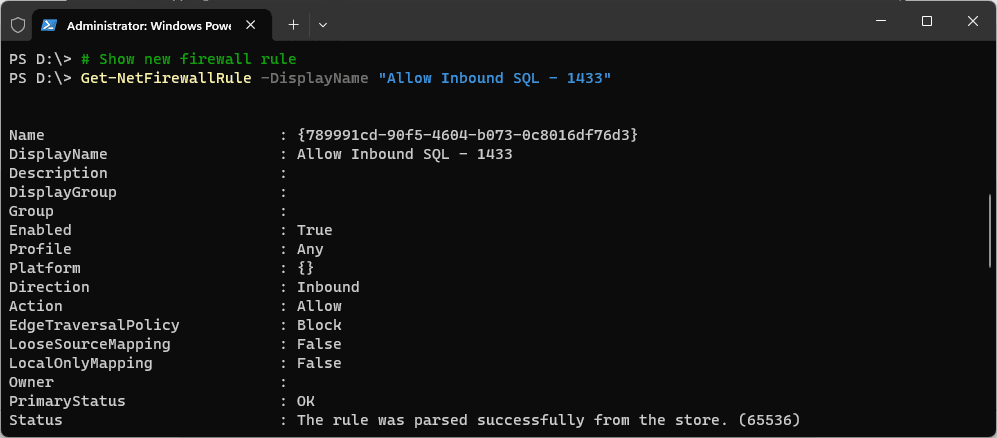
To view your newly created Firewall rule, we can use the Get-NetFirewallRule cmdlet:
Relevant MS Docs:
– New-NetFirewallRule
– Set-NetFirewallRule
– Remove-NetFirewallRule
I seem to write about the Windows Firewall often enough for it to have a blog tag on here. Feel free to check out my other Firewall related posts for more info as linked!
One other thing to add to this is, if you’re working within a Corporate environment, you might need to ask network teams to open up network flow between servers. For more information on this, checkout my other blog post: How to Test Connectivity to Remote Server Ports with PowerShell
The Rules a DBA Actually Writes
These are the ones I reach for, and the SQL Server ones are worth keeping to hand:
# SQL Server default instance
New-NetFirewallRule -DisplayName "SQL Server (TCP 1433)" `
    -Direction Inbound -Protocol TCP -LocalPort 1433 -Action Allow

# SQL Browser, needed for named instances
New-NetFirewallRule -DisplayName "SQL Browser (UDP 1434)" `
    -Direction Inbound -Protocol UDP -LocalPort 1434 -Action Allow

# an Availability Group endpoint
New-NetFirewallRule -DisplayName "AG Endpoint (TCP 5022)" `
    -Direction Inbound -Protocol TCP -LocalPort 5022 -Action Allow

# lock it to one subnet rather than the whole network
New-NetFirewallRule -DisplayName "SQL Server (app subnet only)" `
    -Direction Inbound -Protocol TCP -LocalPort 1433 -Action Allow `
    -RemoteAddress 10.20.30.0/24
Check Before and After
# what inbound rules are enabled right now
Get-NetFirewallRule -Direction Inbound -Enabled True |
    Select-Object DisplayName, Direction, Action | Format-Table -AutoSize

# find the rule you just made
Get-NetFirewallRule -DisplayName "SQL Server (TCP 1433)" |
    Get-NetFirewallPortFilter
Real output from the first command:
DisplayName                      Direction Action
-----------                      --------- ------
Wi-Fi Direct Spooler Use (In)      Inbound  Allow
Core Networking - IPv6 (IPv6-In)   Inbound  Allow
Profiles: the Setting People Miss
A rule applies to network profiles, and the default is all of them. On a server that is usually right; on a laptop it means the rule is live on any coffee-shop network too. Narrow it with -Profile:
New-NetFirewallRule -DisplayName "SQL Server (domain only)" `
    -Direction Inbound -Protocol TCP -LocalPort 1433 -Action Allow `
    -Profile Domain
Removing and Disabling
# turn it off but keep it
Disable-NetFirewallRule -DisplayName "SQL Server (TCP 1433)"

# remove it entirely
Remove-NetFirewallRule -DisplayName "SQL Server (TCP 1433)"


Leave a Reply