
Read one with $env:NAME, list them all with Get-ChildItem Env:. Setting $env:NAME only lasts for the current session.
Environment variables store key information on your system that programs can use to influence their behavior. For example, the AWS CLI uses the AWS_REGION variable to determine the region for API requests.
This guide will cover:
– Listing all environment variables
– Retrieving the value of a specific environment variable
– Setting or updating environment variables
1. List All Environment Variables
To view all environment variables and their current values, use the Get-ChildItem cmdlet with the Env: drive. Alternatively, you can use its shorter alias gci:
# List all environment variables
Get-ChildItem Env:

# Alt cmdlet
gci Env:
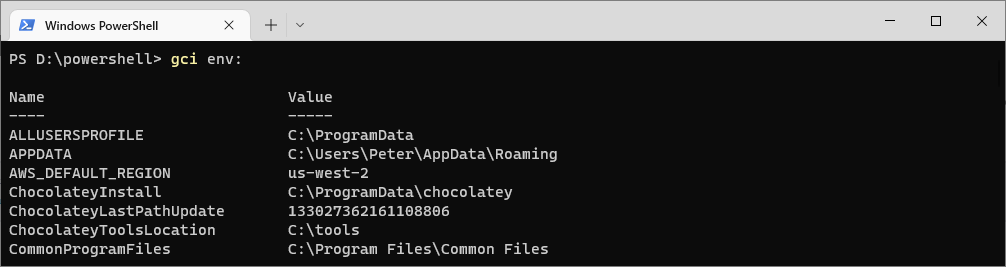
Both commands will display a list of environment variables along with their values.
2. Get the Value of a Specific Environment Variable
To return the value of a specific environment variable, such as AWS_DEFAULT_REGION, you can use one of these methods:
# Get the value of the aws_default_region environment variable
gci Env:\AWS_DEFAULT_REGION

# Do the same but alt (easier) syntax
$env:AWS_DEFAULT_REGION
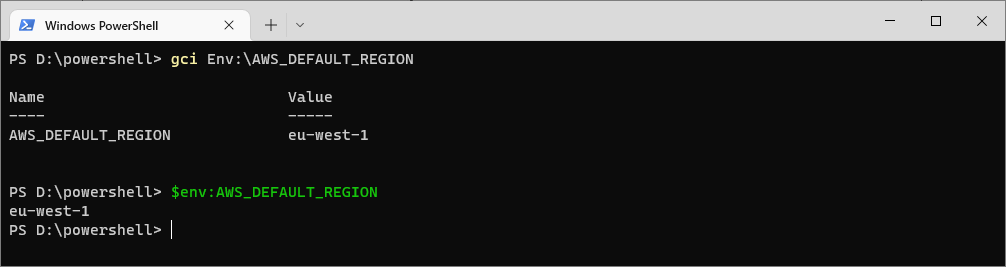
Both commands will output the value of the AWS_DEFAULT_REGION variable if it is set.
3. Set or Update an Environment Variable
To set or update an environment variable, assign a new value to it using the $env: syntax:
# Set the AWS Default Region Environment Variable
$env:AWS_DEFAULT_REGION="eu-west-2"

Important Notes:
– This change applies only to the current PowerShell session.
– To make the change permanent, you need to update the system or user environment variables in the Windows environment settings or use registry editing scripts.
For example, setting a permanent environment variable using PowerShell might involve modifying the registry:
[System.Environment]::SetEnvironmentVariable("AWS_DEFAULT_REGION", "eu-west-2", "User")
This approach ensures that the variable is available in future sessions.
The Three Scopes, and Why It Matters
This is the part that trips people up. A variable set one way vanishes when you close the window; set another way it is there forever. There are three scopes:
# PROCESS - this session only, gone when the window closes
$env:DEMO_VAR = 'session-value'

# USER - permanent, for your account
[Environment]::SetEnvironmentVariable('DEMO_VAR','user-value','User')

# MACHINE - permanent, everyone. Needs an elevated session
[Environment]::SetEnvironmentVariable('DEMO_VAR','machine-value','Machine')
$env:DEMO_VAR as well if you need it immediately.Reading Them Back
# one variable
$env:PATH

# same thing the long way, useful when the name is in a variable
(Get-Item Env:DEMO_VAR).Value

# every environment variable, sorted
Get-ChildItem Env: | Sort-Object Name

# just permanent user-level ones
[Environment]::GetEnvironmentVariables('User')
A default Windows session carries around 80 of them, so Get-ChildItem Env: on its own is a wall of text. Filter it:
Get-ChildItem Env: | Where-Object Name -like '*PATH*'
Working With PATH Without Breaking It
PATH is the one people damage. It is a single semicolon-separated string, so appending carelessly, or writing it back from the wrong scope, can flatten a machine-level PATH into a user-level copy:
# read the USER path only, never the combined $env:PATH
$userPath = [Environment]::GetEnvironmentVariable('PATH','User')

# append, keeping what was there
[Environment]::SetEnvironmentVariable('PATH', $userPath + ';D:\Tools', 'User')
$env:PATH back to the User or Machine scope. $env:PATH is the machine and user paths already merged, so saving it into one scope duplicates the other scope’s entries into it permanently. Read the scope you intend to change, change that, write it back.If SQL Server is part of your day job, my current work lives over at sqldba.blog: production DBA scripts, an error library and the SSMS guide.
The GUI Route, and When You Actually Want It
Everything above is the command line, which is what you want for anything repeatable. The Windows dialog is still worth knowing for one specific reason.
Press Start, search for Environment Variables, and open “Edit the system environment variables”, then click the Environment Variables button. You get two panes: user variables on top, system variables underneath, which is the same User and Machine split described in the scopes section above.
The reason to use it is PATH. Newer Windows builds show PATH as an editable list of individual entries rather than one long semicolon-joined string. That makes it far harder to do the damage described above, where a careless edit flattens a whole PATH into a single mangled value. If you are editing PATH by hand rather than from a script, the dialog is the safer tool.
The catch is the one that catches everyone: changes made here do not reach a shell that is already open. Processes read their environment at launch, so PowerShell windows you already had running keep the old values until you restart them.