
Keeping your PowerShell help documentation up to date ensures you always have the latest guidance and reference materials for installed modules. The Update-Help cmdlet allows you to download and install the most recent help files, but you may encounter an access denied error if PowerShell is not run with administrative privileges:
Running PowerShell as Administrator
Running PowerShell as Administrator is a requirement for this one, else you’ll get the following error:
Update-Help L Failed to update Help for the module(s)
Access is denied. The command could not update Help topics for the Windows PowerShell core modules
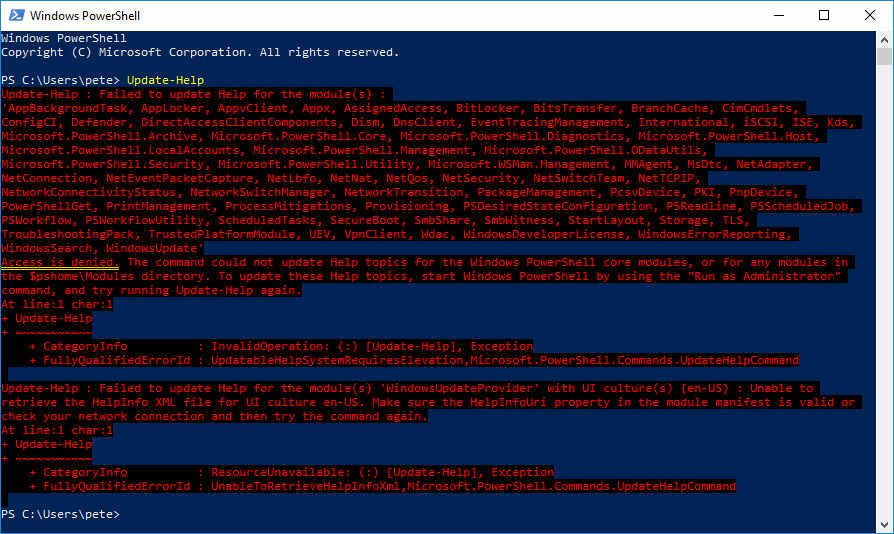
This error occurs because updating help files requires elevated permissions.
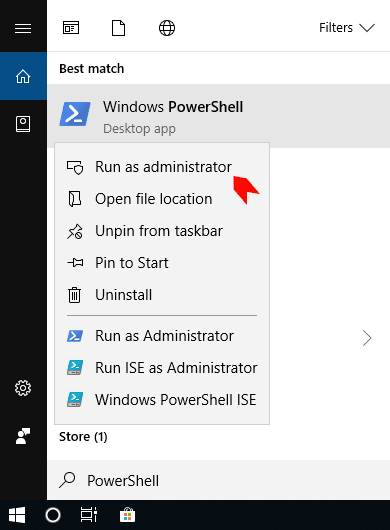
To resolve this, ensure you launch PowerShell as an administrator:
1. Click Start, search for PowerShell.
2. Right-click Windows PowerShell and select Run as Administrator.
3. Confirm the User Account Control (UAC) prompt if required.
Using the -Force Parameter
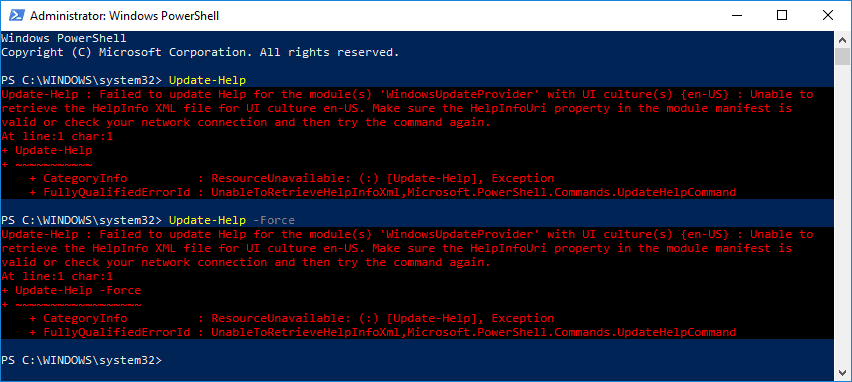
Even when running as Administrator, you may still experience issues updating help files. If running Update-Help -Force fails, try the following command instead:
# update powershell help modules
Update-Help -Force
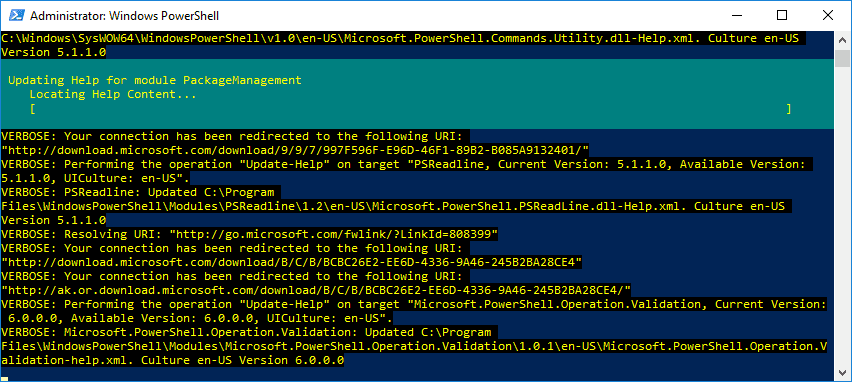
This should trigger the update process immediately, ensuring your help files are current.
By following these steps, you can keep your PowerShell documentation up to date without running into unnecessary errors.
If SQL Server is part of your day job, my current work lives over at sqldba.blog: production DBA scripts, an error library and the SSMS guide.
Leave a Reply