
PowerShell has three ways to loop: the foreach statement, the ForEach-Object pipeline cmdlet, and the .ForEach() method. They are not interchangeable, and the difference matters on large collections.
Looping is a fundamental concept in PowerShell, and in programming in general. It’s needed for various situations where we need to work with one object at a time within an array/collection of objects.
Microsoft’s documentation on this, about Foreach , describes it as ‘stepping through (iterating) a series of values in a collection of items‘ – always appreciate a good technical description.
This post contains some basic examples of the ForEach Loop in PowerShell, including the following:
> Basic PowerShell For Each Example
> ForEach with Get-ChildItem
Basic PowerShell For Each Example
We can hardcode anything into this array below, or populate it from somewhere else.
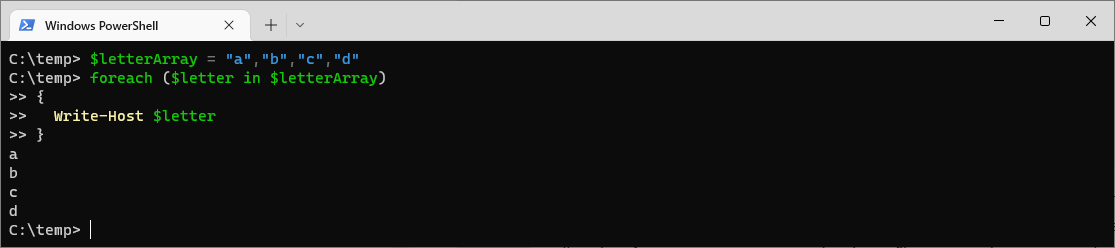
This is one of the most basic examples as shown in MS Docs, we’re iterating through each letter in the letterArray, writing to the terminal the value foreach loop.
$letterArray = "a","b","c","d"
foreach ($letter in $letterArray)
{
  Write-Host $letter
}
PowerShell ForEach with Get-ChildItem Example
The PowerShell script below performs a write-to Console for each file in the demoFolder Directory.
I’m running this twice, the second time navigating out of the demoFolder.
foreach ($file in Get-ChildItem)
{
    Write-Host $file
    Write-Host $file.length
    Write-Host $file.lastaccesstime
}
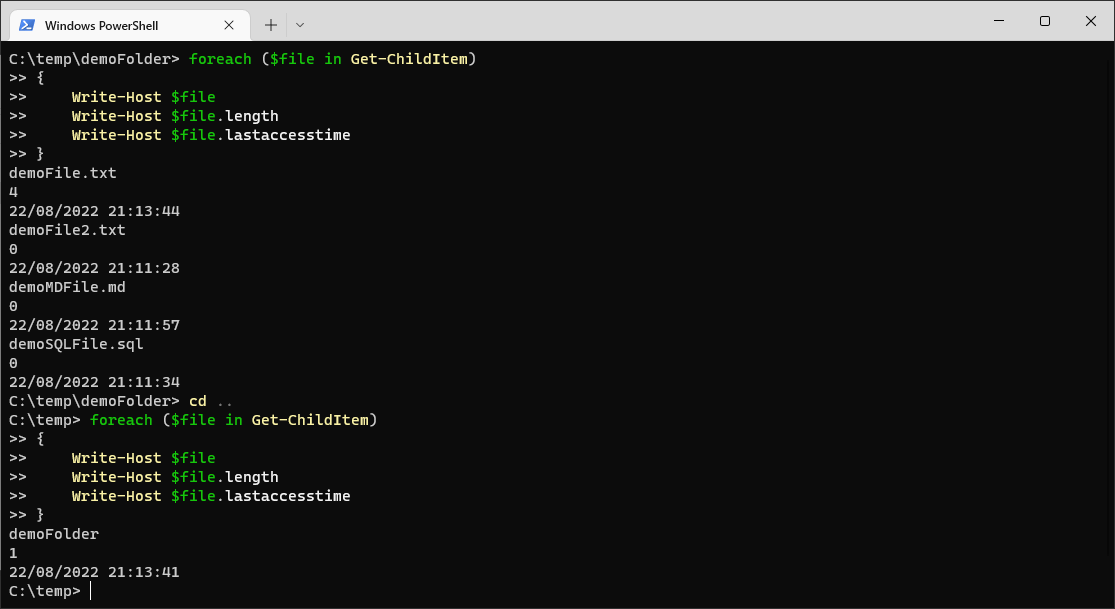
The above is also showing us the LastAccessTime Property for each file.
Hope this was useful!
The Three Forms, Side by Side
This is the part most tutorials skip. All three of these produce the same result, and they behave very differently:
$numbers = 1..3

# 1. the foreach STATEMENT - loads the whole collection into memory first
foreach ($i in $numbers) { "statement: $i" }

# 2. the ForEach-Object CMDLET - processes one item at a time, down the pipeline
$numbers | ForEach-Object { "pipeline: $_" }

# 3. the .ForEach() METHOD - fastest, PowerShell 4+
$numbers.ForEach({ $_ * 10 })
Output from all three, run on PowerShell 7:
statement: 1
statement: 2
statement: 3
pipeline: 1
pipeline: 2
pipeline: 3
10
20
30
Which One Should You Use?
The foreach statement when you already have the collection and it is not enormous. It is the fastest of the three to read, and break and continue work inside it.
ForEach-Object when the input comes from a pipeline, especially one that produces items slowly or produces a lot of them. It starts work on the first item immediately rather than waiting for the whole collection, so a long-running Get-ChildItem -Recurse feels responsive instead of hanging.
The .ForEach() method when you want speed on an in-memory collection and do not need pipeline behaviour.
Running Iterations in Parallel
PowerShell 7 added -Parallel, which is genuinely useful when each iteration waits on something external, like pinging a list of servers:
# PowerShell 7 only. Check with $PSVersionTable.PSVersion.Major
$servers = 'sql01','sql02','sql03'
$servers | ForEach-Object -Parallel {
    [pscustomobject]@{
        Server = $_
        Online = Test-Connection $_ -Count 1 -Quiet
    }
} -ThrottleLimit 5
-Parallel your variables do not come with you. Each iteration runs in its own runspace, so a variable defined outside the loop is not visible unless you prefix it with $using:, as in $using:myPath. This catches everyone once.Two More Things Worth Knowing
break does not work how you expect in ForEach-Object. In the foreach statement, break exits the loop. In the ForEach-Object cmdlet there is no loop to break out of, so it behaves unpredictably; use Select-Object -First n to stop early instead.
Looping over nothing is safe in one form and not the other. The foreach statement over $null runs zero times in modern PowerShell, and ForEach-Object over an empty pipeline simply does nothing. Neither errors, so a loop producing no output usually means an empty collection rather than a broken loop.
The Three ForEach Constructs Compared
All three of these return 2, 4, 6, 8. The differences show up everywhere else.
$numbers = 1..4

foreach ($n in $numbers) { $n * 2 }      # statement
$numbers | ForEach-Object { $_ * 2 }     # cmdlet
$numbers.ForEach({ $_ * 2 })             # method
foreach statement | ForEach-Object | .ForEach() | |
|---|---|---|---|
| Item variable | Named, e.g. $letter | $_ or $PSItem | $_ |
| Reads input | All at once, into memory | Streams one at a time | All at once |
| Works in a pipeline | No | Yes | No |
break / continue | Works as expected | Kills the script | Not applicable |
| Best for | Collections you already hold | Large or streamed input | Short transforms |
The memory row is the practical one. foreach ($line in Get-Content big.log) reads the whole file into memory before the loop body runs once. Get-Content big.log | ForEach-Object { ... } streams it and handles each line as it arrives. On a large file that is the difference between a script that runs and one that does not.
The break and continue Trap
This one costs people an afternoon, because it fails silently.
In a foreach statement, both keywords behave as you would expect:
foreach ($n in 1..5) { if ($n -eq 3) { continue }; $n }   # -> 1, 2, 4, 5
foreach ($n in 1..5) { if ($n -eq 3) { break };    $n }   # -> 1, 2
In ForEach-Object they do not. It is a cmdlet, not a loop, so there is no loop for break to leave. It looks for an enclosing loop, finds none, and terminates the entire script.
continue inside a ForEach-Object block. The lines before it printed. The line after it never ran. There was no error message and the script exited with code 0, so anything checking the exit code would call that a success. A scheduled task doing this reports green while silently skipping half its work.Use return instead, which exits only the current scriptblock invocation and is therefore the pipeline equivalent of continue:
# skip an item: return, not continue
1..5 | ForEach-Object { if ($_ -eq 3) { return }; $_ }   # -> 1, 2, 4, 5

# stop early: filter the pipeline, do not try to break it
1..100 | ForEach-Object { $_ * 2 } | Select-Object -First 3   # -> 2, 4, 6
There is no pipeline equivalent of break. If you need to stop part-way, either use Select-Object -First or use the foreach statement, where break works properly.
If SQL Server is part of your day job, my current work lives over at sqldba.blog: production DBA scripts, an error library and the SSMS guide.
Leave a Reply