
A script or a tutorial says to run pwsh, and your machine answers that pwsh is not recognized. Or you open the blue PowerShell window, check the version, and it says 5.1 when everything you read mentions 7. Nothing is out of date on your side. Windows ships Windows PowerShell 5.1 and will keep shipping it; PowerShell 7 is a separate install that sits next to it.
That is the whole model, and Microsoft puts it in one sentence: PowerShell 7 “doesn’t replace Windows PowerShell 5.1. It installs to a new directory and runs side-by-side”. Install 7, keep 5.1, and know which one you are in. On my laptop that is 5.1.26100 in powershell.exe and 7.7.0 in pwsh.exe, both there, both used.
Check What You Have
# in whichever window you are in
$PSVersionTable.PSVersion

# is PowerShell 7 installed at all, and where
Get-Command pwsh -ErrorAction SilentlyContinue | Select-Object Source
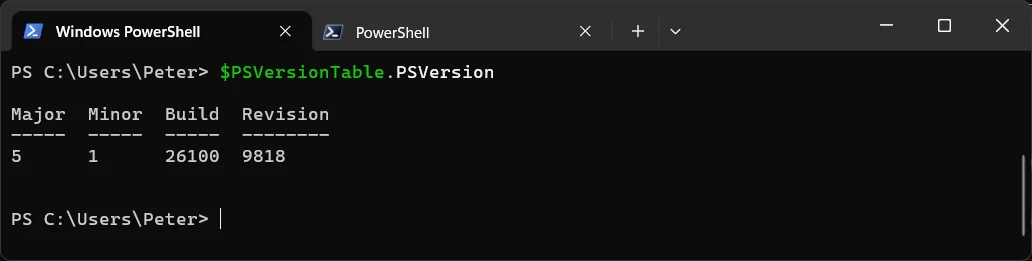
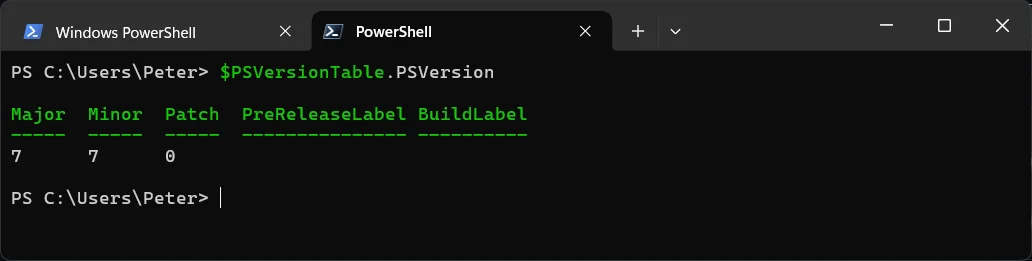
A 5.x result in the blue window is Windows PowerShell; a 7.x result is PowerShell 7. If Get-Command pwsh returns nothing, 7 is not installed and you are in the right post. How to Check PowerShell Version has the long form of this check.
Install With winget
WinGet is Microsoft’s recommended route on Windows clients and it is already on Windows 11 as part of App Installer (winget --version on my laptop says v1.29.380). From any console, cmd, the blue window or pwsh:
# what version is on offer
winget search --id Microsoft.PowerShell --exact

# install it
winget install --id Microsoft.PowerShell --source winget

# or the preview channel, side by side with the stable one
winget install --id Microsoft.PowerShell.Preview --source winget
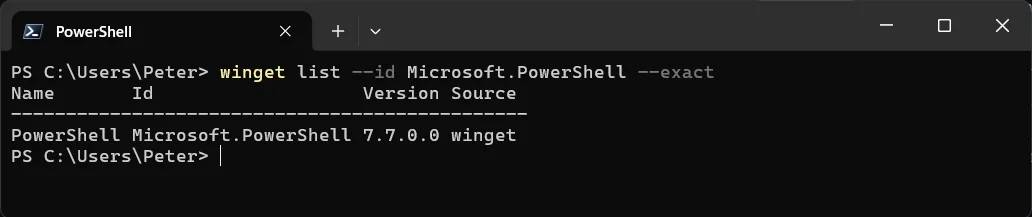
One detail changed in 2026 and it matters for what you get. From the 7.6 package onwards, winget installs the MSIX package, the same one the Microsoft Store delivers, rather than the MSI. If you want the classic MSI on a client machine, add --installer-type wix, but Microsoft’s install page says that from 7.7.0 there is no MSI at all and winget only installs the MSIX. The difference between the 2 is in the next 2 sections.
Which version? Microsoft’s support table lists 7.6 as the current LTS, supported to 14 November 2028, with 7.4 and 7.5 both ending on 10 November 2026. On a work machine, take the LTS. The 7.7 on my laptop is the newer channel and it tracks a preview build of .NET 11, which is fine for a personal box and not what I would hand a server.
The MSI, for Servers and Every User on the Box
Microsoft’s recommendation for Windows Server and enterprise deployment is the MSI from the GitHub releases page, for example PowerShell-7.6.6-win-x64.msi. Double-click it and follow the prompts, or run it silently with the properties you want. This is Microsoft’s own example with every option switched on:
$msiParams = @(
    '/package'
    'PowerShell-7.6.6-win-x64.msi'
    '/quiet'
    'ADD_EXPLORER_CONTEXT_MENU_OPENPOWERSHELL=1'
    'ADD_FILE_CONTEXT_MENU_RUNPOWERSHELL=1'
    'ENABLE_PSREMOTING=1'
    'REGISTER_MANIFEST=1'
    'USE_MU=1'
    'ENABLE_MU=1'
    'ADD_PATH=1'
)
msiexec.exe @msiParams
It installs to $env:ProgramFiles\PowerShell\7, adds that folder to PATH, and the 2 MU switches opt it into Microsoft Update, so it gets patched with the rest of Windows. winget on Windows Server 2025 only exists with the Desktop Experience, and not at all on 2022 and older, which is the other reason the MSI is the server answer.
The Store Package and What It Cannot Do
The MSIX from the Microsoft Store (or from winget, as above) updates itself through the Store and installs for your user only. It runs in an application sandbox, and that has consequences Microsoft spells out. A Store install cannot accept PowerShell remoting connections, cannot run Set-ExecutionPolicy -Scope LocalMachine or Update-Help -Scope AllUsers, and cannot have all-users profile scripts, because all of those need to write into $PSHOME and the package folder is read-only.
# which kind of install is this?
$PSHOME

# C:\Program Files\PowerShell\7                  = MSI
# C:\Program Files\WindowsApps\Microsoft.PowerShell_...  = Store / MSIX
# $HOME\.dotnet\tools                            = .NET global tool
# anything else                                  = ZIP
Mine comes back under WindowsApps, so it is the Store build, and it has been fine for a laptop where I am the only user, outbound SSH remoting still works, and CurrentUser is the only execution policy scope I ever set. On a server, or anywhere a second account needs it, use the MSI.
Start It and Make It the Default
Type pwsh in any console, or pick PowerShell 7 from the Start menu. The Start menu now has both: the blue Windows PowerShell and Windows PowerShell ISE entries are 5.1, and the ISE only ever runs 5.1. In Windows Terminal, Settings, Startup, Default profile is where you make 7 the tab that opens on Ctrl+Shift+T; the setting in settings.json is defaultProfile. The Best Terminal for Windows covers the rest of that setup, and Installing oh-my-posh On Windows is the prompt I run in it.
Where 5.1 and 7 Keep Separate Copies
Once both are installed, the things people trip on are the places where 5.1 and 7 keep separate copies:
- The executable:
powershell.exeis 5.1,pwsh.exeis 7. Microsoft renamed it so the 2 can live side by side. Inpwshthe first positional parameter is-Filerather than-Command, sopwsh script.ps1runs the file. - The profile: 7 reads
$HOME\Documents\PowerShell\Microsoft.PowerShell_profile.ps1, 5.1 reads$HOME\Documents\WindowsPowerShell\Microsoft.PowerShell_profile.ps1. Your aliases and prompt do not carry across until you copy them.$PROFILEin each window tells you the path, and on my laptop both land inside OneDrive because Documents is redirected there, which Microsoft’s profile page says is not recommended. - The execution policy: set separately for each. 7 defaults to RemoteSigned, 5.1 on client Windows defaults to Restricted, so a script that runs in
pwshcan still be blocked in the blue window. Fix “.ps1 cannot be loaded because running scripts is disabled on this system” is the post for that. - Modules: 7 runs on .NET rather than .NET Framework, and a few Windows modules only work in 5.1.
Import-Module -UseWindowsPowerShellloads one of those into a 7 session by proxying it through a hidden 5.1 process.Get-Module -ListAvailablein each window shows what each can see.
Keep It Updated
# is there a newer one
winget list --id Microsoft.PowerShell --upgrade-available

# take it
winget upgrade --id Microsoft.PowerShell
winget keeps the package type you started with, MSI or MSIX. The Store build also updates itself through the Store, and an MSI installed with the MU switches updates through Microsoft Update. Whatever route you used to install is the route to use to upgrade; Microsoft’s own line is to “use the same install method you used when you first installed PowerShell”. A newer 7.x replaces the older 7.x, previews stay side by side with stable.
Other Considerations
5.1 is not going anywhere, and you should not try to remove it. It is a Windows component on the Windows support lifecycle, and parts of Windows and plenty of third-party installers call powershell.exe by name. Leave it, and write new scripts for 7.
Uninstalling 7 depends on how it went on. winget uninstall --id Microsoft.PowerShell for a winget install, Programs and Features for an MSI, the Start menu’s Uninstall for the Store app, and delete the folder for a ZIP.
The ZIP is for odd cases. Windows Server Core, Arm devices, or running 2 versions of 7 next to each other. It does no prerequisite checks and you add the PATH and Start menu entries yourself, which is why it is the last choice on Microsoft’s list.
If you manage packages with Chocolatey already, that route still works too, but winget is on every current Windows install without adding anything, which is why it is the one above. How to Install Chocolatey on Windows is there if you prefer it.
Frequently Asked Questions
Will installing PowerShell 7 break my existing scripts?
No, because nothing that runs them changes. Scheduled tasks and installers that call powershell.exe keep getting 5.1. A script only runs under 7 when you launch it with pwsh.
Why does pwsh not see a module I installed in Windows PowerShell?
Each version has its own module path and its own runtime. Install the module again from inside pwsh, or if it only supports 5.1, load it with Import-Module -UseWindowsPowerShell.
Which version number should I install?
The current LTS, which Microsoft’s lifecycle page lists as 7.6 with support to November 2028. The non-LTS releases get about 6 months of support after the next LTS ships, so they churn.
Does PowerShell 7 need admin rights to install?
Not for the Store or winget MSIX package, which installs for your user. The MSI writes to Program Files and registers for every user, so it prompts for elevation.
Can I remove Windows PowerShell 5.1 once 7 is in?
No. It is part of Windows and other software depends on it. Keep both and set 7 as your default terminal profile.
Why is my execution policy different in pwsh?
They are stored separately. PowerShell 7 ships RemoteSigned; Windows PowerShell on client Windows ships Restricted. Run Get-ExecutionPolicy -List in the window that is complaining and fix that one.
Related
- How to Check PowerShell Version
- Fix “.ps1 cannot be loaded because running scripts is disabled on this system” in PowerShell
- The Best Terminal for Windows
- Installing oh-my-posh On Windows
- How to Install Posh-Git on Windows
- How to Install PowerShell on Ubuntu 20.04
- Get-Command in PowerShell
- Install PowerShell 7 on Windows (Microsoft Learn)
- PowerShell support lifecycle (Microsoft Learn)
- Differences between Windows PowerShell 5.1 and PowerShell 7.x (Microsoft Learn)
If SQL Server is part of your day job, my current work lives over at sqldba.blog: production DBA scripts, an error library and the SSMS guide.
Leave a Reply