An AI has written you a PowerShell script and it looks right. Before you run it, ask PowerShell what the script takes and whether it can do a dry run:
Get-Command .\Remove-OldLogs.ps1 -Syntax
(Get-Command .\Remove-OldLogs.ps1).Parameters.ContainsKey('WhatIf')
The first line lists the parameters. The second line tells you whether -WhatIf will work. If it says False, do not trust -WhatIf on that script, for the reason in the next section.
This is the script used through the post. It is the kind of thing you get back when you ask for “delete log files older than 30 days”, and it has two problems that are easy to read past:
param(
    [string]$Path = 'C:\Temp\Logs',
    [int]$Days = 30
)
$cutoff = (Get-Date).AddDays(-$Days)
$files = gci $Path -Recurse | ? { $_.LastWriteTime -lt $cutof }
foreach ($f in $files) {
    Remove-Item $f.FullName -Force
    Write-Host "Removed $($f.Name)"
}
-WhatIf Only Works If the Script Supports It
The natural first move is a dry run:
.\Remove-OldLogs.ps1 -Path D:\Logs -WhatIf
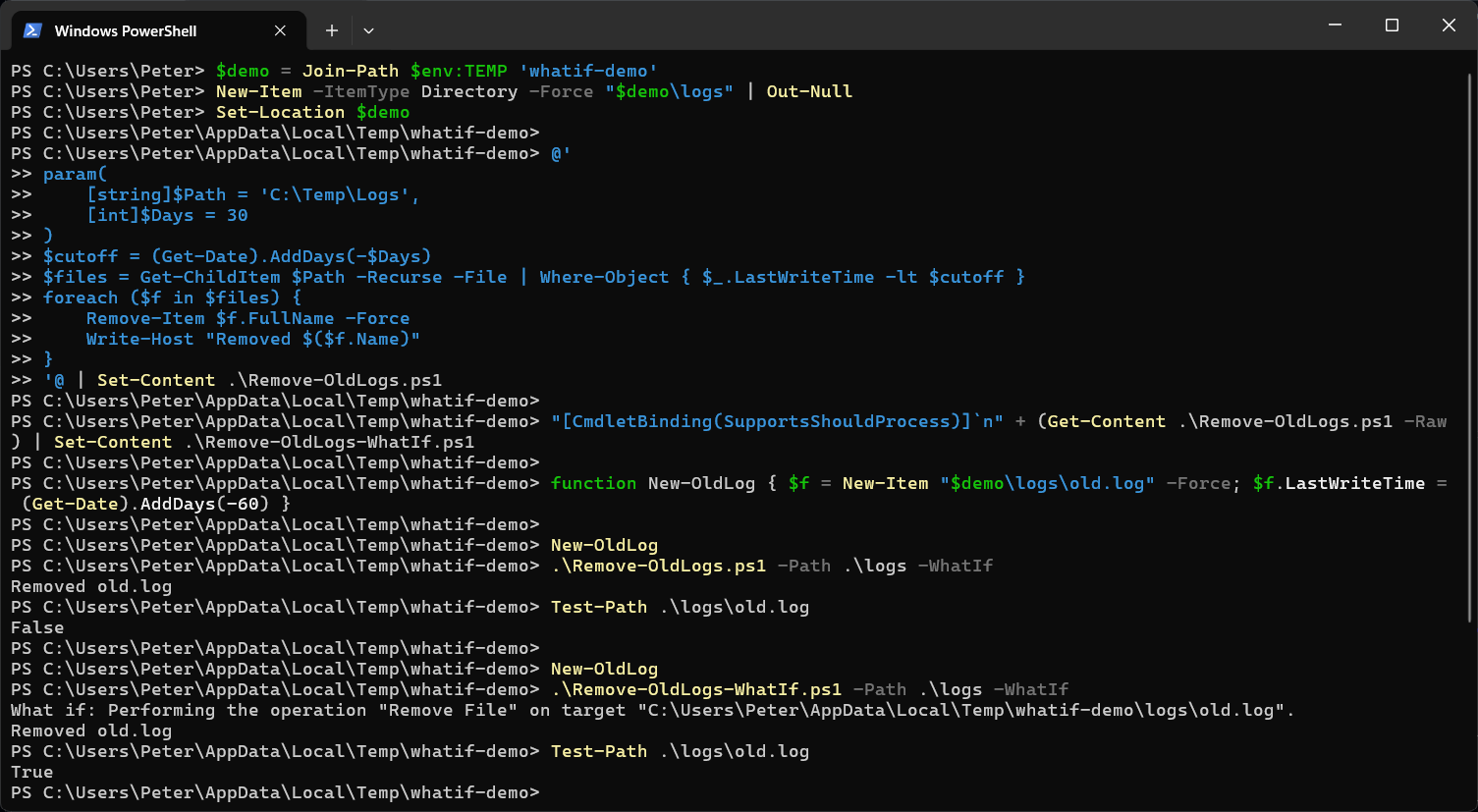
On this script, -WhatIf is ignored. There is no error and no warning. A script with a plain param() block quietly ignores parameters it does not know, so the run goes ahead as if you had never typed it. With the typo from further down fixed, I tested this in Windows PowerShell 5.1 and PowerShell 7 against a test folder, and the old file was deleted both times.
Add [CmdletBinding()] on its own and you at least get an error, A parameter cannot be found that matches parameter name 'WhatIf'. For -WhatIf to really work, the script needs this line above param(:
[CmdletBinding(SupportsShouldProcess)]
Now -WhatIf is passed down to Remove-Item, which prints What if: Performing the operation "Remove File" for each file and deletes nothing. One thing still catches people out: the script’s own Write-Host "Removed ..." line runs anyway, so a dry run can print “Removed” for files that are still there. Read the What if: lines, not the script’s own messages. In the test below, Remove-OldLogs-WhatIf.ps1 is the same script with that one line added.
Read the param Block First
The param() block is the top of the script, and it tells you what the script will act on if you give it nothing. Here, running it with no arguments works on C:\Temp\Logs, a folder you never chose. Look for:
- Default paths, especially a drive root, a profile folder or a share.
- Switches like
-Forceor-Recursehard-coded inside the script, so you cannot turn them off. - Credentials or keys typed into the script. Those belong in a vault, not a file.
Get-Command .\Remove-OldLogs.ps1 -Syntax shows the names and types, [[-Path] <string>] [[-Days] <int>], but not the defaults. For those, open the file.
Set-StrictMode Catches the Typo
Look at the filter again. The variable is set as $cutoff and used as $cutof. PowerShell treats a variable that was never set as empty, so the comparison is against nothing and the script matches no files. In this case that is harmless. Change the use, and it is not:
Remove-Item "$foldr\*" -Recurse
If $foldr is a typo, the path becomes \*, which is the root of the current drive. I ran that line with -WhatIf and it listed every folder at the top of the drive.
Strict mode turns that silent empty value into an error:
Set-StrictMode -Version Latest
Put it at the top of the script, under param(), and the misspelled variable stops the run with The variable '$cutof' cannot be retrieved because it has not been set. It only applies to the script or session it is set in.
Run PSScriptAnalyzer Over It
PSScriptAnalyzer is Microsoft’s linter for PowerShell. It is not built in. Install it for your own account:
Install-Module PSScriptAnalyzer -Scope CurrentUser
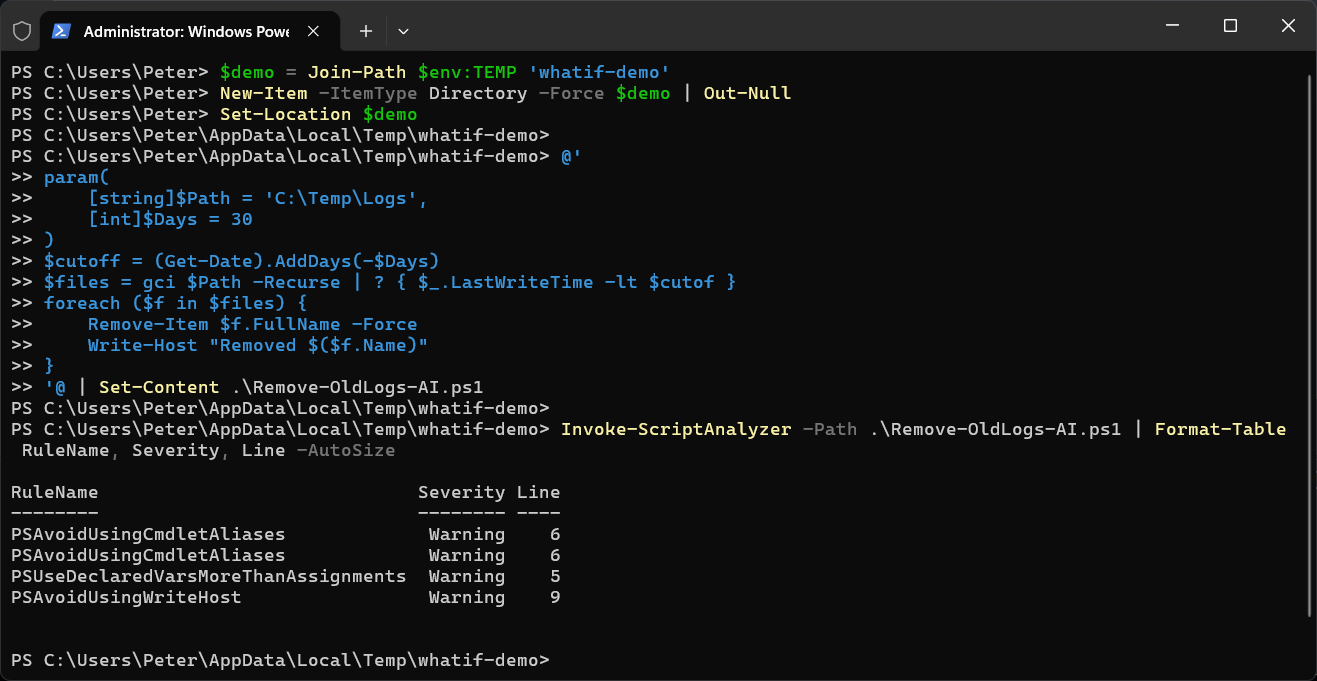
Invoke-ScriptAnalyzer -Path .\Remove-OldLogs.ps1
On the script above it reports four warnings: two aliases (gci and ?), Write-Host, and PSUseDeclaredVarsMoreThanAssignments on $cutoff. That last one is the useful one. It says the variable is set and never used, which is the typo from the last section seen from the other side.
It is a linter, not a reviewer. It will not tell you the script deletes the wrong folder, and it does not flag a password assigned to a variable inside the script. Treat a clean result as “no obvious mistakes”, not “safe”.
Check What a Command Really Is
AI-written scripts sometimes call a command that does not exist, or one that is not what it looks like. Get-Command answers both:
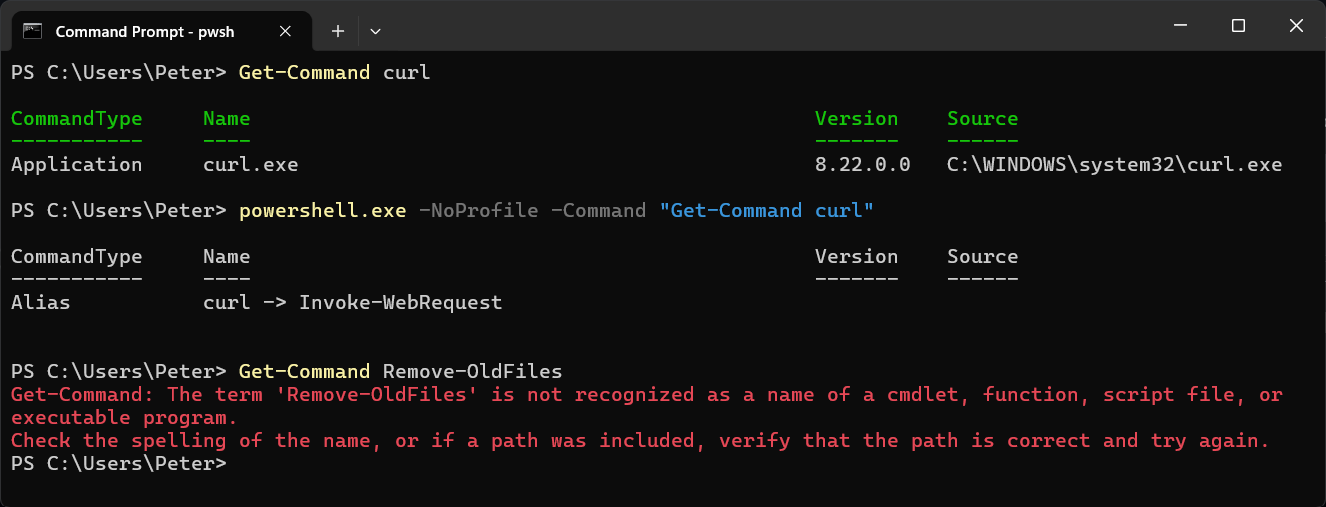
Get-Command curl
Get-Command Remove-OldFiles
In Windows PowerShell 5.1, curl is an alias for Invoke-WebRequest. In PowerShell 7 it is the real curl.exe, so the same line can behave differently depending on which one runs the script. A made-up cmdlet gives is not recognized as a name of a cmdlet, which is better to find now than halfway through a run. From a PowerShell 7 window, powershell.exe -NoProfile -Command "Get-Command curl" runs the same check in 5.1, so you can see both answers in one place. There is more on this in Get-Command in PowerShell.
The Fixed Script
With SupportsShouldProcess, strict mode, the typo fixed, full cmdlet names and -File so folders are not caught:
[CmdletBinding(SupportsShouldProcess)]
param(
    [string]$Path = 'C:\Temp\Logs',
    [int]$Days = 30
)
Set-StrictMode -Version Latest
$cutoff = (Get-Date).AddDays(-$Days)
$files = Get-ChildItem $Path -Recurse -File | Where-Object { $_.LastWriteTime -lt $cutoff }
foreach ($f in $files) {
    if ($PSCmdlet.ShouldProcess($f.FullName, 'Remove file')) {
        Remove-Item $f.FullName -Force
        Write-Output "Removed $($f.Name)"
    }
}
Run it with -WhatIf first, read the list, then run it for real. Delete Files Older Than X Days in PowerShell covers the same job as a one-liner.
If you are not sure what a script does, paste it into Claude Code and ask what it changes and what it deletes. That’s what it’s there for.
Related
If SQL Server is part of your day job, my current work lives over at sqldba.blog: production DBA scripts, an error library and the SSMS guide.
Leave a Reply