A server restarted overnight, or an app went down and you want to know if Windows went with it. The quickest check for the last reboot time of a Windows computer is one line of PowerShell 7:
Get-Uptime -Since

Not on PowerShell 7? Below are the same answers from Windows PowerShell 5.1, the Command Prompt and Task Manager. They all read the same boot time, so use whichever is in front of you.
PowerShell 7: Get-Uptime
Get-Uptime -Since returns the date and time Windows last started. Run Get-Uptime without -Since and you get how long it has been up instead, as days, hours and minutes.
Get-Uptime only exists in PowerShell 6 and later. In Windows PowerShell 5.1 you get a “not recognized” error, so use the next method or install PowerShell 7 alongside it.
Windows PowerShell 5.1: Get-CimInstance
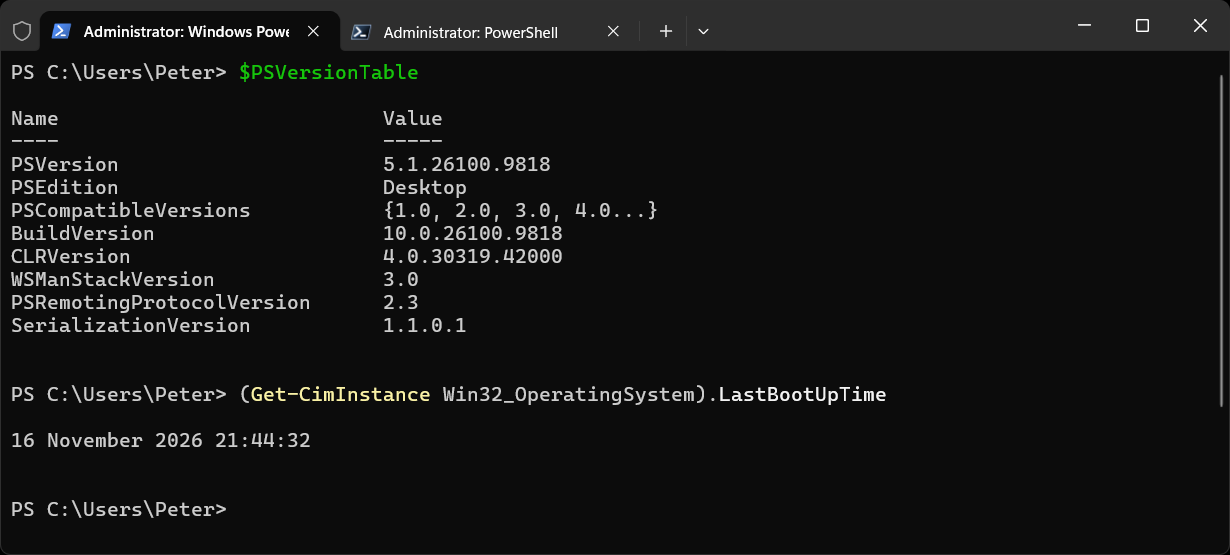
The boot time lives on the Win32_OperatingSystem class as LastBootUpTime. This works in every version of PowerShell, so it is the one to put in a script:
(Get-CimInstance Win32_OperatingSystem).LastBootUpTime
For the uptime rather than the date, take the boot time away from now:
(Get-Date) - (Get-CimInstance Win32_OperatingSystem).LastBootUpTime
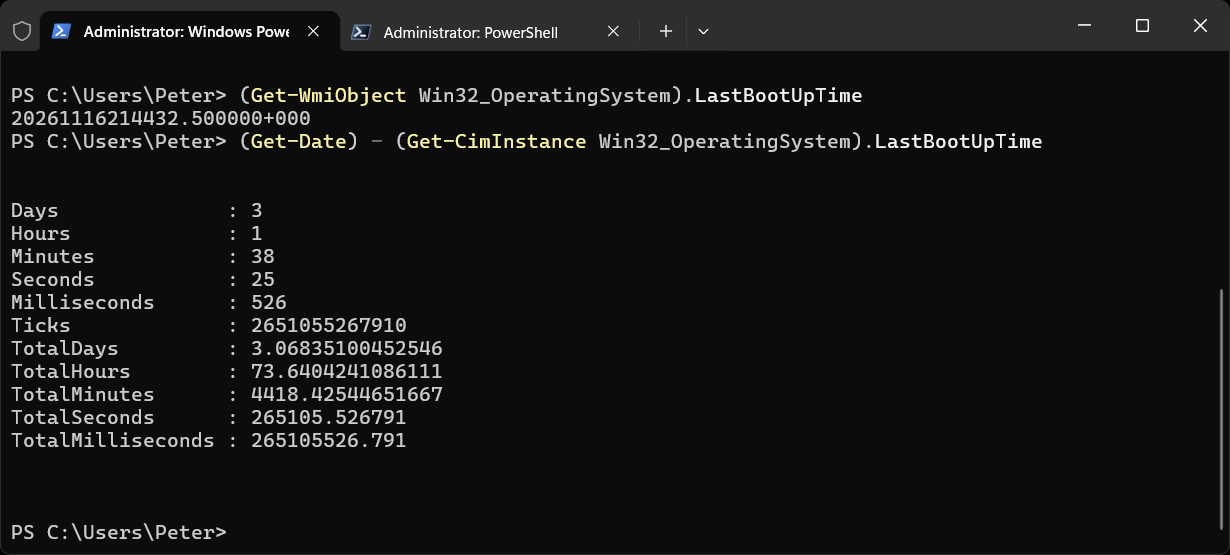
The first line in that capture is the older Get-WmiObject version of the same thing. It hands back the raw WMI date string, 20261116214432.500000+000, which you would have to convert yourself, and it is gone from PowerShell 7. Stick with Get-CimInstance.
It also takes -ComputerName, which makes it the one to use when you need the answer from several servers at once:
Get-CimInstance Win32_OperatingSystem -ComputerName APPSRV01, APPSRV02 |
    Select-Object PSComputerName, LastBootUpTime
Command Prompt: systeminfo
No PowerShell, or you are already in a cmd window? systeminfo prints the boot time along with everything else about the machine, so filter it down to the one line:
systeminfo | findstr /C:"System Boot Time"
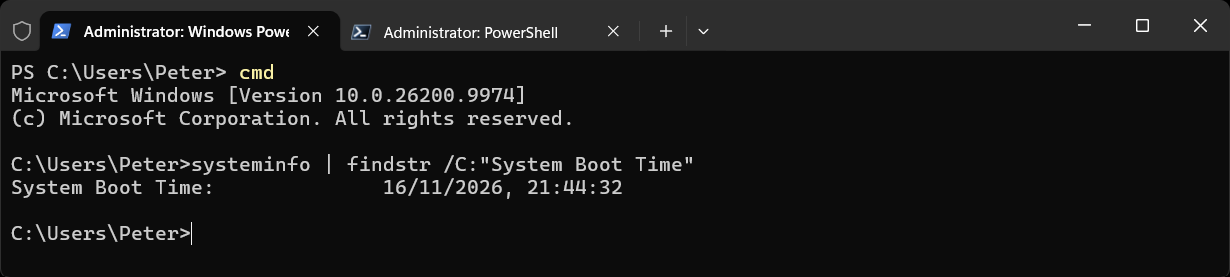
It takes a few seconds because it gathers the whole system report first. The label is in the language Windows is installed in, so on a non-English system the findstr text needs to match that.
Task Manager: Up Time
If you are on the desktop or in an RDP session and do not want a shell at all, open Task Manager with Ctrl+Shift+Esc, go to Performance, then CPU. Up time is at the bottom, as days:hours:minutes:seconds.
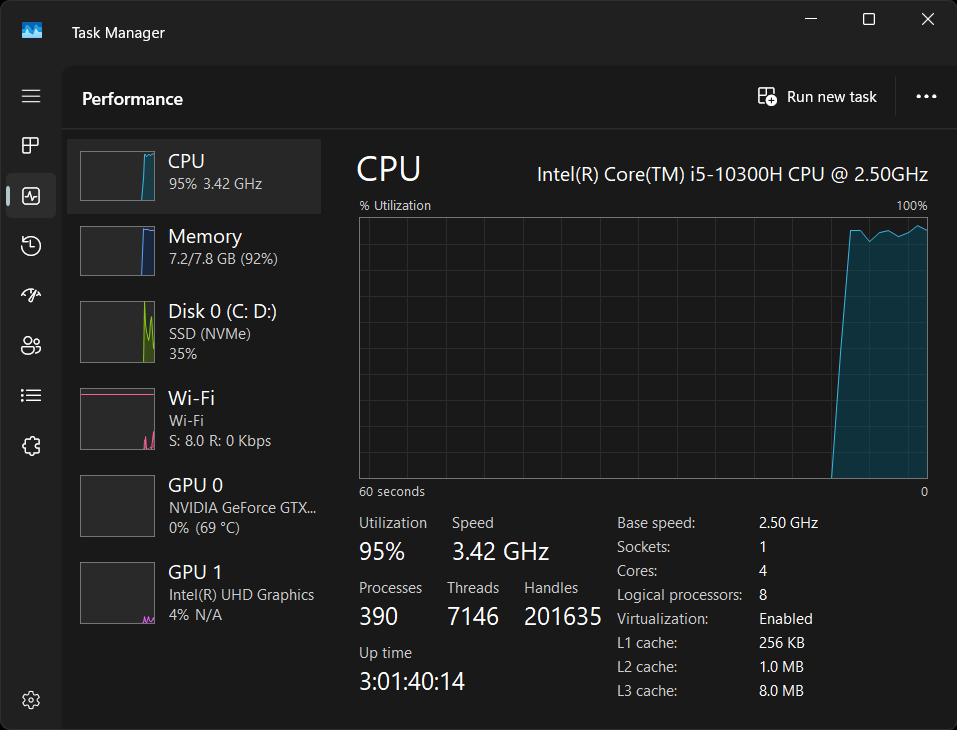
Here it reads 3:01:40:14, three days and just under two hours, which lines up with the PowerShell answers above. Task Manager gives you the uptime only, not the date it started, so work back from now if you need the time.
Which One to Use
- PowerShell 7 open:
Get-Uptime -Since, the shortest answer. - Windows PowerShell, a script, or many servers:
Get-CimInstance Win32_OperatingSystem, it works everywhere and remotely. - Command Prompt only:
systeminfo, slower but always there. - On the desktop: Task Manager, no typing needed.
Find Out Why It Restarted
The boot time tells you when. The System event log tells you why. Event 1074 records a planned restart and what asked for it, a user or a process such as Windows Update. Event 6008 records a shutdown that was not clean, like a power cut or a crash:
Get-WinEvent -FilterHashtable @{ LogName = 'System'; Id = 1074, 6008 } -MaxEvents 10 |
    Format-List TimeCreated, Id, Message
How to Show Event Logs in PowerShell covers Get-WinEvent and its filters in more detail.
SQL Server on the Box
If the machine runs SQL Server, the Windows boot time is not the whole story. The SQL Server service can be restarted without Windows rebooting, and it is the service start that resets its counters and caches. Check When SQL Server Was Last Restarted on sqldba.blog covers that side.
Related
If SQL Server is part of your day job, my current work lives over at sqldba.blog: production DBA scripts, an error library and the SSMS guide.
Leave a Reply