As an admin, most of the time you restart a server rather than shut it down. Patching needs a restart, so do some software changes, and that is routine work. A proper shutdown is rare. When I do one, it is nearly always part of retiring a server: the last step, once everything that ran on it has moved off.
A shutdown is also harder to undo than a restart. If a bare-metal server in a datacenter is switched off, it stays off until somebody in the building presses the power button, which means raising a call for a datacenter engineer to go and do it. So before you shut anything down, check which machine you are actually on:
hostname
It prints the name of the machine the window is running on. With several remote desktop sessions and terminals open, it is easy to be one window away from the server you meant.
PowerShell: Stop-Computer
Stop-Computer shuts a computer down. With no parameters it acts on the machine you are on, straight away. Add -WhatIf and PowerShell tells you what it would do without doing it, which is the safe way to check the command first. -WhatIf works the same on Restart-Computer, so both are in this check:
# Check which machine you are on before anything else
hostname

# Shut down or restart this computer: -WhatIf shows what would happen, and does nothing
Stop-Computer -WhatIf
Restart-Computer -WhatIf

# A named computer (one or several); the name must resolve, even with -WhatIf
Restart-Computer -ComputerName HPAI01 -WhatIf
Restart-Computer -ComputerName SQLPROD01 -WhatIf
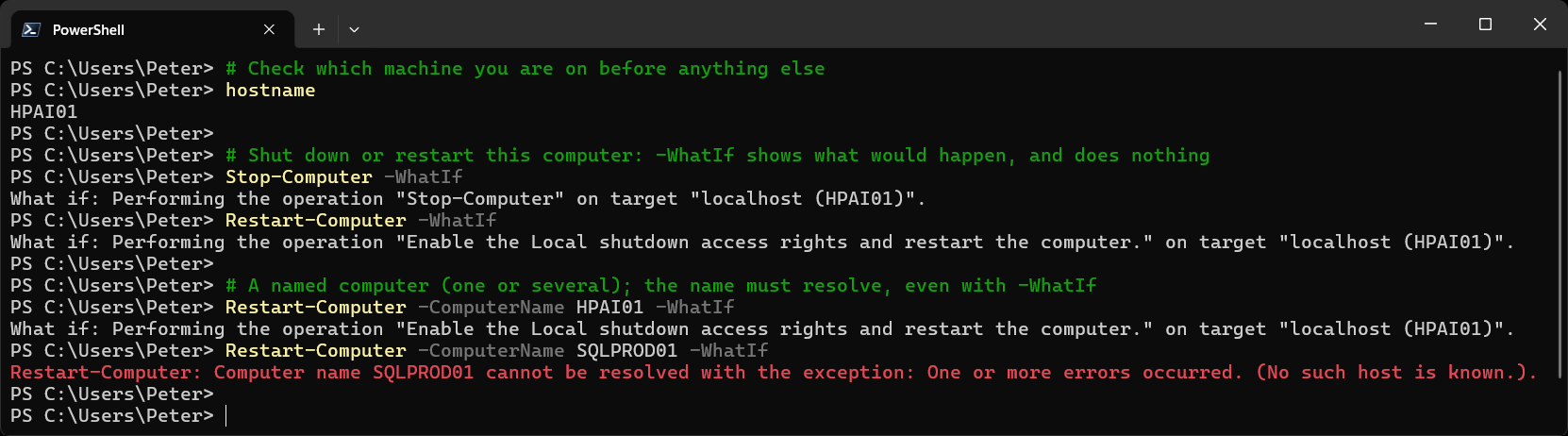
The last line is worth a look. -WhatIf still resolves the computer name, so a name that does not exist fails with an error instead of quietly reporting that it would have worked. A typo in a server name shows up before you remove the -WhatIf, not after.
To shut down a server you are retiring from your own machine, name it and ask for a confirmation:
# Shut down a server being retired, with a prompt before it goes
Stop-Computer -ComputerName OLDAPP01 -Confirm
The parameters you will use:
-ComputerNametakes one name or a list, such as-ComputerName OLDAPP01, OLDAPP02.-Confirmasks before acting on each computer. Worth the extra keypress when the command holds a list of names.-Forceshuts down even when other users are signed in or applications have unsaved work. Without it, the command fails on a machine where someone else is signed in.
Command Prompt: shutdown /s
In a Command Prompt, shutdown /s shuts the machine down. /t sets a delay in seconds and /c adds a comment, which is where the reason goes. For a retirement, say so:
hostname
shutdown /s /t 3600 /c "Server retirement: shutting down for decommission."
shutdown prints nothing and Windows warns anyone signed in that a shutdown is coming. If you are only trying it out, run shutdown /a straight away.A scheduled shutdown can be cancelled at any point before the timer runs out:
shutdown /a
shutdown /a also prints nothing when it cancels something. If there is nothing to cancel, it says so and returns error 1116, which is a quick way to confirm no shutdown is pending.shutdown /a only works while a timer is running, which is a good reason to give a shutdown a /t, even a short one: it leaves a window to change your mind. The other switches worth knowing:
/m \\SERVERNAMEacts on a remote computer, for exampleshutdown /s /m \\OLDAPP01 /t 60 /c "Server retirement"./fcloses running applications without warning their users. Any/tgreater than 0 implies/f./t 0means now, with no time to cancel.
Restarting Instead
For patching and software changes you want a restart, not a shutdown. The commands mirror the ones above: Restart-Computer in PowerShell and shutdown /r in a Command Prompt, with the same -ComputerName, -WhatIf, /t and /a. One extra worth knowing for a patching script: Restart-Computer -ComputerName APPSRV01 -Wait -For PowerShell holds your prompt until the server is back and answering PowerShell remoting, so the next step does not start too early.
Once it is back, check the last reboot time to confirm the restart actually happened, and when.
Servers Running SQL Server
Shutting Windows down stops SQL Server along with everything else, and anything still running is rolled back. Before shutting down a database server, check who is connected and what is running, and stop the SQL Server services yourself so it happens on your terms. Get Active Sessions and Requests on sqldba.blog shows what is running right now.
Related
If SQL Server is part of your day job, my current work lives over at sqldba.blog: production DBA scripts, an error library and the SSMS guide.
Leave a Reply