
Claude Code is a terminal tool, and on Windows the install is now one line. No Node.js, no npm, no admin prompt. I have run it on this Windows 11 laptop every day since June 2026, and the install itself was the easy part. What catches people is which shell they pasted the command into, where the binary went, and why claude is “not recognized” in the next window.
This is the native Windows install, the WSL install, where the files land, the PATH fix, the first run, and the settings.json keys worth knowing on day 1. Every command is from Anthropic’s current docs, linked at the end, and checked against the install on this machine.
Native or WSL
Native Windows runs claude.exe from PowerShell or CMD against projects on your Windows drives. Git for Windows is optional but worth having. Sandboxed command execution is not supported natively.
WSL 2 runs the Linux build inside your distro. Pick it if your projects and toolchain already live in Linux, or if you want sandboxing, which only WSL 2 supports on Windows. WSL 1 runs it too, without sandboxing.
I run it native. My projects are on C: and D:, my tools are PowerShell and Git Bash, and the only WSL distro on this laptop is the one Docker Desktop makes for itself.
Install on Windows
Open a normal terminal, not an elevated one. Your prompt tells you which shell you are in: PS C:\Users\you> is PowerShell, C:\Users\you> without the PS is CMD. Run the line for your shell:
# PowerShell
irm https://claude.ai/install.ps1 | iex
:: CMD
curl -fsSL https://claude.ai/install.cmd -o install.cmd && install.cmd && del install.cmd
The installer shows no progress while it downloads, so give it a minute. If you get The token '&&' is not a valid statement separator, you pasted the CMD line into PowerShell. Windows PowerShell 5.1 does not have && at all, which bites me on this machine in other scripts too. If you get 'irm' is not recognized, that is the PowerShell line in CMD.
When it finishes, open a new terminal window and check it:
claude --version
# 2.1.322 (Claude Code)

where.exe claude
# C:\Users\you\.local\bin\claude.exe

Install Git for Windows if you have not already. It gives Claude Code a Bash tool through Git Bash; without it Claude Code uses PowerShell as its shell tool instead. How to Install Git on Windows covers it. On this laptop Git 2.54 is in the default folder and Claude Code found it on its own. If yours is somewhere else, point it there in settings.json:
{
  "env": {
    "CLAUDE_CODE_GIT_BASH_PATH": "C:\\Program Files\\Git\\bin\\bash.exe"
  }
}
Where It Lands
Everything goes under your user profile. The launcher is %USERPROFILE%\.local\bin\claude.exe, and the downloaded versions sit in %USERPROFILE%\.local\share\claude\versions\:
Get-ChildItem "$env:USERPROFILE\.local\bin"
Get-ChildItem "$env:USERPROFILE\.local\share\claude\versions" |
    Select-Object Name, @{n='MB';e={[math]::Round($_.Length/1MB)}}, LastWriteTime
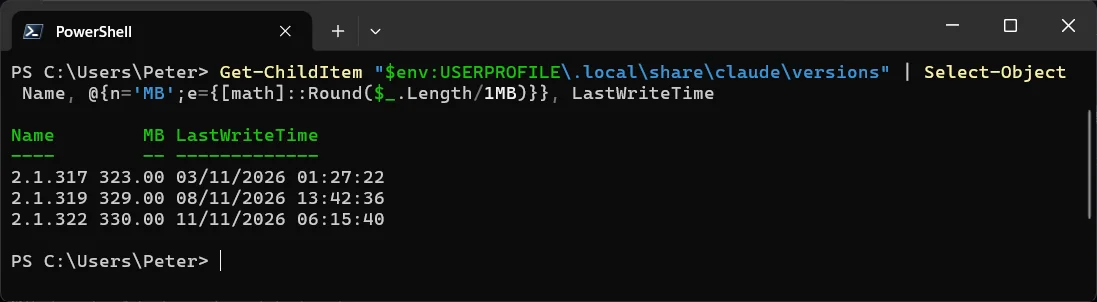
Mine holds 3 versions at about 330 MB each, so roughly 1 GB of C: is Claude Code binaries. The installer keeps the 2 newest plus whatever a running session is using and deletes the rest. A file called claude.exe.old.<timestamp> next to the launcher is the backup from the last update, not a leftover to clean up.
Your configuration is separate: %USERPROFILE%\.claude\ holds settings.json, the session transcripts under projects\, plugins and skills, and %USERPROFILE%\.claude.json holds your account, MCP servers and per-project trust. Uninstalling the binary leaves both alone.
Fix the PATH
If the install succeeded but a new terminal says claude : The term 'claude' is not recognized, the install folder is not on your PATH. The installer tells you this under Setup notes: in its output, but it does not change PATH for you. Check both halves:
Test-Path "$env:USERPROFILE\.local\bin\claude.exe"
# True means the binary is there

$env:PATH -split ';' | Select-String '\.local\\bin'
# no output means the folder is not on your PATH
Add it to your User PATH once, then open a new terminal:
$currentPath = [Environment]::GetEnvironmentVariable('PATH', 'User')
[Environment]::SetEnvironmentVariable('PATH', "$currentPath;$env:USERPROFILE\.local\bin", 'User')
A terminal inside VS Code or another editor takes its PATH from the editor, so restart the editor, not just the terminal pane. How to Set Environment Variables in PowerShell has the background on User versus Machine scope. One more trap: an old Claude Desktop install can register a Claude.exe in WindowsApps that wins the PATH race, so typing claude opens the app. Updating Claude Desktop fixes that.
Install in WSL
Open your distro and run the Linux installer from inside it. You install and launch claude in the WSL terminal, not from PowerShell:
curl -fsSL https://claude.ai/install.sh | bash

# if the new shell cannot find it
echo 'export PATH="$HOME/.local/bin:$PATH"' >> ~/.bashrc
source ~/.bashrc
claude --version
It lands at ~/.local/bin/claude, a symlink into ~/.local/share/claude/versions/. WSL does not need Git for Windows. Keep the projects you point it at on the Linux side (/home/), because searches across /mnt/c/ are slow and return fewer results. If you have never set WSL up, How to Install Windows Subsystem for Linux is the starting point and the WSL complete guide has the rest.
WSL 1 users: if claude prints cannot execute binary file: Exec format error, that is a known WSL 1 regression. The clean fix is to convert the distro from PowerShell with wsl --set-version <DistroName> 2.
Login from WSL sometimes cannot open a browser. Press c at the login prompt to copy the URL, sign in with it in your Windows browser, then paste the code it gives you back into the terminal. Or tell WSL where your browser is before you start:
export BROWSER="/mnt/c/Program Files/Google/Chrome/Application/chrome.exe"
claude
If You Already Have Node
The npm package still exists and installs the same native binary. It needs Node.js 22 or later, and claude does not use Node once installed:
npm install -g @anthropic-ai/claude-code

# upgrade later with @latest, not npm update -g
npm install -g @anthropic-ai/claude-code@latest
On Windows the first thing most people hit with this route is npm.ps1 cannot be loaded because running scripts is disabled on this system. That is PowerShell’s execution policy blocking npm’s .ps1 launcher, and the same error names claude.ps1 afterwards. Fix “.ps1 cannot be loaded because running scripts is disabled” has the one-line fix (Set-ExecutionPolicy -ExecutionPolicy RemoteSigned -Scope CurrentUser) and the npm.cmd workaround. In WSL, exec: node: not found means your distro picked up the Windows Node from /mnt/c/; install Node inside the distro instead.
My take: there is no Node.js on this laptop at all, and Claude Code has never needed it. Unless you already use npm, skip this section.
The First Run
Change into a project folder and start it. Claude Code works from wherever you launch it, so the folder matters:
cd C:\path\to\your\project
claude
The first start sends you to the browser to log in. You need a paid Claude plan (Pro, Max, Team or Enterprise) or a Console account with API credit; the free plan does not include Claude Code. I started on Pro and moved to Max once it became a daily tool, and 2026, the Year of Running AI Agents has what that cost. Once logged in, the credentials are stored and you are not asked again. /login inside a session switches accounts.
Above the prompt you get the version, the model and the working directory. The commands worth knowing on day 1:
/help          commands available
/status        which settings files loaded, account, model
/resume        pick up an earlier session in this folder
/exit          leave (or Ctrl+D twice)
Shift+Tab      cycle the permission mode

claude -c      from the shell: continue the last session here
claude doctor  from the shell: read-only install and settings check
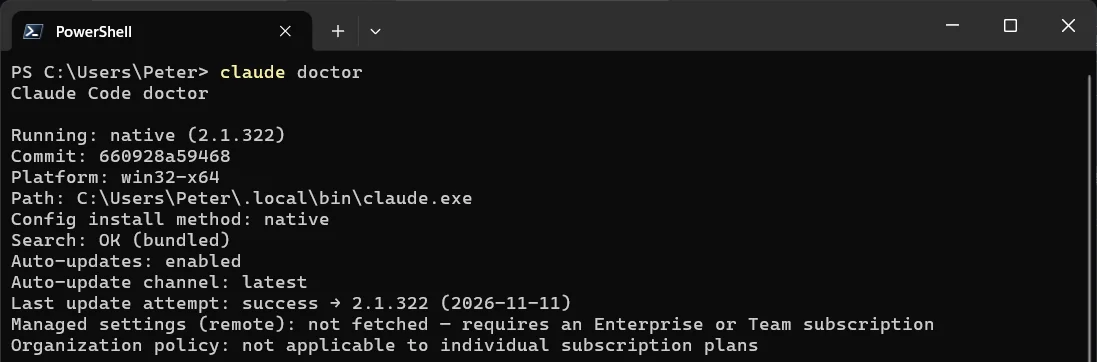
Claude asks before it edits a file or runs a command. Say yes to the ones you trust and “don’t ask again” when you are sure; those answers are what builds your settings.json, which is the next section.
settings.json Basics
Installing creates no settings file. Claude Code writes %USERPROFILE%\.claude\settings.json the first time you change something in /config, such as the theme, and writes .claude\settings.local.json in a project the first time you answer “Yes, and don’t ask again” on a permission prompt. There are 3 files that matter:
~\.claude\settings.json is yours, for every project on the machine: model, theme, your own permission rules.
.claude\settings.json in a project is for everyone who clones it: commit it. Team permissions, hooks, the environment variables the project needs.
.claude\settings.local.json in a project is yours alone, kept out of git. Project local beats shared project, which beats the user file.
They are strict JSON, so no comments and no trailing commas; a broken file shows a Settings Error at the next start. A minimal user file with the keys I would set on day 1:
{
  "$schema": "https://json.schemastore.org/claude-code-settings.json",
  "model": "opus",
  "theme": "dark",
  "cleanupPeriodDays": 3650,
  "autoUpdatesChannel": "stable",
  "permissions": {
    "allow": [
      "Bash(git status)",
      "Bash(git diff *)"
    ],
    "deny": [
      "Read(./.env)"
    ]
  }
}

The $schema line gives you autocomplete and validation in VS Code. model and theme are what /model and /config write for you anyway. cleanupPeriodDays is the one nobody sets until it bites: the default deletes session transcripts after 30 days, silently, and Claude Code Only Keeps 30 Days of Transcripts is what that cost me. autoUpdatesChannel set to stable keeps you about a week behind the newest release and skips the ones with regressions.
Mine, after 5 months, has 7 top-level keys: the model, the theme, a permissions allow list that has grown with every “don’t ask again”, cleanupPeriodDays at 3650, an auto mode block, and 2 true/false flags, autoCompactEnabled and skipWorkflowUsageWarning. Claude Code reloads the file when you save it, so most edits apply to the running session; /status confirms which files loaded.
Updates and Uninstall
A native install updates itself in the background: it checks on startup and while running, downloads the new version, and it takes effect the next time you start. This morning’s went from 2.1.319 to 2.1.322 at 06:15, before I had opened a terminal. To force one, or to see where you are:
claude update
# Successfully updated from 2.1.319 to version 2.1.322
# or: Claude Code is up to date (2.1.322)
To stop the background updates, set DISABLE_AUTOUPDATER to "1" in the env block of settings.json; claude doctor then shows the Auto-updates line as disabled. If claude is suddenly “not recognized” right after an update, the swap of claude.exe failed halfway and the backup is still there. Rename it back:
Get-ChildItem "$env:USERPROFILE\.local\bin\claude.exe.old.*" |
    Sort-Object Name | Select-Object -Last 1 | Rename-Item -NewName claude.exe
Uninstalling the native build is 2 deletes. Your settings and transcripts under .claude stay unless you remove those too, and removing them loses every saved session:
Remove-Item -Path "$env:USERPROFILE\.local\bin\claude.exe" -Force
Remove-Item -Path "$env:USERPROFILE\.local\share\claude" -Recurse -Force
Other Considerations
WinGet works too. winget install Anthropic.ClaudeCode installs it, but WinGet installs do not update themselves; run winget upgrade Anthropic.ClaudeCode now and then, and expect it to fail while a session is open because Windows locks the exe.
There is a desktop app. If you would rather not live in a terminal, the Claude Code desktop app does the same job with a window. The terminal build is what this post is about, and it is what I use.
Watch .claude\projects. Every session writes a transcript there, and mine reached 2 GB in a month. It was part of what filled C: to 0 bytes in October. The transcripts post covers moving the folder with CLAUDE_CONFIG_DIR.
Give it a reference before you give it a job. If SQL Server is your day job, the first thing I would add after the install is an MCP server, so the answers it gives you about errors, waits and builds come from a checked source rather than recall. The sqldba MCP Server is the one I built for exactly that.
Frequently Asked Questions
Do I need Node.js to install Claude Code?
No. The native installer downloads a standalone binary. The npm package exists for people who already have Node 22 or later, and it installs the same binary. This laptop has no Node on it and has run Claude Code daily since June.
Do I need to run the installer as Administrator?
No. Everything goes under your user profile, in .local\bin and .local\share\claude, and the PATH change is to your User PATH. Anthropic’s docs say plainly that Administrator is not needed, and the npm route should never use sudo.
Can I install a specific version, or stay on the stable channel?
Yes. In PowerShell, & ([scriptblock]::Create((irm https://claude.ai/install.ps1))) stable installs the stable channel, and the same form with a version number such as 2.1.89 in place of stable pins that version. The channel you install from becomes your auto-update channel.
Native or WSL, which should I pick?
Where your projects are. Windows folders and PowerShell tooling, go native. A Linux toolchain in /home, or a need for sandboxed command execution, go WSL 2. Running the native build against files on /mnt/c from inside WSL is the slow combination.
Does the free Claude plan include Claude Code?
No. It needs Pro, Max, Team or Enterprise, or a Console account with prepaid API credit. The login prompt on the first run is where that gets checked.
Related
- Claude Code Only Keeps 30 Days of Transcripts
- Fix “.ps1 cannot be loaded because running scripts is disabled on this system” in PowerShell
- How to Install Git on Windows
- How to Set Environment Variables in PowerShell
- How To Install Windows Subsystem for Linux (WSL)
- WSL: The Complete Guide for Windows Admins
- The Best Terminal for Windows
- 2026, the Year of Running AI Agents
- The sqldba MCP Server: Give Your AI Assistant a Verified SQL Server Reference
- Claude Code docs: advanced setup (install, update, uninstall)
- Claude Code docs: quickstart and first session
- Claude Code docs: troubleshoot installation and login
- Claude Code docs: settings files and precedence
If SQL Server is part of your day job, my current work lives over at sqldba.blog: production DBA scripts, an error library and the SSMS guide.
Leave a Reply