
In this blog post, we’ll go through the steps for using a PowerShell script that lists files in a directory along with their sizes and creation dates. This script is useful for disk space and for checking old files in a folder.
List Files with Size and Last Write Time
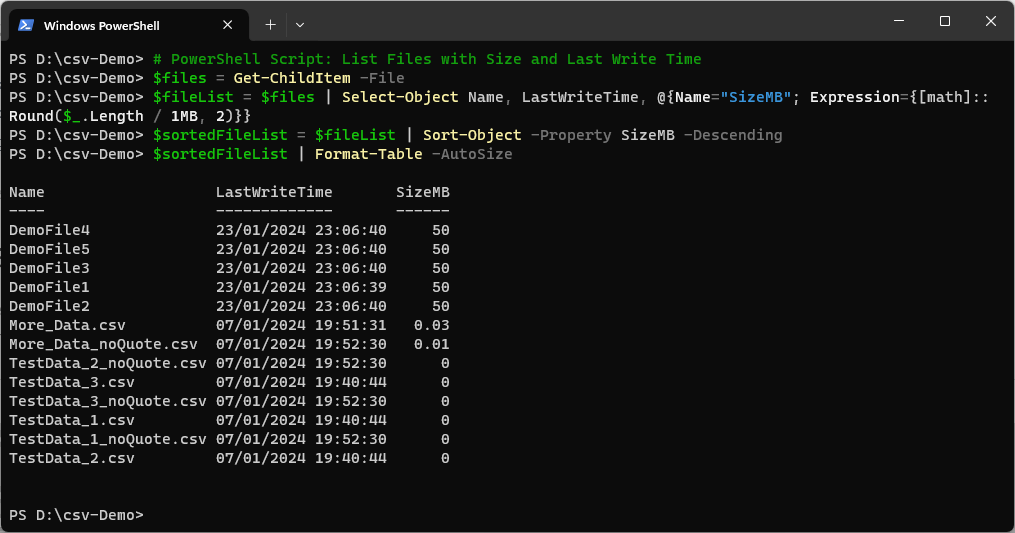
The following PowerShell script provides admins a quick overview of the files in the current directory, ordered by file size (MB) from highest to lowest.
PowerShell Script:
# PowerShell Script: List Files with Size and Last Write Time
$files = Get-ChildItem -File
$fileList = $files | Select-Object Name, LastWriteTime, @{Name="SizeMB"; Expression={[math]::Round($_.Length / 1MB, 2)}}
$sortedFileList = $fileList | Sort-Object -Property SizeMB -Descending
$sortedFileList | Format-Table -AutoSize
How It Works
> Get-ChildItem: Retrieves all files in the current directory using the -File parameter.
> Select-Object: Creates a custom object for each file with its name, last write time, and size in megabytes.
> Sort-Object: Orders the files by size in descending order.
> Format-Table: Displays the sorted file list in a table format.
Making It a Function
For better reusability, we can turn the script into a function:
# PowerShell Function: List-FilesWithSizesAndDates
Function List-FilesWithSizesAndDates {
    param(
        [string]$directoryPath = (Get-Location)
    )
    $files = Get-ChildItem -Path $directoryPath -File
    $fileList = $files | Select-Object Name, CreationTime, @{Name="SizeMB"; Expression={[math]::Round($_.Length / 1MB, 2)}}
    $sortedFileList = $fileList | Sort-Object -Property SizeMB -Descending
    $sortedFileList | Format-Table -AutoSize
}
Example usage:
# List files in the current directory
List-FilesWithSizesAndDates

# List files in a specific directory
List-FilesWithSizesAndDates -directoryPath "d:\mssql_backups"
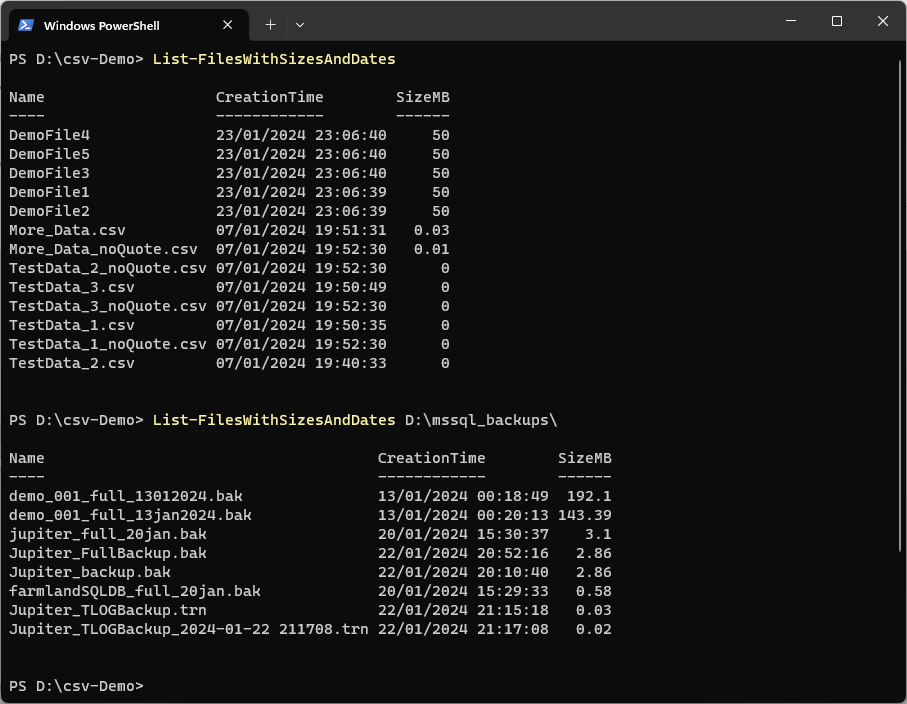
This function makes it easy to organize files by size and date, helping you quickly find large or old files that might need archiving or deletion. It’s also great for auditing, letting you track file creation dates for better record-keeping. Plus, you can name the function whatever you like, customizing it to fit your workflow and making your terminal experience even smoother.
If SQL Server is part of your day job, my current work lives over at sqldba.blog: production DBA scripts, an error library and the SSMS guide.
That Last Line Is Also the One Thing You Should Change
Format-Table is fine when you are looking at the screen. It is a trap the moment you want to do anything with the result, because it does not return your data. It returns formatting instructions.
Add an export to the end of the script above and you do not get a spreadsheet of files. Tested on PowerShell 7, piping that exact Format-Table into Export-Csv produced a file starting like this:
"ClassId2e4f51ef21dd47e99d3c952918aff9cd","pageHeaderEntry","pageFooterEntry","autosizeInfo","shapeInfo","groupingEntry"
"033ecb2bc07a4d43b5ef94ed5a35d280",,,"Microsoft.PowerShell.Commands.Internal.Format.AutosizeInfo",...
No file names, no sizes. Those are PowerShell’s internal formatting objects written out as columns. Nothing errors, so if you scheduled that you would get a file every night and only notice when somebody opened one.
The rule is simple: Format-* goes last, or not at all. Keep the objects, and decide at the end what to do with them:
$fileList = Get-ChildItem -File |
    Select-Object Name, LastWriteTime, Length,
                  @{Name='SizeMB'; Expression={[math]::Round($_.Length / 1MB, 2)}} |
    Sort-Object Length -Descending

$fileList | Format-Table -AutoSize          # to read now
$fileList | Export-Csv .\files.csv -NoTypeInformation   # to keep
Note that sorts on Length rather than on SizeMB. Sorting on the rounded column means every file that rounds to the same two decimal places is ordered arbitrarily, which matters more than it sounds once a folder has a few hundred files of similar size.
Small Files All Report 0.00
Dividing by 1MB and rounding to two places means anything under roughly five kilobytes becomes 0.00. In the test folder I ran this against, a small text file came back as:
Name      LastWriteTime       SizeMB
----      -------------       ------
big.bin   29/08/2026 16:09:36   3.00
other.txt 29/08/2026 16:09:36   2.00
small.txt 29/08/2026 16:09:36   0.00
Fine when you are hunting for the thing eating a disk. Not fine if you are auditing a folder, because a hundred files at 0.00 are indistinguishable from empty ones. Scale the unit to the file instead:
@{Name='Size'; Expression={
    if     ($_.Length -ge 1GB) { '{0:N2} GB' -f ($_.Length / 1GB) }
    elseif ($_.Length -ge 1MB) { '{0:N2} MB' -f ($_.Length / 1MB) }
    elseif ($_.Length -ge 1KB) { '{0:N2} KB' -f ($_.Length / 1KB) }
    else                       { "$($_.Length) B" }
}}
Two Things It Quietly Leaves Out
Hidden files are not counted. Get-ChildItem skips hidden and system items unless you ask for them. Tested on the same folder: 3 files without -Force, 4 with it. The missing one was a megabyte. If you are chasing disk space, that is exactly the wrong file to miss, and nothing tells you it was skipped.
It only looks at the folder you are standing in. No -Recurse, so a directory whose entire contents sit in subfolders reports almost nothing. Adding recursion brings its own problem though, which is worth knowing before you run it somewhere large:
# -Force picks up hidden items, SilentlyContinue skips folders you cannot read
Get-ChildItem -File -Recurse -Force -ErrorAction SilentlyContinue |
    Sort-Object Length -Descending |
    Select-Object -First 20 FullName, Length, LastWriteTime
Without -ErrorAction SilentlyContinue a recursive scan of a user profile or a system drive fills the screen with access denied errors for folders you were never going to read. Use -First as well: on a large tree, sorting everything before showing anything is where the wait comes from.
One more thing this does not do, because Get-ChildItem cannot: directories have no meaningful Length. If the question is which subfolder is largest, you have to sum the files underneath each one, which is a different script rather than a switch on this one.
Leave a Reply