To copy the output of a command to the clipboard, pipe it to Set-Clipboard:
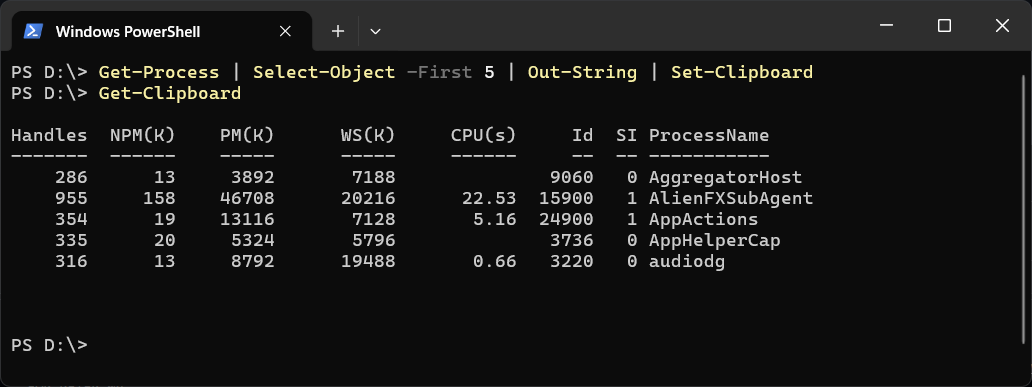
Get-Process | Select-Object -First 5 | Out-String | Set-Clipboard
Paste anywhere and you get the table exactly as PowerShell would have shown it. Out-String is the important part, and the gotcha below explains why.
Copy Some Text and Read It Back
'hello from PowerShell' | Set-Clipboard
Get-Clipboard
Get-Clipboard prints whatever is on the clipboard as text, which is a quick way to check what you are about to paste.
Copy the Current Folder Path
(Get-Location).Path | Set-Clipboard
Handy for pasting a path into File Explorer or a chat. Open Current Folder in PowerShell goes the other way and opens it in Explorer.
A Plain List of Names
Get-ChildItem | Select-Object -ExpandProperty Name | Set-Clipboard
-ExpandProperty gives plain text, one name per line, with no heading.
Add to What Is Already There
'first line' | Set-Clipboard
'second line' | Set-Clipboard -Append
The Short Way: clip
ipconfig | clip
Get-Date | clip
clip.exe is built into Windows, works in Command Prompt as well, and takes whatever text a command prints, table layout and all.
The Common Gotcha: Objects Are Not Text
PowerShell commands output objects, not text, and Set-Clipboard does not format them the way the console does. Without Out-String you get something like this instead of a table:
Get-ChildItem | Select-Object -First 2 Name | Set-Clipboard
@{Name=notes.txt}
@{Name=report.csv}
PowerShell 7 copies unformatted process objects as System.Diagnostics.Process (pwsh). Windows PowerShell 5.1 does something stranger. Its Set-Clipboard has a -Path parameter that picks up any object with a path, so piping in files, processes or Get-Location puts them on the clipboard as files, as if you had copied them in File Explorer, and Get-Clipboard then shows no text at all. Piping Get-Process straight in can also fail with Cannot validate argument on parameter 'Path'. The argument is null or empty. for processes whose path it cannot read. That is why the folder path example above uses (Get-Location).Path: it is plain text in both versions.
The fix every time is the same: Out-String for a table, -ExpandProperty for a single column.
Windows PowerShell 5.1 and PowerShell 7
PowerShell 7 dropped Set-Clipboard -Path, -LiteralPath and -AsHtml, and Get-Clipboard -Format, so these only handle text there. It added -AsOSC52, which copies to the clipboard of your own machine when you are working in a remote SSH session.
If a long command misbehaves when you paste it, A Positional Parameter Cannot Be Found That Accepts Argument covers the usual paste problems. And copied output is exactly what to paste into Claude Code when you want help reading it. That’s what it’s there for.
Related
If SQL Server is part of your day job, my current work lives over at sqldba.blog: production DBA scripts, an error library and the SSMS guide.
Leave a Reply