Your PowerShell profile is a script that runs every time PowerShell starts. $PROFILE holds its path:
$PROFILE
Where it points depends on the version you are in:
PowerShell 7:            C:\Users\you\Documents\PowerShell\Microsoft.PowerShell_profile.ps1
Windows PowerShell 5.1:  C:\Users\you\Documents\WindowsPowerShell\Microsoft.PowerShell_profile.ps1
They are two separate files. Something you add to one does not load in the other. If OneDrive backs up your Documents folder, both paths are under your OneDrive folder instead.
Create It If It Does Not Exist
$PROFILE is only a path. The file is not there until you make it, so check first:
Test-Path $PROFILE
False means there is no profile yet. Create it, along with any missing folders:
if (-not (Test-Path $PROFILE)) { New-Item -ItemType File -Path $PROFILE -Force }Edit It and Reload It
notepad $PROFILE
. $PROFILE
The first opens it in Notepad (or use code $PROFILE for VS Code). The second, a dot and a space then the path, runs the profile in the window you already have, so you do not need to open a new one to try a change. Something small to start with:
Set-Alias -Name np -Value notepad
function profile { notepad $PROFILE }
The Four Profiles
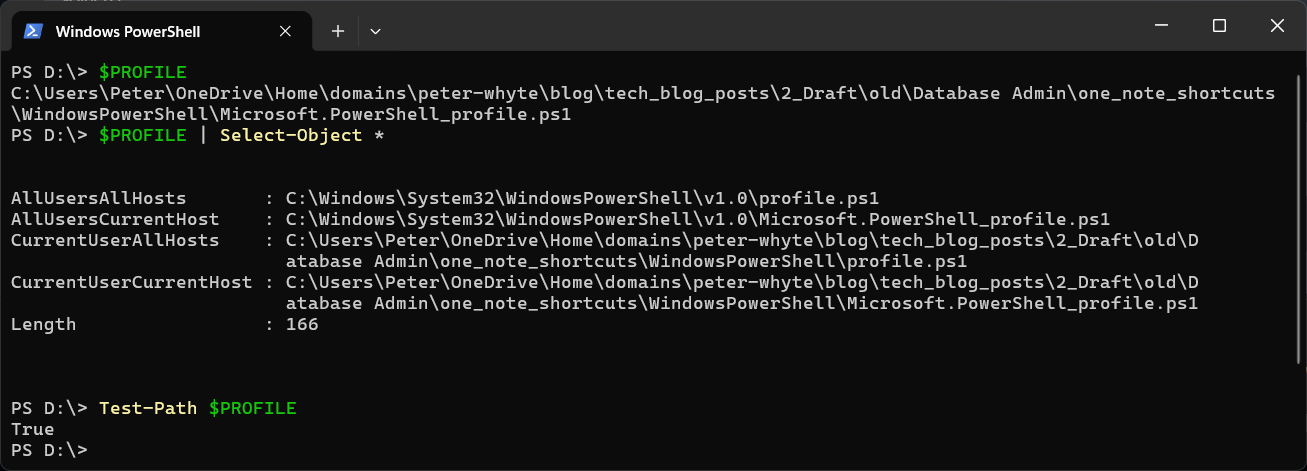
There is more than one profile. $PROFILE on its own is the current user and the current host. The other three hang off it as properties:
$PROFILE | Select-Object *
AllUsersAllHosts       : C:\Windows\System32\WindowsPowerShell\v1.0\profile.ps1
AllUsersCurrentHost    : C:\Windows\System32\WindowsPowerShell\v1.0\Microsoft.PowerShell_profile.ps1
CurrentUserAllHosts    : C:\Users\you\Documents\WindowsPowerShell\profile.ps1
CurrentUserCurrentHost : C:\Users\you\Documents\WindowsPowerShell\Microsoft.PowerShell_profile.ps1
Length                 : 73
That is Windows PowerShell 5.1. Length is not a profile, just the length of the path text. The AllUsers ones need Administrator to edit and apply to everyone on the machine. CurrentUserAllHosts also loads in other hosts, such as the PowerShell terminal in VS Code, which has its own CurrentHost profile. For your own settings, $PROFILE is the right one.
When the Profile Does Not Load
The profile is a script, so it follows the execution policy. If scripts are blocked, PowerShell starts with an error about the profile and skips it. Fix “.ps1 cannot be loaded because running scripts is disabled on this system” has the fix. If your profile breaks something, start PowerShell without it to get back in:
pwsh -NoProfile
Use powershell -NoProfile for Windows PowerShell 5.1.
The Common Gotcha: -Force Empties an Existing Profile
New-Item -ItemType File -Path $PROFILE -Force appears in a lot of guides as the way to create a profile. On an existing profile it replaces the file with an empty one, and everything you had in it is gone. Without -Force it refuses with The file ... already exists., but then it will not create the missing folders either. That is why the line above wraps it in Test-Path, so it only runs when there is nothing to lose.
For something to put in it, Installing oh-my-posh On Windows sets up a prompt theme from the profile. If you want help writing a function for it, describe what you want to Claude Code. That’s what it’s there for.
Related
If SQL Server is part of your day job, my current work lives over at sqldba.blog: production DBA scripts, an error library and the SSMS guide.
Leave a Reply