C: is filling up, and a WSL distro’s ext4.vhdx is one of the biggest files on it. You do not have to reinstall anything. Current WSL moves a distro, disk and all, with one command:
# stop the distro first
wsl --terminate Ubuntu

# move it to a folder on another drive
wsl --manage Ubuntu --move D:\WSL\Ubuntu
--move arrived in WSL 2.3.11, so it needs that version or later. If yours is older and wsl --update is not an option, the export and import route further down does the same job on any WSL 2 build.
Find the Disk and Check the Space
Before moving anything, find out where each distro lives now, how big its disk is, and whether the target drive has room for it:
wsl -l -v
wsl --version

# where each distro is stored
Get-ChildItem HKCU:\Software\Microsoft\Windows\CurrentVersion\Lxss |
    ForEach-Object { '{0} -> {1}' -f $_.GetValue('DistributionName'), $_.GetValue('BasePath') }

# every WSL disk under your profile, biggest first
Get-ChildItem $env:LOCALAPPDATA -Recurse -Filter ext4.vhdx -ErrorAction SilentlyContinue |
    Sort-Object Length -Descending |
    Select-Object @{n='GB';e={[math]::Round($_.Length/1GB,1)}}, FullName

# free space on both drives
Get-PSDrive C, D |
    Select-Object Name, @{n='UsedGB';e={[math]::Round($_.Used/1GB,1)}}, @{n='FreeGB';e={[math]::Round($_.Free/1GB,1)}}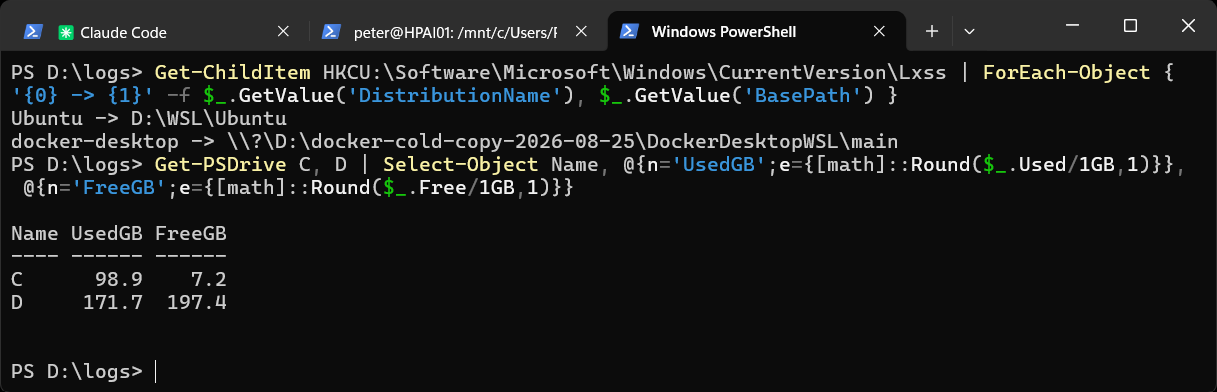
All of that is read-only. The output above is from my machine after the move, with Ubuntu on D:\WSL\Ubuntu and 7.2 GB free on C:. The target drive needs more free space than the size of the vhdx. If wsl --version prints the help text instead of version numbers, you are on the old inbox WSL and need the export route, or wsl --update first.
Move It with wsl --manage --move
Close anything using the distro, stop it, move it, then confirm:
wsl --terminate Ubuntu
wsl --manage Ubuntu --move D:\WSL\Ubuntu

# confirm the new location and that it still starts
Get-ChildItem HKCU:\Software\Microsoft\Windows\CurrentVersion\Lxss |
    ForEach-Object { '{0} -> {1}' -f $_.GetValue('DistributionName'), $_.GetValue('BasePath') }
Get-ChildItem D:\WSL\Ubuntu
wsl -d Ubuntu
I use --terminate here and not wsl --shutdown, because a shutdown stops every distro, and on a machine with Docker Desktop that takes your containers down too. The move keeps the distro’s name, files and default user. Only the location of the disk changes. To undo it, run the same command with the old folder as the location.
If your setup is not quite this one, with a different distro name, another drive letter or an older WSL, paste the output of wsl -l -v and wsl --version into Claude and ask which route fits. It can go through each step with you before you run it.
Older WSL: Export, Unregister, Import
Without --move, you export the distro to a tar file, remove it, and import it into the new folder. Put the tar on the other drive as well, since C: is the one short of space:
wsl --terminate Ubuntu
wsl --export Ubuntu D:\WSL\ubuntu.tar

# check the export exists and is a sensible size BEFORE the next step
Get-Item D:\WSL\ubuntu.tar | Select-Object Name, @{n='GB';e={[math]::Round($_.Length/1GB,2)}}

wsl --unregister Ubuntu
wsl --import Ubuntu D:\WSL\Ubuntu D:\WSL\ubuntu.tar --version 2
wsl --unregister deletes the distro and everything in it, with no prompt. The tar file is your only copy from that point, so check it before you run that line. During the import you need room on D: for both the tar and the new vhdx. Delete the tar once the distro starts and your files are there.
An imported distro starts as root, because the default user is not carried across. Set it inside the distro in /etc/wsl.conf, then terminate the distro and open it again:
[user]
default=yourname
On current WSL, wsl --manage Ubuntu --set-default-user yourname does the same from PowerShell.
Leave docker-desktop Alone
If you run Docker Desktop, wsl -l -v lists a docker-desktop distro. It is on my machine too. Docker manages that distro and its data disk itself, so do not move, export or unregister it with these commands. Compact a WSL or Docker Desktop vhdx to Get Disk Space Back covers finding and shrinking Docker’s disk.
Moving Does Not Shrink the Disk
A move gets the file off C:. It does not make it any smaller, and a vhdx does not shrink when you delete files inside Linux. If the disk is much bigger than what is in it, compact it first and move the smaller file. The compact post linked above has the steps.
For the next distro, skip the move entirely and install it on the other drive from the start: Install a WSL Distro on Another Drive. That is how the Ubuntu on this machine got to D:\WSL\Ubuntu, after my C: drive hit 0 bytes free on 25 October 2026 and stopped every write.
Frequently Asked Questions
Do I lose my files or installed packages when I move a distro?
No. With --move the same virtual disk is relocated, so everything inside it comes along. With export and import, everything in the distro is written to the tar and restored from it. The one thing that changes on that route is the default user.
Which WSL version do I need for wsl --manage --move?
WSL 2.3.11 or later. Run wsl --version to check and wsl --update to get a current build.
Can I move a distro back to C: later?
Yes. Run wsl --manage <Distro> --move again with a folder on C: as the location.
Related
If SQL Server is part of your day job, my current work lives over at sqldba.blog: production DBA scripts, an error library and the SSMS guide.
Leave a Reply