C: is nearly full and Windows will not tell you why. Start with how bad it is, then get the size of every top-level folder, biggest first. Everything in this post only reads. Nothing here deletes or changes a file.
Get-PSDrive C |
Select-Object Name, @{n='UsedGB';e={[math]::Round($_.Used/1GB,1)}}, @{n='FreeGB';e={[math]::Round($_.Free/1GB,1)}}Get-ChildItem C:\ -Directory -Force -ErrorAction SilentlyContinue |
ForEach-Object {
$sum = (Get-ChildItem $_.FullName -Recurse -File -Force -ErrorAction SilentlyContinue |
Measure-Object -Property Length -Sum).Sum
[pscustomobject]@{ Folder = $_.FullName; GB = [math]::Round($sum / 1GB, 2) }
} |
Sort-Object GB -Descending |
Select-Object -First 15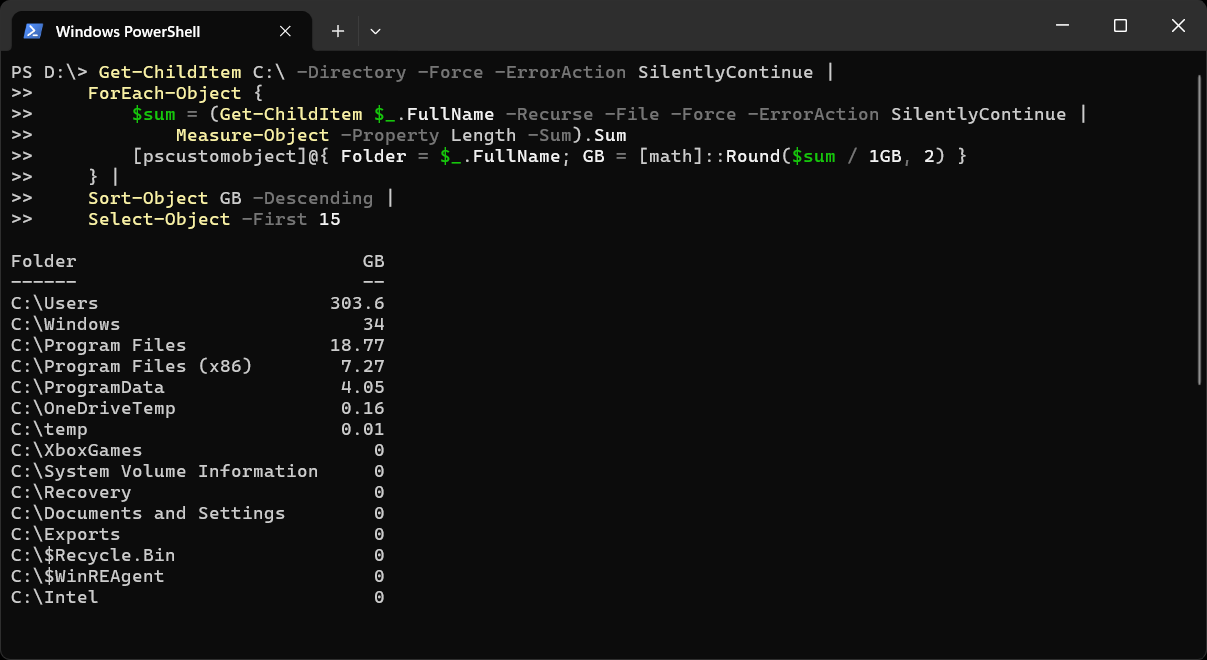
The second command walks the whole drive, so give it a few minutes. I take this seriously because my own C: drive hit 0 bytes free on 25 October 2026, and at 0 bytes every write on the machine stops. It is much easier to look while there is still some room.
A folder can come out bigger than the drive it is on. C:\Users shows 303.6 GB here on a 106 GB disk. Length is the logical size of a file, so OneDrive files that are online-only count in full while taking no room, and anything reached through a link is counted where it is found. Read the table as a ranking of where to look next.
What the Command Is Doing
-Directoryon the outer call lists the top-level folders of C:.-Recurse -Fileon the inner call collects every file under each one, andMeasure-Object -Sumadds up theirLength.-Forceincludes hidden and system items, which is where a lot of the space goes. Without it,ProgramDataandAppDataare skipped.-ErrorAction SilentlyContinuekeeps the scan going past folders you are not allowed to read, instead of filling the screen with access denied errors.
That last point has a cost. A folder you cannot read is counted as nothing, so in a normal window the totals are a floor, not the full figure. Run PowerShell as Administrator and the numbers for Windows, ProgramData and other users’ profiles get much closer to the truth.
Drill Into the Biggest Folder
The top-level table tells you where to look next. Point the same command at the biggest folder and repeat until the answer is obvious. It is very often your own profile:
$path = "C:\Users\$env:USERNAME"

Get-ChildItem $path -Directory -Force -ErrorAction SilentlyContinue |
    ForEach-Object {
        $sum = (Get-ChildItem $_.FullName -Recurse -File -Force -ErrorAction SilentlyContinue |
            Measure-Object -Property Length -Sum).Sum
        [pscustomobject]@{ Folder = $_.FullName; GB = [math]::Round($sum / 1GB, 2) }
    } |
    Sort-Object GB -Descending |
    Select-Object -First 15
Change $path and run it again as you go down. AppData\Local is the usual next step. How to Get a Folder Size in PowerShell goes through the one-folder version of this and the things that catch people out.
Find the Largest Files
Sometimes it is not a folder of many small files but a handful of huge ones. This lists the 20 largest files under a path, with the date each was last written to:
Get-ChildItem C:\Users -Recurse -File -Force -ErrorAction SilentlyContinue |
    Sort-Object Length -Descending |
    Select-Object -First 20 @{n='GB';e={[math]::Round($_.Length/1GB,2)}}, LastWriteTime, FullName |
    Format-Table -AutoSize -Wrap
The date matters as much as the size. A 20 GB file written to this morning is in use. One last touched two years ago is a candidate. For a fuller listing you can export and sort, see PowerShell Script: List Files with Sizes and Dates.
Check the Usual Culprits
A few places account for most full system drives. You can check each directly instead of waiting for a full scan:
# WSL and Docker Desktop virtual disks
Get-ChildItem $env:LOCALAPPDATA -Recurse -Filter *.vhdx -Force -ErrorAction SilentlyContinue |
    Sort-Object Length -Descending |
    Select-Object @{n='GB';e={[math]::Round($_.Length/1GB,1)}}, FullName

# temp folders, the Windows Update download cache and the recycle bin
$env:TEMP, 'C:\Windows\Temp', 'C:\Windows\SoftwareDistribution\Download', 'C:\$Recycle.Bin' |
    ForEach-Object {
        $sum = (Get-ChildItem $_ -Recurse -File -Force -ErrorAction SilentlyContinue |
            Measure-Object -Property Length -Sum).Sum
        [pscustomobject]@{ Folder = $_; GB = [math]::Round($sum / 1GB, 2) }
    }

# big system files in the root of the drive
Get-ChildItem C:\ -File -Force -ErrorAction SilentlyContinue |
    Sort-Object Length -Descending |
Select-Object -First 5 Name, @{n='GB';e={[math]::Round($_.Length/1GB,2)}}- WSL and Docker Desktop disks. Each WSL distro, and Docker Desktop, keeps its data in a
.vhdxfile that grows and does not shrink when you delete things inside it. Compact a WSL or Docker Desktop vhdx to Get Disk Space Back is the fix, and Move a WSL Distro Off the C: Drive gets one onto another drive. - Temp folders. Your own
%TEMP%andC:\Windows\Tempcollect installers, logs and crash dumps that nothing cleans up. - Windows Update cache.
C:\Windows\SoftwareDistribution\Downloadholds downloaded updates. Reading it needs an elevated window. - Recycle bin. Deleted files still take space until the bin is emptied. In a normal window you only see your own share of
C:\$Recycle.Bin. - System files in the root.
pagefile.sys,hiberfil.sysandswapfile.sysshow up here if the machine has them on C:.
If a C:\Windows.old folder is near the top of the first table, that is a previous Windows install, and How to Remove Old Windows Upgrade Files covers it.
Before You Delete Anything
These commands tell you where the space went. They do not tell you what is safe to remove. Use the tool that owns the files to clean up: Disk Cleanup or Storage settings for Windows Update and temp files, Docker or WSL for a vhdx, the application’s own uninstaller for anything under Program Files. Deleting a vhdx by hand deletes the whole distro or every Docker image and volume inside it.
If a folder in the table means nothing to you, ask Claude what it is and which tool owns it before you touch it. Paste the table in and it will go through it with you.
Related
If SQL Server is part of your day job, my current work lives over at sqldba.blog: production DBA scripts, an error library and the SSMS guide.
Leave a Reply