
Your C: drive is full, you have deleted everything you can think of, and the biggest file on the disk is a .vhdx you never created. That is WSL, or Docker Desktop running on WSL. The file grows every time Linux writes to it and it never gives the space back on its own.
I have been through this twice on the same machine this year. In August, C: was down to 2.8 GB free out of 106 GB and Docker’s docker_data.vhdx was 7.7 GB of that, so I moved it to D:. In October, C: hit 0 bytes anyway. Every write on the box failed, a script died mid run, and Docker Desktop hung until WSL was shut down and restarted. That second time the vhdx was not the cause (it was already on D:), but the same disk is now 43.5 GB. It does not shrink. You have to make it.
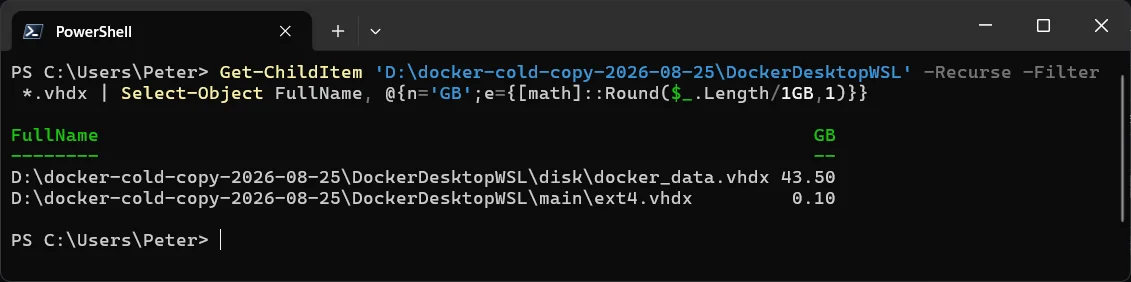
Find the vhdx Files
Each WSL distro has an ext4.vhdx, and Docker Desktop keeps a separate data disk. Start with the list of distros, then size the files:
# what is installed and whether it is running
wsl -l -v

# every vhdx under your profile, biggest first
Get-ChildItem $env:LOCALAPPDATA -Recurse -Filter *.vhdx -ErrorAction SilentlyContinue |
    Sort-Object Length -Descending |
    Select-Object FullName, @{n='GB';e={[math]::Round($_.Length/1GB,1)}}
The usual places:
- Docker Desktop:
%LOCALAPPDATA%\Docker\wsl\disk\docker_data.vhdx. Images, containers, volumes and the build cache all live in this one file. Docker’s own docs giveC:\Users\[USERNAME]\AppData\Local\Docker\wslas the default. - A Store distro (Ubuntu and friends):
%LOCALAPPDATA%\Packages\<PackageFamilyName>\LocalState\ext4.vhdx. - Newer installs and imports:
%LOCALAPPDATA%\wsl\by default, or wherever you pointed--locationor--import.
If a distro is not where you expect, the registry knows. This is Microsoft’s own one-liner:
(Get-ChildItem -Path HKCU:\Software\Microsoft\Windows\CurrentVersion\Lxss |
    Where-Object { $_.GetValue("DistributionName") -eq 'Ubuntu' }).GetValue("BasePath") + "\ext4.vhdx"
Why Deleting Files Inside Linux Changes Nothing
The vhdx is a dynamically expanding disk. Microsoft’s diskpart reference puts it in one line: these disks “increase in size as you add files, but they do not automatically reduce in size when you delete files.” WSL allocates each one a 1 TB maximum by default, so from inside Linux there is always room, and from Windows the file only ever goes up.
So docker system prune and apt clean free space inside the disk, which is still worth doing first because the compact can only release blocks that are actually empty. They do not touch the file size on C:. That takes a compact from the Windows side, with the disk unmounted.
Clear Out the Inside First
For Docker, this is where most of the space usually is. On my box the build cache alone was 16.8 GB in October.
# what is using the space
docker system df

# stopped containers, unused networks, dangling images, unused build cache
docker system prune

# also unused images (not just dangling), and anonymous volumes. Read the prompt.
docker system prune -a --volumes
Be careful with --volumes. Named volumes are not removed by that flag, but anonymous ones are, and a database container you created without naming its volume is sitting on one. For a plain distro, sudo apt clean and clearing out whatever you built in your home directory does the same job.
Shut WSL Down
The compact needs the disk detached. Quit Docker Desktop from the tray icon if you are using it, then:
wsl --shutdown

# confirm nothing is running
wsl -l -v
wsl --shutdown terminates every distro and the WSL 2 virtual machine behind them, so save anything open in a Linux shell first. If Docker Desktop is still running it will restart its distro straight away, which is why it gets closed first.
Compact With diskpart
Open a Command Prompt or PowerShell as Administrator and run diskpart. At the DISKPART> prompt, with your own path:
select vdisk file="C:\Users\Peter\AppData\Local\Docker\wsl\disk\docker_data.vhdx"
attach vdisk readonly
compact vdisk
detach vdisk
exit
The read-only attach is the part people skip. Microsoft’s rule for compact vdisk is that it only works on dynamically expanding disks that are “detached or attached as read-only”, and attaching read-only is what lets diskpart see which blocks are free. It can take a few minutes on a disk this size. Then check the file again:
Get-Item "$env:LOCALAPPDATA\Docker\wsl\disk\docker_data.vhdx" |
    Select-Object Name, @{n='GB';e={[math]::Round($_.Length/1GB,1)}}
If it comes back the same size, the blocks were not empty. Go back a step, prune or delete inside Linux, shut down and compact again.
Optimize-VHD, If You Have the Hyper-V Module
On Windows Pro or Server with the Hyper-V PowerShell module installed, one cmdlet does the same job:
Optimize-VHD -Path "$env:LOCALAPPDATA\Docker\wsl\disk\docker_data.vhdx" -Mode Full
Same rules: WSL shut down, disk not attached, or attached read-only. Microsoft notes that Full mode falls back to Prezeroed if the disk is not mounted read-only, so for a one-off it is simplest to leave it detached and let the cmdlet get on with it. Optimize-VHD is not on my Windows 11 Home machine, and it will not be on yours either without Hyper-V, which is why the diskpart route is the one above.
Make the Disk Sparse So It Reclaims Space Itself
Recent WSL builds can mark a distro’s VHD as sparse, so freed blocks are handed back to Windows without a manual compact. From wsl --help on WSL 2.7.10:
# after wsl --shutdown, per distro
wsl --manage Ubuntu --set-sparse true

# or make every NEW vhdx sparse, in %UserProfile%\.wslconfig
[experimental]
sparseVhd=true
Two things to know. --manage needs a current WSL (wsl --version tells you; wsl --update if the switch is not there). And the .wslconfig setting only applies to disks created after you set it, which is why the per-distro command exists. It is an experimental feature in Microsoft’s own table, so I would still keep the diskpart steps to hand for the big one-off clean.
Note that --manage acts on the distro’s own disk. Docker Desktop’s docker_data.vhdx is a separate data disk attached to the docker-desktop distro, not that distro’s ext4.vhdx, so for Docker’s disk use diskpart or the Docker settings below.
Docker Desktop’s Own Disk Settings
Docker Desktop, Settings, Resources, Advanced. On the WSL 2 backend there is one setting that matters here: Disk image location. Browse to a folder on the drive with space and Apply. Docker stops the engine, moves the disk and restarts, and your images, containers and volumes come with it. The Disk usage limit setting next to it is for the Hyper-V backend and does nothing on WSL 2.
This is how I moved mine, and the click is the only route that works. I tried the scripted version first, a DataFolder entry in settings-store.json after copying the folder to D:. Docker accepted the setting and carried on running from the old disk on C:, because an already registered disk is not re-registered by a config edit. The UI does that part. After the move the old C: folder was empty, nothing was re-imported, and C: went from 2.8 GB free to 11.3 GB.
One thing I got wrong: I pointed the move at a folder I had named for a temporary backup copy. The live disk has lived in a folder called docker-cold-copy ever since, and I cannot rename it by hand because Docker holds the path. Pick the final folder name before you click.
Move a Distro to Another Drive
For a plain distro rather than Docker, current WSL has a move switch, and older builds export and import instead:
# current WSL, after wsl --shutdown
wsl --manage Ubuntu --move D:\wsl\Ubuntu

# any WSL 2 build
wsl --export Ubuntu D:\wsl\ubuntu.tar
wsl --unregister Ubuntu
wsl --import Ubuntu D:\wsl\Ubuntu D:\wsl\ubuntu.tar
--unregister deletes the distro and everything in it, so the export has to be good before you run it. The full procedure, including the default user problem after an import, is in How to Move a WSL Distro to Another Drive. Moving gets the file off C:. It does not shrink it, so compact first and move the smaller file.
Other Considerations
Check Temp before you blame the vhdx. The day C: hit 0 bytes, the disk on D: was innocent. What I freed first was a 640 MB Docker installer left in %TEMP% and 320 MB of WSL crash dumps in %TEMP%\wsl-crashes. WSL keeps 10 dumps by default; maxCrashDumpCount in .wslconfig lowers that. The WSL swap file is a vhdx too, %TEMP%\swap.vhdx, and swapFile in the same file moves it.
Do not touch the files with Windows tools while WSL is up. Microsoft is blunt about this: editing, moving or opening the files under AppData with Windows tools can corrupt the distro. Shut down first, every time.
Back up before the first compact. The compact is safe and I have never seen it damage a disk, but it is a disk operation on the only copy of your containers. How to Back Up and Restore a WSL Distro covers wsl --export, and for Docker a docker volume backup of anything you care about is 2 minutes.
It grows back. Mine went from 7.7 GB to 43 GB in under 3 months of building images. Put the vhdx on the drive with room, make it sparse where you can, and prune on a schedule rather than when the disk is already full.
Frequently Asked Questions
diskpart says the file is in use. Why?
WSL is still running, or Docker Desktop restarted it. Quit Docker Desktop from the tray, run wsl --shutdown, confirm with wsl -l -v that every distro shows Stopped, then try the select vdisk again.
The compact finished but the file is the same size.
There were no free blocks to give back. The compact only releases space that is empty inside the Linux file system, so prune or delete inside the distro first, shut down, and run it again.
Is it safe to compact the Docker Desktop disk?
Yes, with Docker fully stopped and WSL shut down. It is the same dynamically expanding vhdx as any distro. Take a backup of any volume you cannot rebuild before the first time you do it.
Can I just delete the vhdx and start again?
For Docker, that is Clean up data in the Troubleshoot menu, which Docker describes as a disk image reset that destroys every local container and image. For a distro, wsl --unregister deletes the lot. Both are fine if everything in there is rebuildable. Export first if you are not sure.
Why does Linux say the disk is 1 TB when my drive is smaller?
WSL gives each VHD a 1 TB maximum by default and the file grows into it as needed. df -h inside Linux reports that ceiling, not the space left on your Windows drive, so Linux will happily keep writing until C: is full.
Will sparse mode replace the manual compact?
For a distro, mostly. Set it with wsl --manage <distro> --set-sparse true after a shutdown and freed blocks go back to Windows on their own. It is still listed as experimental and it does not cover Docker Desktop’s separate data disk, so keep the diskpart steps for that one.
Related
- How to Move a WSL Distro to Another Drive
- How to Back Up and Restore a WSL Distro
- How to Restart Windows Subsystem for Linux (WSL)
- How to Limit WSL 2 Memory and CPU Usage
- How to Uninstall a Linux Distro in WSL
- How to Get a Folder Size in PowerShell
- How to manage WSL disk space (Microsoft Learn)
- compact vdisk (Microsoft Learn)
- .wslconfig settings, including sparseVhd (Microsoft Learn)
- Docker Desktop WSL 2 backend (Docker docs)
If SQL Server is part of your day job, my current work lives over at sqldba.blog: production DBA scripts, an error library and the SSMS guide.
Leave a Reply