
WSL has stopped behaving and the usual fix, wsl --shutdown, is not enough. Every wsl command errors, or a Windows update has left it half there, or you simply want the whole thing gone and back as if this were a new machine. Reinstalling a distro does not help with any of that, because the distro is not the broken part.
WSL is 2 layers. The bottom layer is WSL itself: a package from the Microsoft Store, 2 optional Windows components, and the Linux kernel that ships inside the package. The top layer is each distro, which is a registered ext4.vhdx file and nothing more. This post resets the bottom layer. If one distro is the problem, Reinstalling WSL Distributions is the shorter job.
Find Out What You Are Resetting
# the WSL package, kernel and Windows build
wsl --version

# default distro and default version
wsl --status

# every distro, running or stopped, and whether it is WSL 1 or 2
wsl -l -v

# the Store package itself
Get-AppxPackage -Name MicrosoftCorporationII.WindowsSubsystemForLinux |
    Select-Object Version, InstallLocation
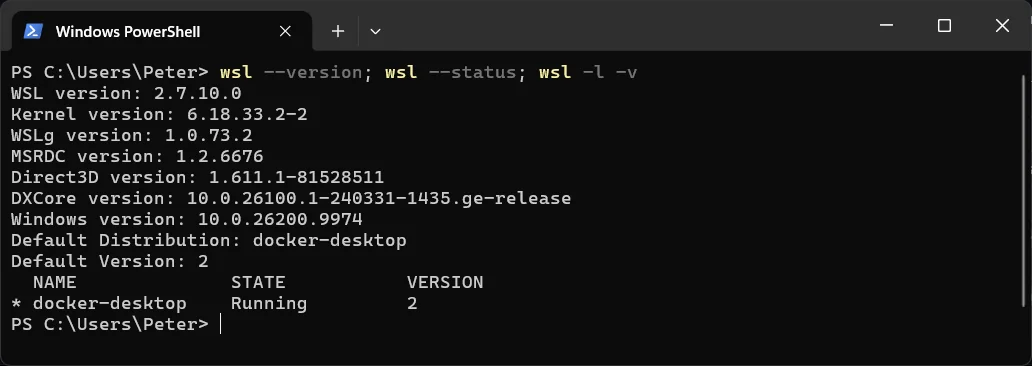
On my laptop today that is WSL 2.7.10.0, the Store package under C:\Program Files\WindowsApps\, and a single distro called docker-desktop, because Docker Desktop runs on WSL 2 and registers its own. If wsl --version prints help text instead of version numbers, you are on the older in-box component without the Store package, and the reinstall below brings you up to date in the same pass.
Back Up Every Distro First
# one tar per distro, on a drive with room
wsl --export Ubuntu D:\wsl-backup\ubuntu.tar
Microsoft’s wording on --unregister is the reason: “Once unregistered, all data, settings, and software associated with that distribution will be permanently lost.” A full reset unregisters everything, so the export is the only copy you will have. How to Back Up and Restore a WSL Distro covers the export and the import back, including the default user problem after an import.
Docker Desktop is the exception. Its distro is rebuilt by Docker when it starts, and your images, containers and volumes live on a separate data disk rather than inside that distro, so there is nothing to export there. Quit Docker Desktop from the tray before you touch WSL, and take a docker volume backup of anything you cannot rebuild. Where that data disk sits, and why it is probably huge, is in Compact a WSL or Docker Desktop vhdx to Get Disk Space Back.
Try the Cheap Fixes First
# stop every distro and the WSL 2 virtual machine
wsl --shutdown

# update the WSL package from the Store
wsl --update

# same, from GitHub, when the Store is blocked or broken
wsl --update --web-download

# WSL says the optional component is missing: this is the command it asks for
wsl --install --no-distribution
Most “WSL is broken” days end at one of these 4 lines. wsl --shutdown restarts the virtual machine behind every distro, which is the fix for a hung Linux session and for any .wslconfig change. wsl --update replaces the WSL package in place and keeps your distros. And when WSL itself tells you “This application requires the Windows Subsystem for Linux Optional Component” and then “Install it by running: wsl.exe –install –no-distribution”, do exactly that, from a PowerShell window opened as Administrator. If any of these fixes it, stop here and keep your distros. A proper restart of Windows is also a legitimate step at this point.
Uninstall WSL
Unregister the distros while wsl still works, then remove the package. --uninstall is in wsl --help on current builds as “Uninstalls the Windows Subsystem for Linux package from this machine.”
# after the exports: remove each distro (this deletes its vhdx)
wsl --unregister Ubuntu

# then the WSL package itself, as Administrator
wsl --shutdown
wsl --uninstall
If wsl is too far gone to run either command, do the same job from the Windows side. Settings, Apps, Installed apps: uninstall Windows Subsystem for Linux, and uninstall any distro that came from the Store (Ubuntu, Debian and so on) the way you would uninstall any other Store app. Microsoft’s basic commands page says a Store distro can be removed “just like any other store application”. A distro you imported yourself has no app entry, so its folder is deleted by hand after WSL is gone.
Remove the Optional Components Too
This is the step that makes it a reset rather than a reinstall. The 2 Windows features are the ones the manual install page enables, and DISM’s /disable-feature is the opposite of its /enable-feature. Open PowerShell as Administrator:
dism.exe /online /disable-feature /featurename:Microsoft-Windows-Subsystem-Linux /norestart
dism.exe /online /disable-feature /featurename:VirtualMachinePlatform /norestart

# then restart Windows before going any further
Restart-Computer
Docker Desktop’s WSL 2 backend depends on WSL, and WSL 2 depends on Virtual Machine Platform, so Docker stays closed until the reinstall is done. Skip this section if your aim is only a clean WSL package; the uninstall and reinstall above are enough for that.
Install WSL Again
# as Administrator: components, Store package and kernel, no distro yet
wsl --install --no-distribution

# restart, then confirm
wsl --version

# pick a distro, or bring back the export
wsl --list --online
wsl --install -d Ubuntu-24.04
wsl --import Ubuntu D:\wsl\Ubuntu D:\wsl-backup\ubuntu.tar
Microsoft’s install page describes the plain wsl --install as the command that “will enable the features necessary to run WSL and install the Ubuntu distribution of Linux”. --no-distribution does everything except the Ubuntu part, which is what you want when you are importing a backup or choosing a different distro. Restart when it asks. The first launch of a new distro unpacks files for a minute and then asks for a Linux username and password.
Two switches worth knowing. If the distro download hangs at 0.0%, the docs say to add --web-download so it pulls the package before installing. And if the Microsoft Store is blocked on your machine, --inbox installs the Windows component version instead, which then gets its updates through Windows Update rather than the Store.
Install Errors and What They Mean
- WslRegisterDistribution failed with error 0x8007019e: the Windows Subsystem for Linux optional component is not enabled.
wsl --install --no-distributionas Administrator, orEnable-WindowsOptionalFeature -Online -FeatureName Microsoft-Windows-Subsystem-Linux, then restart. - Error 0x80370102: “The virtual machine could not be started because a required feature is not installed.” Virtual Machine Platform is off, or virtualization is disabled in the BIOS. Microsoft also notes WSL 2 needs a CPU with SLAT, so a very old processor will not run it at all.
- Error 0x80070003: distros must be on the system drive. Settings, System, Storage, Advanced storage settings, Where new content is saved: set new apps to C:. Microsoft lists this code alongside 0x80370102 for the BIOS virtualization check as well.
- Error 0x80040154 after a Windows update: the update disabled the WSL feature. Re-enable it and restart.
- A message pointing at https://aka.ms/wslinstall: in WSL’s own text that link is attached to the “OS not supported” message. The bar is Windows 10 version 2004 (build 19041) or Windows 11.
winvertells you where you are. - wsl –install prints the help text: WSL is already installed. The install page says to run
wsl --list --onlineandwsl --install -d <DistroName>instead.
When the install command itself fails and none of those match, Microsoft’s troubleshooting page falls back to repairing Windows: SFC /SCANNOW and then DISM /Online /Cleanup-Image /RestoreHealth from an elevated prompt.
Other Considerations
Your .wslconfig survives. It lives at %UserProfile%\.wslconfig, in your profile rather than in the WSL package, so a memory limit or a sparse disk setting you set months ago is still there after the reset. If the fresh install behaves oddly, read that file before blaming the install. How to Limit WSL 2 Memory and CPU Usage has the settings most people have touched.
Leftover vhdx files are the expensive bit. A Store distro keeps its disk under %LOCALAPPDATA%\Packages\<PackageFamilyName>\LocalState\, newer installs under %LOCALAPPDATA%\wsl\, and an import wherever you pointed it. --unregister deletes the disk; uninstalling from Settings while a distro is broken may not. After the reset, search for *.vhdx under your profile and remove what the new install does not own. Those files are commonly tens of gigabytes.
Do not drop a backup vhdx into the new install’s folder and expect it to register. WSL tracks distros in the registry under HKCU:\Software\Microsoft\Windows\CurrentVersion\Lxss, one key per distro with its BasePath. The supported way back in is wsl --import from a tar, or wsl --import-in-place for a vhdx you already have.
Upgrading an old in-box WSL does not need any of this. If you installed WSL years ago from Turn Windows features on or off, you still have the in-box component. One wsl --update brings in the Store package and from then on updates arrive through the Store rather than through Windows releases. Microsoft’s comparison page calls it “the same product” with faster servicing.
Frequently Asked Questions
Does wsl –uninstall delete my distros?
Treat it as if it does. The export is the only copy you should rely on, and the clean sequence is to unregister each distro first and then remove the package. Anything left behind is an orphaned vhdx you clean up by hand.
Do I need to remove the optional components?
Not for a plain reinstall. wsl --uninstall and wsl --install --no-distribution replace the package and the kernel. Disable the 2 features only when the install itself keeps failing, or when you want the machine back to the state it was in before WSL ever existed.
Will Docker Desktop survive a WSL reset?
Its images and containers are on its own data disk, and it re-creates the docker-desktop distro when it starts. Quit it before you begin, leave it closed until wsl --version works again, then start it and let it rebuild. Back up any volume you cannot recreate before you start, because this is a disk operation on the only copy.
How do I get back to WSL 2 as the default after reinstalling?
New installs default to WSL 2. If a distro comes back as version 1, wsl --set-version Ubuntu 2 converts it and wsl --set-default-version 2 sets the default for the next one. How to Upgrade WSL from Version 1 to Version 2 walks through it.
Can I install the WSL package without the Microsoft Store?
Yes. wsl --install --no-distribution --web-download fetches the package from GitHub instead, and the same switch on wsl --update keeps it current. You update by hand from then on, as there is no Store to push releases to you.
wsl –install just shows the help text. Is it broken?
No. Microsoft’s note is that the bare command only works when WSL is not installed at all. Use wsl --list --online and wsl --install -d <DistroName> to add a distro, or wsl --update to refresh the package.
Related
- Reinstalling WSL Distributions
- How to Back Up and Restore a WSL Distro
- How to Uninstall a Linux Distro in WSL
- How To Install Windows Subsystem for Linux (WSL)
- How to Restart Windows Subsystem for Linux (WSL)
- How to Check WSL Distro Versions
- Compact a WSL or Docker Desktop vhdx to Get Disk Space Back
- How to Move a WSL Distro to Another Drive
- Install WSL (Microsoft Learn)
- Basic commands for WSL (Microsoft Learn)
- WSL troubleshooting, installation issues (Microsoft Learn)
If SQL Server is part of your day job, my current work lives over at sqldba.blog: production DBA scripts, an error library and the SSMS guide.
Leave a Reply