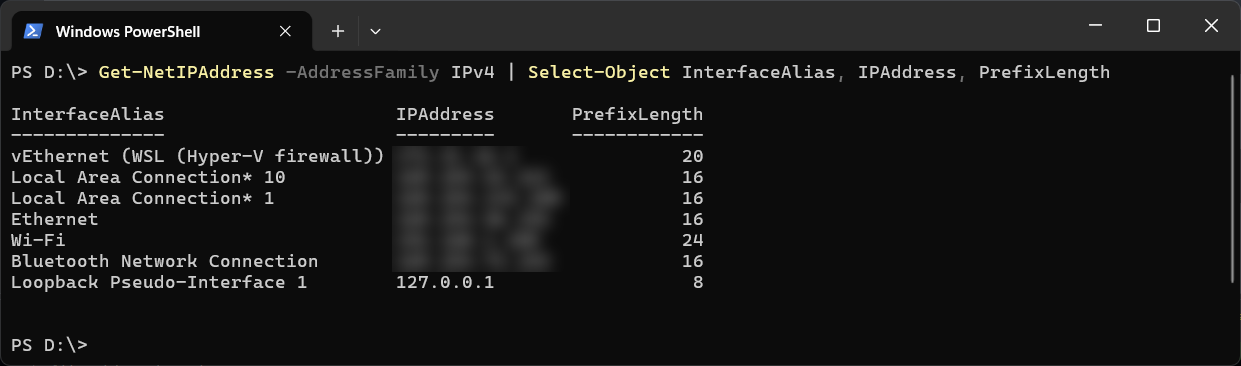
To see your IP addresses in PowerShell, run Get-NetIPAddress and keep the columns that matter:
Get-NetIPAddress -AddressFamily IPv4 | Select-Object InterfaceAlias, IPAddress, PrefixLength
On a typical laptop that comes back with more rows than you expect:
InterfaceAlias                     IPAddress      PrefixLength
--------------                     ---------      ------------
vEthernet (WSL (Hyper-V firewall)) 172.20.48.1              20
Ethernet                           169.254.12.34            16
Wi-Fi                              192.168.1.50             24
Bluetooth Network Connection       169.254.200.9            16
Loopback Pseudo-Interface 1        127.0.0.1                 8
The one you normally want is the adapter you are connected through, here Wi-Fi. PrefixLength is the subnet mask in CIDR form, so 24 is 255.255.255.0. The CIDR Conversion Table has the rest. The output is the same in Windows PowerShell 5.1 and PowerShell 7.
Only the Adapter You Are Actually Using
The adapter that carries your traffic is the one with the default route. Ask for that and you get one answer:
$route = Get-NetRoute -DestinationPrefix 0.0.0.0/0 | Sort-Object RouteMetric | Select-Object -First 1
Get-NetIPAddress -InterfaceIndex $route.InterfaceIndex -AddressFamily IPv4 |
    Select-Object InterfaceAlias, IPAddress, PrefixLength
This is the one to use in a script, because it does not depend on the adapter being called Wi-Fi or Ethernet.
Gateway and DNS Servers Too
Get-NetIPConfiguration
This lists each connected adapter with its IPv4 address, default gateway and DNS servers, which is closest to what ipconfig shows. Add -Detailed for the MAC address, the network profile and more.
IPv6
Get-NetIPAddress -AddressFamily IPv6 | Select-Object InterfaceAlias, IPAddress, PrefixLength
Leave out -AddressFamily altogether to get both.
Your Public IP Address
Your machine only knows its own address on the local network. The address the internet sees belongs to your router, so you have to ask a service outside your network:
Invoke-RestMethod https://api.ipify.org
That returns the address as a single line of text. It sends a request to a third-party site, so do not build it into anything that runs on a server you would not want calling out.
The Common Gotcha: the 169.254 Addresses
Addresses starting 169.254 are not real network addresses. Windows gives one to an adapter that is enabled but has not got an address from anywhere, such as an unplugged Ethernet port or a Bluetooth adapter with nothing paired. Get-NetIPAddress shows them with PrefixOrigin as WellKnown and AddressState as Tentative. Ignore them, or use the default route filter above and they never show up.
If the adapter you expected has a 169.254 address, that is the real problem: it asked for an address and nothing answered. Check the cable or the network before you check PowerShell.
Once you know your address, Find Which Process Is Using a Port in PowerShell shows what is listening on it. If the network output confuses you, paste it into Claude Code and ask which line matters. That’s what it’s there for.
Related
If SQL Server is part of your day job, my current work lives over at sqldba.blog: production DBA scripts, an error library and the SSMS guide.
Leave a Reply