To write a comment in Markdown, use an HTML comment. It stays in the file and does not show when the Markdown is rendered:
<!-- This is a comment. It will not show in the preview. -->
The other way is an empty link reference, which most Markdown renderers drop from the output:
[//]: # (This is also a comment.)
Below are comments first, then headers, emphasis, lists, blockquotes, code blocks, links and tables, with a quick reference table and a template to copy at the end. The screenshots are from VS Code, which is where I write Markdown.
Comments
Both styles hide the text in the rendered view. They behave differently in a few places.
- HTML comment
<!-- ... -->: can span several lines and can sit almost anywhere. It is passed through into the HTML, so anyone who views the page source can read it. - Link reference
[//]: # (...): one line, and it needs a blank line above it, otherwise it is read as part of the paragraph and shows as text. It is not written to the HTML at all.
<!--
A comment over
several lines.
-->

Some text.

[//]: # (Note to self: add the screenshot here.)
Neither is a secret. The text is in the file for anyone who opens it, so leave out passwords and keys.
See It in VS Code
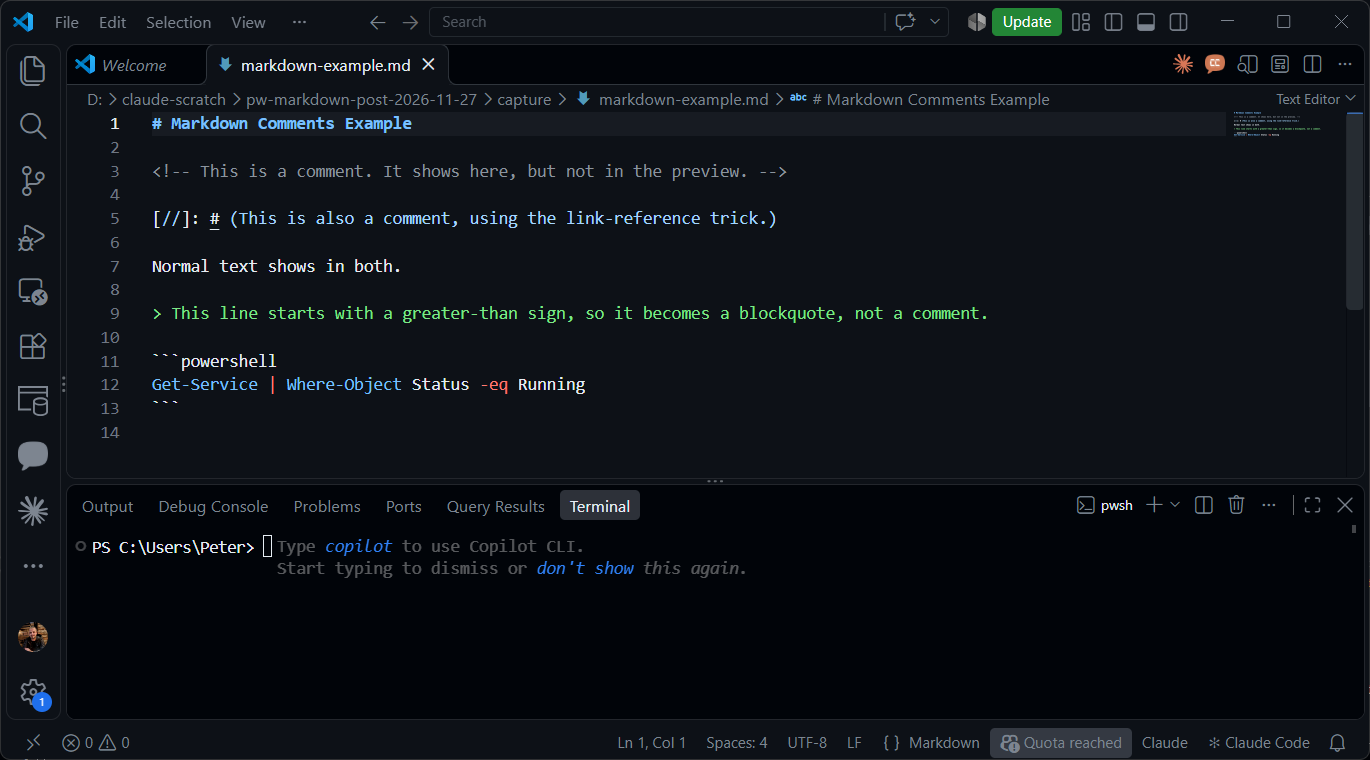
This is the way I work with Markdown now: write the file in VS Code, then open the preview to check what a reader will see. Here is the same small file both ways. In the source, both comments are there:
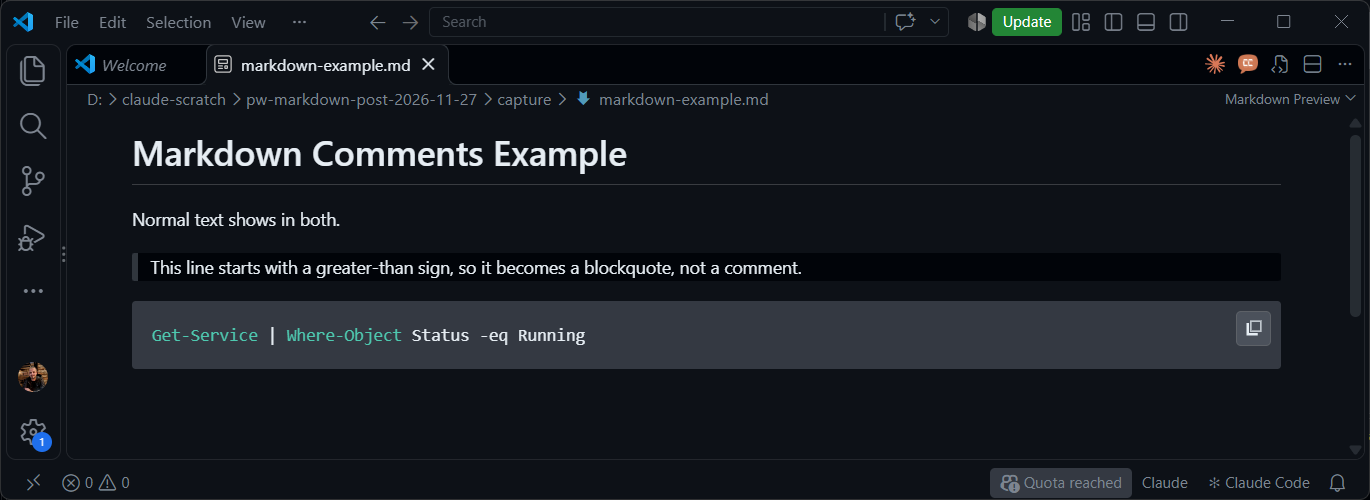
In the preview, both comments are gone, and the line starting with > is a blockquote:
To open the preview in VS Code:
- Ctrl+Shift+V opens the preview in place of the file.
- Ctrl+K, then V, opens it beside the file, so you can edit and watch it update. Click in the file first, or the shortcut goes to whatever has focus.
- Or click the Open Preview to the Side icon at the top right of the editor.
Headers
A # and a space, one # per level, down to six:
# Heading 1
## Heading 2
### Heading 3
#### Heading 4
The space matters. #Heading without it shows as plain text in GitHub and VS Code. Keep one # Heading 1 per file as the title and use ## for sections.
Emphasis
*italic* or _italic_
**bold** or __bold__
***bold and italic***
~~strikethrough~~
Strikethrough is a GitHub-flavoured Markdown extension. GitHub and VS Code show it, some other renderers print the tildes.
Lists
- Bullet item
- Another item
  - Nested item, two spaces in

1. First step
2. Second step
3. Third step

- [ ] Task not done
- [x] Task done
-, * and + all make bullets. In a numbered list the numbers you type do not need to be right: 1. on every line still renders as 1, 2, 3. The task list checkboxes are another GitHub-flavoured extension.
Blockquotes
A line starting with > is a blockquote. >> is not a comment, it is a quote inside a quote:
> A blockquote.
>
>> A blockquote nested inside it.
This is the one that caught me. In the VS Code editor, quote lines show in green, the colour you are used to seeing comments in, so >> looks like it has commented the line out. Open the preview and the text is still there, indented with a bar down the side. Anything you paste that starts with >, like a copied email reply, becomes a quote in the same way.
A blank line ends a quote. Without one, the next line of text carries on the quote, even with no > in front of it:
> This is quoted.
This line is quoted as well.

This line is not.
Line Breaks and Paragraphs
A blank line starts a new paragraph. Pressing Enter once is not enough: the two lines are joined into one when the file is rendered. To break a line without starting a new paragraph, end it with a backslash \ or with two spaces. The backslash is easier to see, because two spaces at the end of a line are invisible and some editors trim them.
Code Blocks
Three backticks above and below, with the language name after the first three for colour:
```powershell
Get-Service | Where-Object Status -eq 'Running'
```

```sql
SELECT name, state_desc FROM sys.databases;
```
Inline code uses one backtick each side: `Get-Service`. If the code has a backtick in it, which PowerShell often does, wrap it in two backticks with a space inside: `` Write-Host "a`tb" ``. A code block whose contents include three backticks needs four around it, or use ~~~ instead.
Links and Images
[Link text](https://example.com) [Link with a hover title](https://example.com "Title text") <https://example.com> [Reference style link][docs] [docs]: https://example.com/docs 
The last line of the reference style link is the same syntax as the [//]: # (...) comment: a reference that nothing in the file points at is not shown. Images are links with a ! in front, and the path is relative to the .md file.
Tables
| Name    | Status  | Count |
|:--------|:-------:|------:|
| Server1 | Online  |    12 |
| Server2 | Offline |     3 |
The second row makes it a table. Colons in it set the alignment: left, centre, right. The columns do not need to line up in the source, it only reads better when they do. Put a \| in a cell to show a pipe. Tables are GitHub-flavoured Markdown too.
Quick Reference
| To get | Type |
|---|---|
| Hidden comment | <!-- text --> or [//]: # (text) |
| Heading | # H1, ## H2, ### H3 |
| Bold, italic | **bold**, *italic* |
| Strikethrough | ~~text~~ |
| Bullet, numbered list | - item, 1. item |
| Task list | - [ ] todo, - [x] done |
| Blockquote | > text (not a comment) |
| Inline code | `code` |
| Code block | three backticks and a language name on the line above, three backticks below |
| Link, image | [text](url),  |
| Horizontal line | --- with a blank line above it |
| New paragraph | a blank line |
| Show a symbol as text | a backslash in front: \*, \#, \> |
And a template to copy into a new .md file and change:
# Page Title <!-- Hidden note: this line does not show in the preview. --> [//]: # (Another hidden note, the link reference way.) Short intro paragraph. **Bold**, *italic*, `inline code`. ## Section Heading - Bullet item - Another item - Nested item 1. First step 2. Second step > A blockquote. One > only. ```powershell Get-Service | Where-Object Status -eq 'Running' ``` | Column A | Column B | |----------|----------| | Value 1 | Value 2 | [Link text](https://example.com)  ---
Related
If SQL Server is part of your day job, my current work lives over at sqldba.blog: production DBA scripts, an error library and the SSMS guide.
Leave a Reply