 More of my SQL Server writing is at sqldba.blog, including the current take on working in SSMS: the SSMS Complete Guide.
SQL Server Management Studio (SSMS) can colour the status bar along the bottom of a query window, so you can see at a glance which server that window is connected to. In SSMS 21 and 22, pick a colour from the Color box on the Connect to Server dialog. In SSMS 20 and earlier, it’s under Options >>, on the Connection Properties tab, as Use custom color.
My choice of colour below stands out quite well:
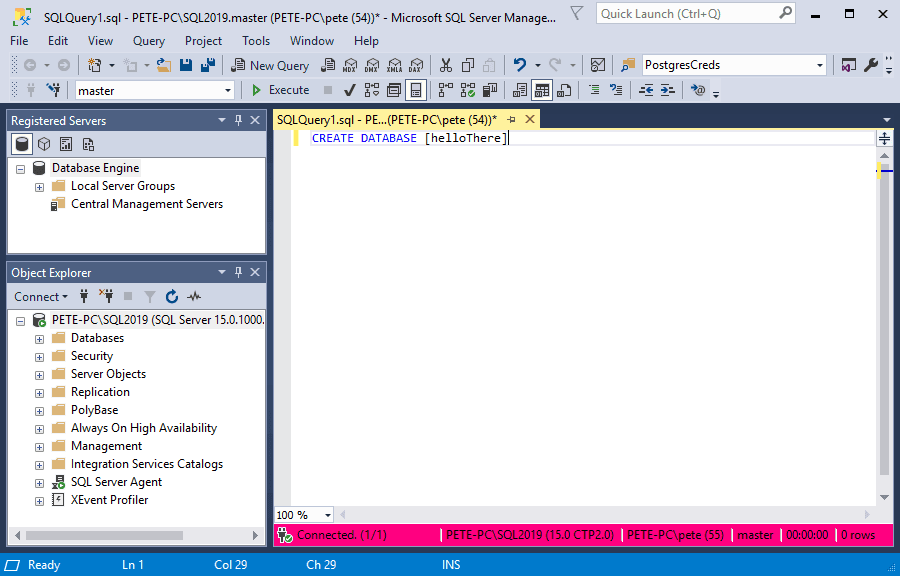
This is a feature that I find myself using from time to time, and I see others using it frequently.
Why Use Custom Connection Colours?
Amending the connection colour in SSMS offers several advantages:
- Environment Differentiation: Easily distinguish between test, development, and production environments.
- Error Prevention: Reduce the risk of accidentally running queries in the wrong environment.
- Increased Awareness: Maintain better awareness of which SQL Server instance you are working with at any given time.
A common convention is red for production and green for test, so the dangerous window is the loud one. The colour is a reminder, not a safeguard: SSMS will still run whatever you execute.
How to Change Connection Colours in SSMS
SSMS 21 and 22 open the modern Connect to Server dialog by default, and the colour is right on its main page:
1. Open the Connect Dialog
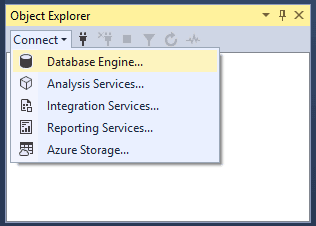
In Object Explorer, select Connect > Database Engine, or open a new query window.
2. Pick a Colour
Fill in the server and authentication as usual, then choose from the Color box: Red, Green, Blue, Yellow or Orange, or Custom… for any other colour.
3. Connect and Open a Query
Select Connect, then right-click the server in Object Explorer and choose New Query. The status bar at the bottom of the query window shows your colour.
The colour is set when you connect. To change it for a server already in Object Explorer, disconnect and connect again with the new colour, as Microsoft’s Status Bar colour docs describe. If you’d rather have the classic dialog back, it’s under Tools > Options > Environment > Connection Dialog, as covered in Microsoft’s connect quickstart.
SSMS 20 and Earlier, or the Classic Dialog
Follow these steps to set up custom connection colours for a specific SQL Server instance:
1. Connect to a SQL Server Instance
Open SSMS and start a connection to the SQL Server instance.
2. Click “Options”
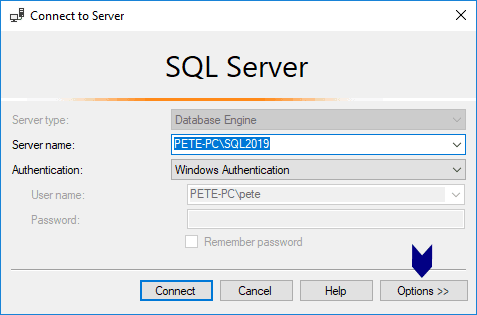
In the “Connect to Server” dialog box, select the Options >> button.
3. Set Custom Colours
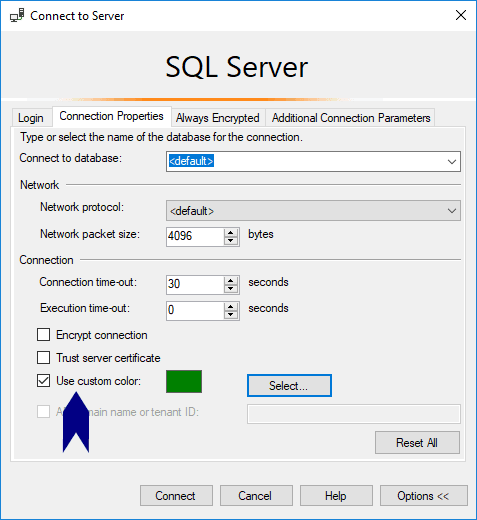
On the Connection Properties tab, tick Use custom color, then Select… to pick your colour from the palette.
4. View the Change
Open a new query window, and the status bar at the bottom shows your chosen colour.

Set It Once in Registered Servers
For servers you connect to every day, set the colour on the registration instead. In Registered Servers (Ctrl+Alt+G), right-click the server, choose Properties, and on the Connection Properties tab tick Use custom color and pick the colour. Save it, and every query window opened from that registration gets the colour, without picking it at each connect.
If you’re still on an older SSMS, Install and Update SQL Server Management Studio (SSMS) on sqldba.blog covers getting the current release.
Leave a Reply