 More of my SQL Server writing is at sqldba.blog, including the current take on storage and capacity: the storage scripts hub.
This is a lab walkthrough: lose a log file on purpose, attach the .mdf on its own, and see what SQL Server does with it. The short version: if the database was shut down cleanly, CREATE DATABASE ... FOR ATTACH_REBUILD_LOG brings it back with a brand new log. If you are mid-incident with a real database and a missing log, go straight to Attach a SQL Server Database Without a Log File on sqldba.blog.
This guide covers three parts:
1. Creating the Scenario:
Setting up a test database to simulate the issue.
2. Restoring the Database Without the Log File:
Attaching the .mdf on its own, and what changes when SQL Server rebuilds the log.
3. Handling Errors During the Attach Process:
Error 1813, and what to do when the log can’t be rebuilt.
Whatever happened, take a copy of the .mdf, plus any .ndf files, to another folder before you start, and work on the copy.
1. Creating the Scenario
To simulate a lost log file on a test instance, follow these steps:
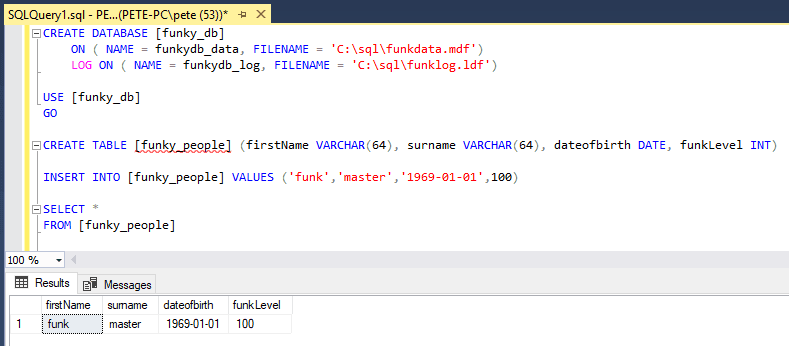
1. Create a test database
Set up a test database in SQL Server.
2. Disconnect active sessions
Close SQL Server Management Studio (SSMS) query windows, or disconnect any active sessions to the database.
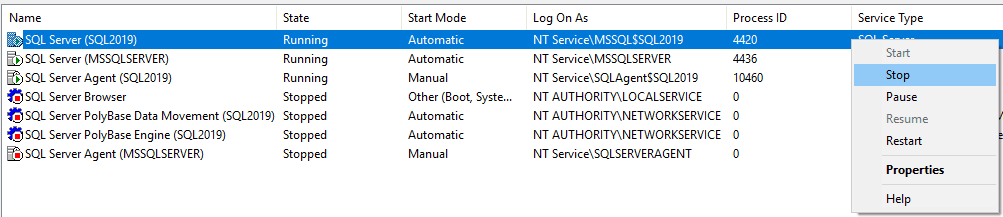
3. Stop the SQL Server service
Stopping the service shuts the database down cleanly and releases the files, so they can be copied.
4. Locate the database files
Navigate to the directory containing the database’s .mdf (data) and .ldf (log) files.

5. Copy the .mdf file
Save a copy of the .mdf file (data file) to a safe location.

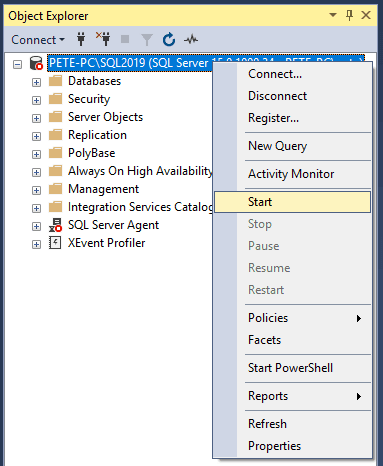
6. Start the SQL Server service
Restart the service to restore normal operations.
7. Drop the test database
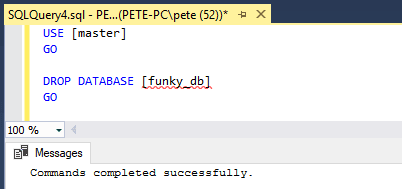
Drop the database in SQL Server. This deletes both its files, leaving only your copy of the .mdf.
8. Check the original files are gone
Confirm the .mdf and .ldf files are no longer in their original directory.
9. Copy the .mdf file back
Copy the .mdf file back into the original directory, ready to attach.

On a test instance there’s a quicker way to the same place, without stopping the service: detach the database with EXEC sp_detach_db N'YourDatabaseName';, which also shuts it down cleanly, then rename or move the .ldf file.
Now, we’re ready to try attaching this back into SQL Server!
2. Restoring the Database Without the Log File
SQL Server provides two ways to attach a database without its log file:
Option 1: Using FOR ATTACH (Recommended)
Use FOR ATTACH and FOR ATTACH_REBUILD_LOG on CREATE DATABASE, listing only the data files. FOR ATTACH_REBUILD_LOG says exactly what you mean:
-- attach a database without its log file
CREATE DATABASE [YourDatabaseName]
ON (FILENAME = 'C:\Path\To\YourFile.mdf')
-- , (FILENAME = 'C:\Path\To\YourFile_2.ndf')   -- list every data file
FOR ATTACH_REBUILD_LOG;
Plain FOR ATTACH does the same when a cleanly shut down database is missing its one log file, which is what the screenshot below shows:
CREATE DATABASE [YourDatabaseName]
ON (FILENAME = 'C:\Path\To\YourFile.mdf')
FOR ATTACH;
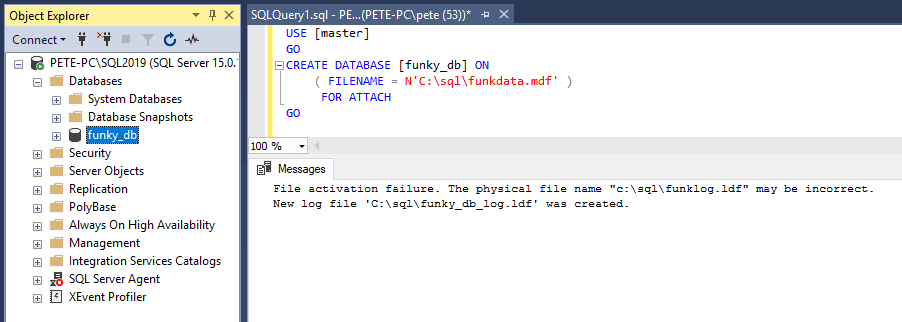
Tested on SQL Server 2025, both return the same two messages and the database comes online:
File activation failure. The physical file name “D:\…\AttachDemo_log.ldf” may be incorrect.
New log file ‘D:\…\AttachDemo_log.ldf’ was created.
The “File activation failure” line is normal: SQL Server notes the missing log, then builds a new one. Every row came back in the lab, but the rebuilt log is small, the recovery model drops to SIMPLE and any old log backups no longer chain on, so check it and back it up before anything else:
SELECT name, physical_name, size * 8 AS size_kb, growth, is_percent_growth
FROM [YourDatabaseName].sys.database_files;

SELECT name, state_desc, is_read_only, recovery_model_desc
FROM sys.databases
WHERE name = N'YourDatabaseName';

ALTER DATABASE [YourDatabaseName] MODIFY FILE (NAME = N'YourDatabaseName_log', SIZE = 1GB, FILEGROWTH = 256MB);
ALTER DATABASE [YourDatabaseName] SET RECOVERY FULL;
BACKUP DATABASE [YourDatabaseName] TO DISK = N'C:\Backups\YourDatabaseName_after_attach.bak' WITH CHECKSUM, INIT;
DBCC CHECKDB (N'YourDatabaseName') WITH NO_INFOMSGS;
Put the log size and recovery model back to what they were. The full list of what the rebuild changes, and how to set each one back, is in the sqldba.blog guide.
Option 2: Using sp_attach_single_file_db (Not Recommended)
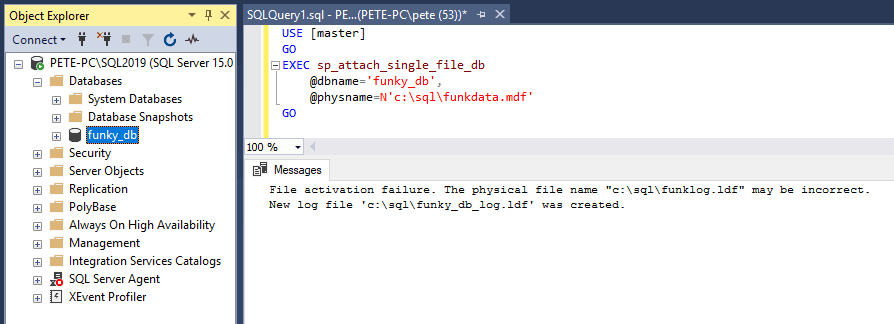
The older sp_attach_single_file_db system stored procedure still works on SQL Server 2025, with the same two messages, but it is deprecated and Microsoft plans to drop it. Use CREATE DATABASE ... FOR ATTACH_REBUILD_LOG instead.
3. Handling Errors During the Attach Process
When the database was not closed down properly, SQL Server will not make a new log for it. This is what you get:
File activation failure. The physical file name “c:\sql\funklog.ldf” may be incorrect.
The log cannot be rebuilt because there were open transactions/users when the database was shutdown, no checkpoint occurred to the database, or the database was read-only. This error could occur if the transaction log file was manually deleted or lost due to a hardware or environment failure.
Msg 1813, Level 16, State 2, Line 3
Could not open new database ‘funky_db’. CREATE DATABASE is aborted.
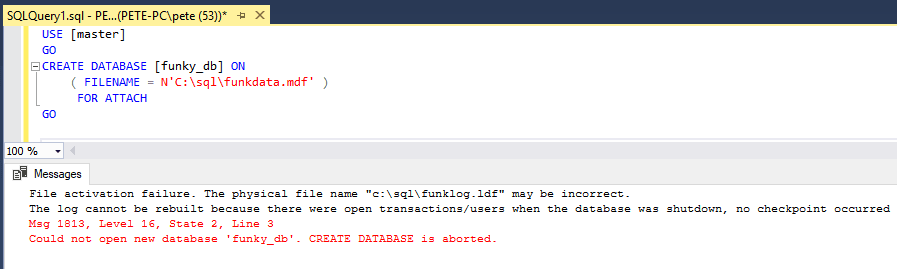
SQL Server 2025 still returns the same error, with both FOR ATTACH and FOR ATTACH_REBUILD_LOG. On the lab instance it reproduced using the data file from a database whose recovery had not completed. SQL Server is being careful here. Without the old log it has no way to undo changes that were only part way through, so it will not vouch for the data file.
What to Do Instead
Best first: restore the last good backup; or track down the original .ldf (recycle bin, snapshots, the old volume) and attach normally with it. Emergency repair is the very last resort, because it can lose data. All three are covered step by step in the sqldba.blog guide and in Database Cannot Be Opened (Error 945).
> Access denied (error 5120):
SQL Server resets file permissions when a database is detached, and files copied from another server keep their old ones. If the attach fails with Operating system error 5, see Unable to Open the Physical File (Error 5120).
Leave a Reply