To see who has access to a folder in PowerShell, run Get-Acl on it and expand the Access list:
(Get-Acl C:\Windows).Access |
    Format-Table IdentityReference, FileSystemRights, AccessControlType, IsInherited -AutoSize
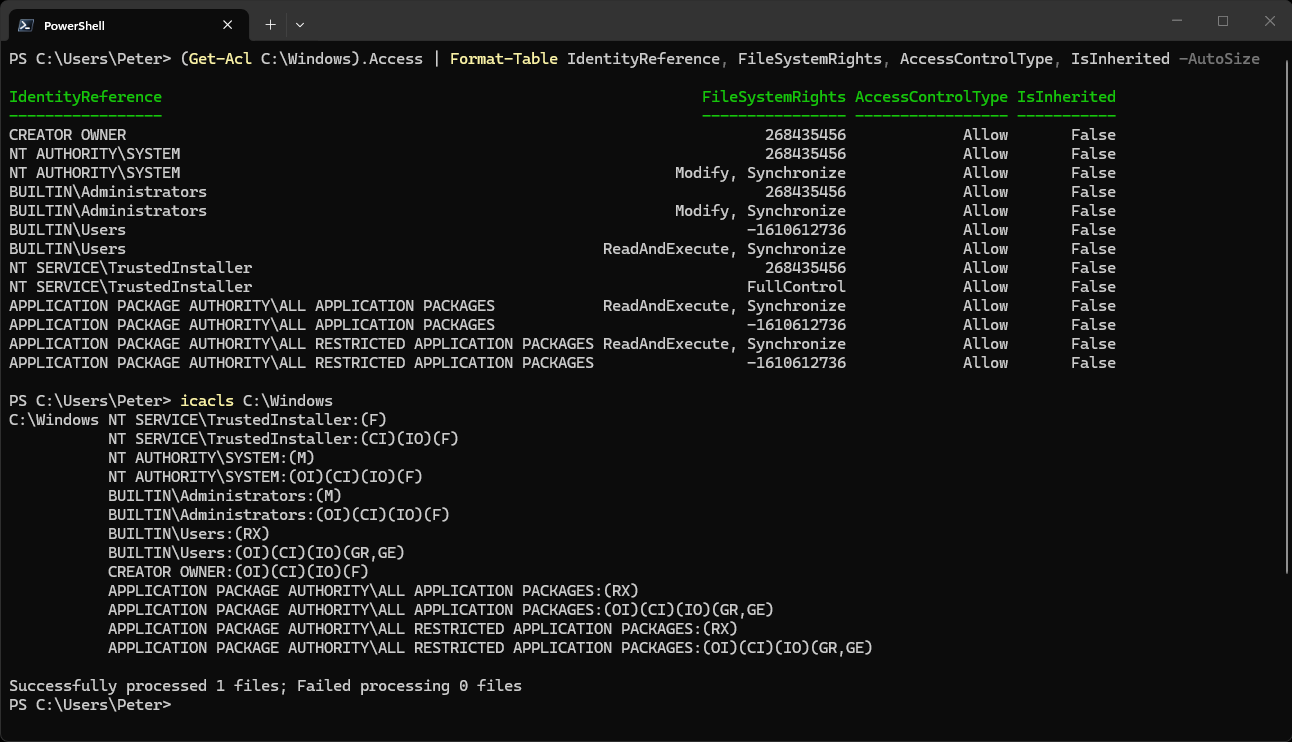
Each row is one permission entry: who it applies to, what they can do, whether it allows or denies, and whether it came down from the parent folder. The screenshot below shows it on C:\Windows, with icacls underneath for comparison.
Everything in this post only reads permissions. Nothing here changes them.
Why the Default View Is Not Enough
Run Get-Acl C:\Windows on its own and you get one line, with the Access column cut off after the first entry. For the full list as text, ask for AccessToString:
Get-Acl C:\Windows | Format-List Owner, AccessToString
The owner is a property of its own, so (Get-Acl C:\Windows).Owner returns just that. On C:\Windows it is NT SERVICE\TrustedInstaller.
What 268435456 and -1610612736 Mean
Some rows show a number where you expect a word. These are generic rights that PowerShell has no name for:
- 268435456: full control
- -1610612736: read and execute
They turn up on entries that only apply to what is inside the folder. Check the inheritance columns and you will see InheritOnly:
(Get-Acl C:\Windows).Access |
    Format-Table IdentityReference, FileSystemRights, InheritanceFlags, PropagationFlags -AutoSize
So BUILTIN\Users has read and execute on the folder itself, and the numbered row gives the same to the files and subfolders inside it. icacls shows the same entries as (OI)(CI)(IO)(F) and (OI)(CI)(IO)(GR,GE), if that is the format you know.
icacls C:\Windows
One Account Only
(Get-Acl C:\Windows).Access | Where-Object IdentityReference -like '*Users*'
Use the name as it appears in IdentityReference, for example BUILTIN\Users or YOURDOMAIN\SomeGroup.
Permissions Set Directly on Subfolders
Inherited permissions are rarely the interesting ones. To find subfolders where someone set permissions by hand, keep only the entries that are not inherited:
Get-ChildItem C:\Demo -Directory -Recurse | ForEach-Object {
    $folder = $_.FullName
    (Get-Acl -LiteralPath $folder).Access |
        Where-Object IsInherited -eq $false |
        Select-Object @{n='Folder';e={$folder}}, IdentityReference, FileSystemRights
}
No output means every subfolder only has what it inherited. Pipe the result to Export-Csv for a record; How to Export Data to CSV in PowerShell has the options.
Registry Keys Too
Get-Acl is not only for folders. Point it at a registry path and the same Access list comes back:
(Get-Acl HKLM:\SOFTWARE\Microsoft).Access |
    Format-Table IdentityReference, RegistryRights, AccessControlType -AutoSize
Windows PowerShell 5.1 and PowerShell 7
The output above matched line for line in both. Get-Acl returns the same DirectorySecurity object in 5.1 and 7, with the same numbered generic rights, so anything you script against it works in either.
The Common Gotcha: Square Brackets Return Nothing
Point Get-Acl at a folder called Reports [2026] and you get no output and no error. -Path treats the brackets as a wildcard, matches nothing, and says nothing. That happened in both 5.1 and 7. Use -LiteralPath:
Get-Acl -LiteralPath 'C:\Demo\Reports [2026]'
That is why the subfolder loop above uses -LiteralPath: one bracketed folder name would otherwise drop out of the results without a word.
If the permissions do not explain why someone is locked out, paste the output into Claude Code and ask what you are missing. That’s what it’s there for.
Related
If SQL Server is part of your day job, my current work lives over at sqldba.blog: production DBA scripts, an error library and the SSMS guide.
Leave a Reply