You go to list pending Windows updates from PowerShell and get this:
Get-WUList : The term 'Get-WUList' is not recognized as the name of a cmdlet, function, script file, or operable
program. Check the spelling of the name, or if a path was included, verify that the path is correct and try again.
    + CategoryInfo          : ObjectNotFound: (Get-WUList:String) [], CommandNotFoundException
    + FullyQualifiedErrorId : CommandNotFoundException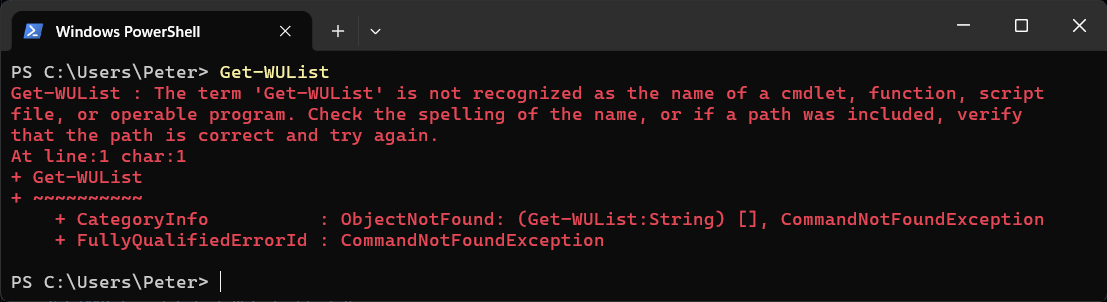
Get-WUList is not part of Windows. It comes from PSWindowsUpdate, a community module on the PowerShell Gallery, and until that module is installed none of its commands exist: Get-WUList, Get-WUInstall, Install-WindowsUpdate, Get-WUHistory, all of them. The error is PowerShell telling you the module is missing, nothing more.
The Fix: Install PSWindowsUpdate
# install for your account, no admin console needed
Install-Module -Name PSWindowsUpdate -Scope CurrentUser

# load it and confirm the commands are there
Import-Module PSWindowsUpdate
Get-Command -Module PSWindowsUpdate

# list what Windows Update has waiting: read only, but run it from PowerShell opened as administrator
Get-WUList
Two prompts can appear on a machine that has never installed from the Gallery. The first asks to install the NuGet provider, the second says PSGallery is an untrusted repository. Answer Y to both, or trust the repository once with Set-PSRepository -Name PSGallery -InstallationPolicy Trusted.
You do not need PowerShell 7 for this. The module manifest for the current release (2.2.1.5, July 2024) asks for PowerShell 5.1 and the Desktop edition, so the blue Windows PowerShell console that ships with Windows is its native home. Start there. Upgrading PowerShell first, which some guides lead with, is a detour that does not touch the cause.
Get-WUList Is an Alias
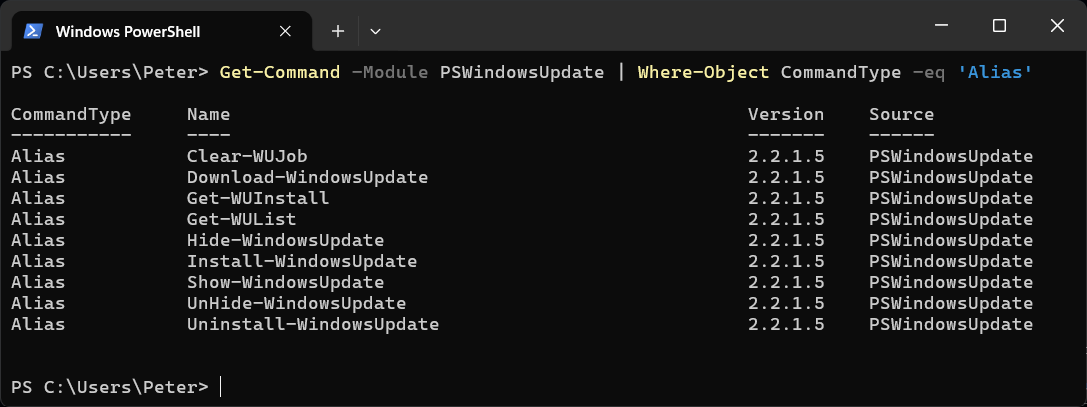
The module’s own alias table maps the old names onto the current cmdlets, so both spellings work once it is installed:
Get-WUListisGet-WindowsUpdateGet-WUInstallisInstall-WindowsUpdate, orGet-WindowsUpdate -InstallUninstall-WindowsUpdateisRemove-WindowsUpdate
To see the full list on your own machine:
Get-Command -Module PSWindowsUpdate | Where-Object CommandType -eq 'Alias'
Use the long names in anything you keep. They are the ones the help is written against.
The Commands You Will Actually Use
Open PowerShell as administrator for these. Listing and history are read only, but they still need an elevated console, the same as anything that installs or removes.
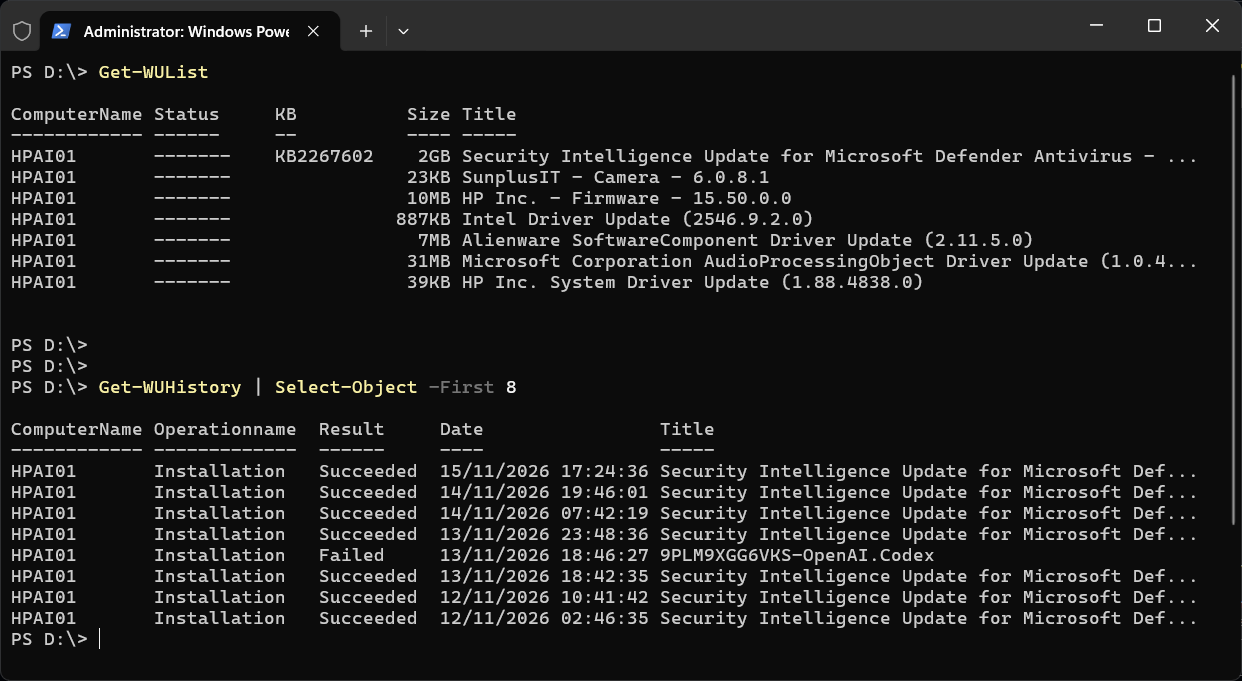
# what is waiting to install
Get-WindowsUpdate

# what has already been installed, newest first
Get-WUHistory | Select-Object -First 20

# does the box still need a reboot from the last round
Get-WURebootStatus

# install everything pending; leave -AutoReboot off unless you mean it
Install-WindowsUpdate -AcceptAll

# install one update by KB number
Install-WindowsUpdate -KBArticleID KB5000000
On a server you want a maintenance window and a plan for the reboot, the same as patching anything else.
Installed, and Still Not Recognized
Three things to check, in order:
# 1. is it actually on this machine, and where
Get-Module -ListAvailable PSWindowsUpdate

# 2. load it by hand; a policy or path problem shows up here as an error
Import-Module PSWindowsUpdate -Verbose

# 3. which execution policy is in force in this console
Get-ExecutionPolicy -List
The usual culprit on a fresh machine is the execution policy. Under Restricted, PowerShell refuses to load module script files too, so the module installs fine and then cannot be imported. Fixing “cannot be loaded because running scripts is disabled on this system” covers the one-line change. The other common one is installing with -Scope CurrentUser as one account and then opening a console as another, where the module is simply not on that user’s path.
If SQL Server sits on the box you are patching, the SQL Server side of the same job, checking the build and applying a cumulative update, is on sqldba.blog: Patch SQL Server.
Related
If SQL Server is part of your day job, my current work lives over at sqldba.blog: production DBA scripts, an error library and the SSMS guide.
Leave a Reply