You installed Claude Code, opened a terminal, typed claude, and got one of these.
PowerShell:
claude : The term 'claude' is not recognized as the name of a cmdlet, function, script file, or operable program.
Command Prompt:
'claude' is not recognized as an internal or external command,
operable program or batch file.
Nearly always the install worked and the folder it installed to is not on your PATH. Two checks tell you which half is missing:
# is the program there?
Test-Path "$env:USERPROFILE\.local\bin\claude.exe"

# is its folder on your PATH?
$env:PATH -split ';' | Select-String '\.local\\bin'
True followed by no output from the second command is the PATH problem, and the fix is the next section. False means there is no native install at all, so skip to “If claude.exe Is Not There”.
Add the Folder to Your User PATH
The native installer puts the program at %USERPROFILE%\.local\bin\claude.exe. When that folder is not on your PATH it says so under Setup notes: in its output and prints the fix, but it does not change PATH for you. These two lines from Anthropic’s docs add it to your User PATH. You run them once, and you do not need an Administrator window:
$currentPath = [Environment]::GetEnvironmentVariable('PATH', 'User')
[Environment]::SetEnvironmentVariable('PATH', "$currentPath;$env:USERPROFILE\.local\bin", 'User')
This changes a setting, so know the undo: open Edit environment variables for your account from the Start menu, edit Path under User variables, and remove the .local\bin entry.
From Command Prompt, check with findstr, then add the folder through the same Environment Variables dialog:
dir "%USERPROFILE%\.local\bin\claude.exe"
echo %PATH% | findstr /i "local\bin"
If findstr prints nothing, add %USERPROFILE%\.local\bin to the User Path variable there.
Restart the Terminal
A window that was already open keeps the PATH it started with. Close it, open a new one, and check again:
claude --version

Get-Command claude
where.exe claude
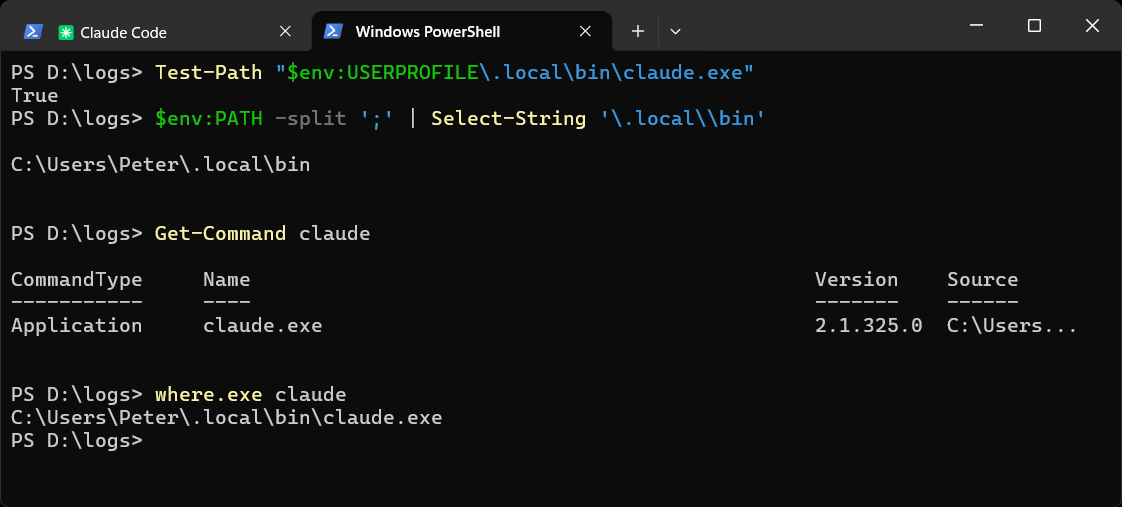
claude --version should print a version number. Get-Command claude and where.exe claude should both point at C:\Users\you\.local\bin\claude.exe. If where.exe answers INFO: Could not find files for the given pattern(s)., nothing called claude is on the PATH that window can see.
Once claude starts, the rest of the setup gets easier, because you can ask it. Describe anything else that does not look right on your machine and let it walk you through the fix. That is what it is there for.
Still not found in a new window? Two causes cover most of it:
- The terminal is inside an editor. A terminal in VS Code or another editor takes its PATH from the editor. Quit and reopen the editor, not just the terminal pane.
- The change was not saved. Run
[Environment]::GetEnvironmentVariable('PATH', 'User')and look for.local\binin what it prints. If it is missing, run the two lines again.
If you need claude in the window you already have open, this adds the folder for that session only and is gone when you close it:
$env:PATH += ";$env:USERPROFILE\.local\bin"
If claude.exe Is Not There
Test-Path returning False means the native installer has not put anything in .local\bin. The common reasons:
- The install never finished. Run it again. Install Claude Code on Windows (Native and WSL) has the one-line installer for PowerShell and for CMD, and what each looks like when it works.
- You only installed the VS Code extension. The extension bundles a private copy of the CLI for its own chat panel and does not add it to PATH. To use
claudein a terminal you need the standalone install as well. - You installed another way. A WinGet or npm install does not use
.local\bin.where.exe claudeshows whether one of those is on your PATH.
If It Broke Right After an Update
If claude worked yesterday and is “not recognized” today, look in the folder. To update on Windows, Claude Code renames the existing claude.exe to a backup and moves the new version into its place. If that second step fails, the folder can be left with the backup and no claude.exe:
Get-ChildItem "$env:USERPROFILE\.local\bin"
A file named claude.exe.old. followed by a number, with no claude.exe beside it, is that case. Anthropic’s fix is to rename the newest backup back. This one changes a file, and it is a rename, so nothing is lost:
Get-ChildItem "$env:USERPROFILE\.local\bin\claude.exe.old.*" |
    Sort-Object Name |
    Select-Object -Last 1 |
    Rename-Item -NewName claude.exe
If there is no backup file either, run the installer again.
If claude Opens the Desktop App
This is a different symptom with the same root, the PATH. An older Claude Desktop install can register a Claude.exe in the WindowsApps folder that takes priority over the CLI, so typing claude opens the app. where.exe claude lists every match in the order Windows finds them, which shows you which one wins. Updating Claude Desktop fixes it.
Frequently Asked Questions
Do I need to be an Administrator to fix this?
No. The native install lives under your user profile and the fix changes your User PATH, not the system one. Anthropic’s docs say the installer does not need Administrator either.
Why did the installer not add itself to PATH?
It checks, and when the folder is missing from PATH it reports that under Setup notes: in its output with the fix. It does not change PATH itself, so the note is easy to miss.
Does this apply to Claude Code inside WSL?
The cause is the same but the fix is a Linux one. In WSL the program is at ~/.local/bin/claude and the error is claude: command not found. The install post linked below has the line to add to ~/.bashrc.
Related
If SQL Server is part of your day job, my current work lives over at sqldba.blog: production DBA scripts, an error library and the SSMS guide.
Leave a Reply