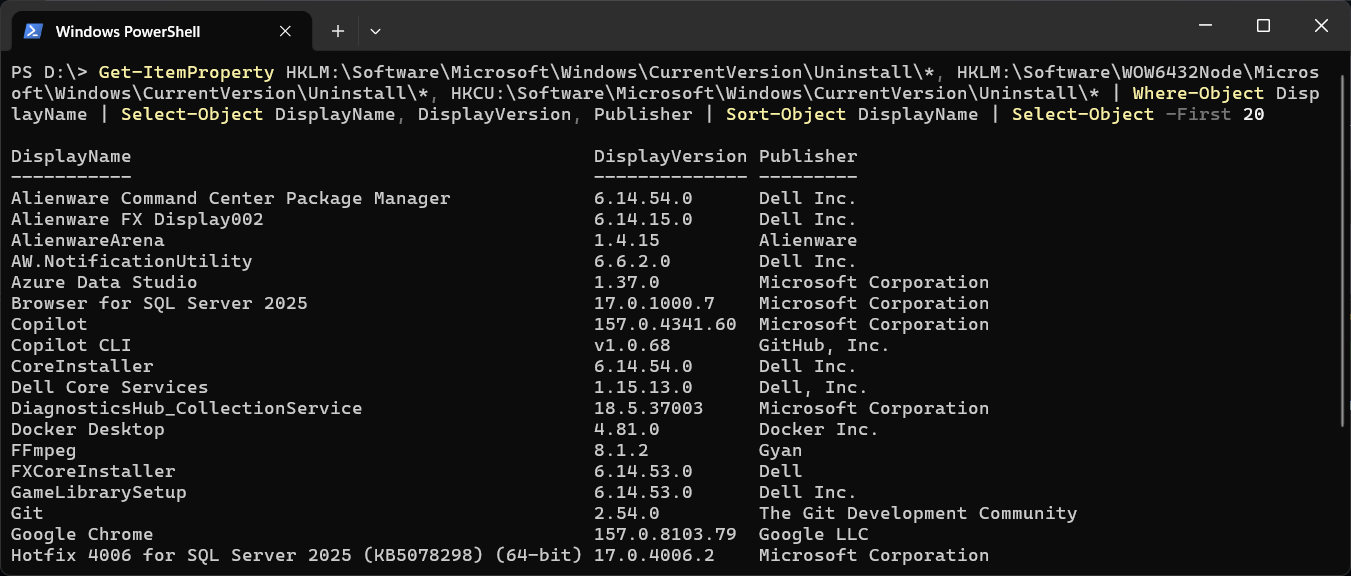
To list the programs installed on Windows, read the same registry keys that Apps and Programs and Features read:
Get-ItemProperty HKLM:\Software\Microsoft\Windows\CurrentVersion\Uninstall\*,
                 HKLM:\Software\WOW6432Node\Microsoft\Windows\CurrentVersion\Uninstall\*,
                 HKCU:\Software\Microsoft\Windows\CurrentVersion\Uninstall\* |
    Where-Object DisplayName |
    Select-Object DisplayName, DisplayVersion, Publisher |
    Sort-Object DisplayName
That gives you every program with a name, its version and its publisher, sorted alphabetically. It runs without Administrator and works the same in Windows PowerShell 5.1 and PowerShell 7.
Why Three Registry Keys
HKLM:\Software\Microsoft\...\Uninstallholds 64-bit programs installed for everyone.HKLM:\Software\WOW6432Node\...\Uninstallholds 32-bit programs.HKCU:\Software\Microsoft\...\Uninstallholds programs installed for your user only, which is where a lot of developer tools land.
Miss one and programs go missing from the list. Where-Object DisplayName drops the keys with no name, which are leftovers and components rather than programs you would recognise. The same name can still appear more than once, because some programs write an entry in more than one key.
Search for One Program
Get-ItemProperty HKLM:\Software\Microsoft\Windows\CurrentVersion\Uninstall\*,
                 HKLM:\Software\WOW6432Node\Microsoft\Windows\CurrentVersion\Uninstall\*,
                 HKCU:\Software\Microsoft\Windows\CurrentVersion\Uninstall\* |
    Where-Object DisplayName -like '*SQL*' |
    Select-Object DisplayName, DisplayVersion, InstallDate
InstallDate is a plain text value in the form 20260527, year then month then day, and some programs leave it empty.
Export the List
Swap Sort-Object DisplayName at the end of the first command for this, and you have a file you can open in Excel or compare against another machine:
Sort-Object DisplayName | Export-Csv .\installed-programs.csv -NoTypeInformation
How to Export Data to CSV in PowerShell covers the rest of the options.
winget list
winget list
winget comes with current Windows 10 and 11 and lists the registry programs plus Microsoft Store apps, with a Source column for the ones it can match to a package source. Narrow it with winget list --name PowerShell. The difference matters: on a machine with PowerShell 7 installed from the Microsoft Store, the registry command above does not list it, and winget list does.
Get-Package in Windows PowerShell 5.1 Only
Get-Package -ProviderName Programs
This works in Windows PowerShell 5.1. In PowerShell 7 the same line fails with Unable to find package providers (Programs)., so use the registry command if a script has to run in both.
The Common Gotcha: Win32_Product
Search for this and you will find Get-WmiObject Win32_Product or Get-CimInstance Win32_Product. Avoid it. It only lists programs installed from an MSI, so plenty are missing, and querying it makes Windows Installer check every MSI product on the machine. That is slow, and Microsoft documents that it can start a repair on products it finds inconsistent. The registry keys only read, which is why they are the safe way to do this.
For the rest of the machine’s details, such as the Windows version, memory and disks, see How to Get System Information with PowerShell. If you need something the list does not show, ask Claude Code to adjust the command for you. That’s what it’s there for.
Related
If SQL Server is part of your day job, my current work lives over at sqldba.blog: production DBA scripts, an error library and the SSMS guide.
Leave a Reply