
A git clone from the WSL terminal in VS Code stops with this:
ssh: Could not resolve hostname github.com: Temporary failure in name resolution
fatal: Could not read from remote repository.

Please make sure you have the correct access rights
and the repository exists.
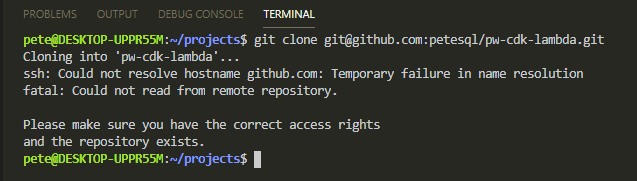
The last two lines are a red herring. Your access rights are fine and the repository exists. WSL cannot turn github.com into an IP address, so SSH never gets as far as asking. The HTTPS form of the same failure reads fatal: unable to access 'https://github.com/...': Could not resolve host: github.com.
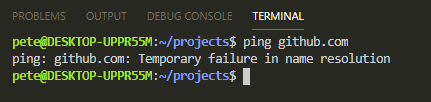
A ping proves it in one line:
ping -c 2 github.com
# ping: github.com: Temporary failure in name resolution
Why WSL Loses DNS
Every time a distribution starts, WSL writes /etc/resolv.conf for you, pointing Linux at a nameserver on the Windows side. When a VPN, a firewall or a corporate DNS setup blocks that path, every name lookup in Linux fails, and Git is just the first thing you notice. I did not need to do any of this on WSL version 1; it arrived with the move to WSL 2.
# see what WSL wrote, and which nameserver Linux is trying to use
cat /etc/resolv.conf
Two fixes. The first is quick and does not survive a restart. The second makes it stick.
Quick Fix: Point /etc/resolv.conf at a Working Nameserver
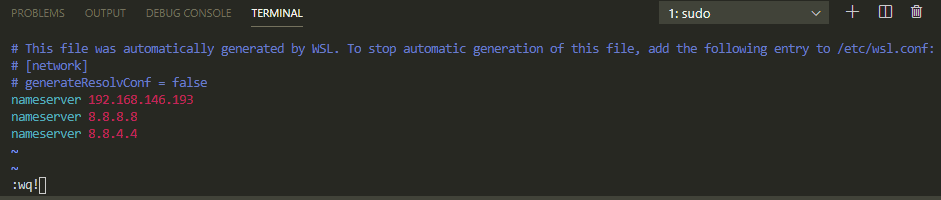
Edit the file (vim here, nano works the same) and replace the nameserver line with a public resolver, or with your VPN’s DNS server if you are on one (ipconfig /all in Windows shows it):
sudo vim /etc/resolv.conf

nameserver 8.8.8.8
nameserver 8.8.4.4
Save it, ping again, and the clone goes through with nothing else changed:
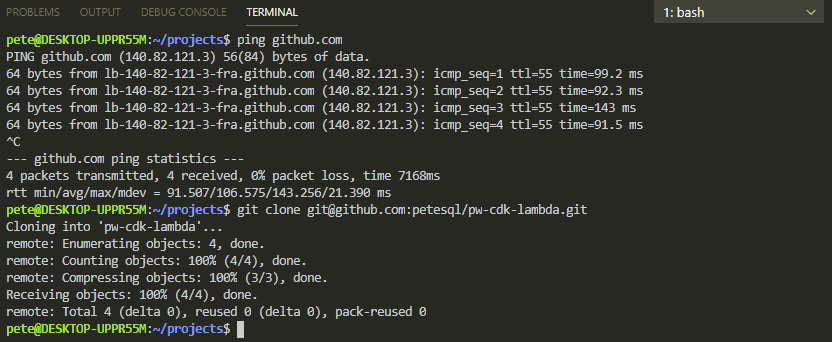
The catch: WSL regenerates /etc/resolv.conf on the next start, so your edit disappears with the next wsl --shutdown or reboot. If the error comes back, that is why.
Permanent Fix: Stop WSL Rewriting the File
Tell WSL to leave /etc/resolv.conf alone in /etc/wsl.conf, restart the distribution, then write the file once:
# 1. inside WSL: stop the automatic resolv.conf
sudo tee -a /etc/wsl.conf <<'EOF'
[network]
generateResolvConf = false
EOF

# 2. from PowerShell: restart WSL so wsl.conf is read
wsl --shutdown

# 3. back inside WSL: if resolv.conf is a symlink, drop it first, then write your own
sudo unlink /etc/resolv.conf 2>/dev/null
printf 'nameserver 8.8.8.8\nnameserver 8.8.4.4\n' | sudo tee /etc/resolv.conf

# 4. prove it
ping -c 2 github.com
If /etc/wsl.conf already has a [network] section, add the generateResolvConf = false line under it rather than appending a second section. Microsoft’s own write-up of this is the VPN entry in Troubleshooting WSL, and the setting itself is documented under wsl.conf network settings.
On Windows 11, Update WSL First
Recent WSL releases on Windows 11 use DNS tunnelling by default, which sends Linux name lookups to Windows without a network packet, so a VPN or firewall rule can no longer swallow them. If you are on Windows 11, run wsl --update from PowerShell and retry before touching any file. Note that tunnelling needs generateResolvConf left on, so if you apply the permanent fix above you are opting out of it for that distribution.
Checked in an Ubuntu 24.04 container with the nameserver pointed somewhere dead: git clone over SSH fails with exactly the message at the top, over HTTPS with the Could not resolve host form, and pointing resolv.conf at a working nameserver is the only change needed for the same clone to succeed.
Related
- How to Restart Windows Subsystem for Linux (WSL)
- Setting up SSH Keys in WSL
- How to Change Git Remote URL to SSH from HTTPS
- WSL Complete Guide
If SQL Server is part of your day job, my current work lives over at sqldba.blog: production DBA scripts, an error library and the SSMS guide.
Leave a Reply