
You push to GitHub from a Windows machine and one of 3 things is happening: Git asks for a password that GitHub no longer accepts, git push fails with Permission denied (publickey), or you type the same key passphrase 20 times a day. All 3 have the same answer. Make an SSH key, hand it to the OpenSSH agent that is already built into Windows, and point Git at that agent.
Windows 10 and 11 ship the OpenSSH client, with ssh-keygen, ssh-add and an ssh-agent Windows service, under C:\Windows\System32\OpenSSH. On my laptop that is OpenSSH_for_Windows_9.5p2, and the agent service was sitting Stopped and Disabled, which is the default state Microsoft documents. That disabled service is why most Windows SSH setups feel half-finished: the key works, but nothing remembers it.
Check What You Already Have
# the Windows OpenSSH client and where it lives
ssh -V
Get-Command ssh, ssh-keygen, ssh-add | Select-Object Name, Source

# the agent service: Stopped and Disabled on a fresh machine
Get-Service ssh-agent | Select-Object Name, Status, StartType

# any existing keys
Get-ChildItem ~\.ssh -ErrorAction SilentlyContinue
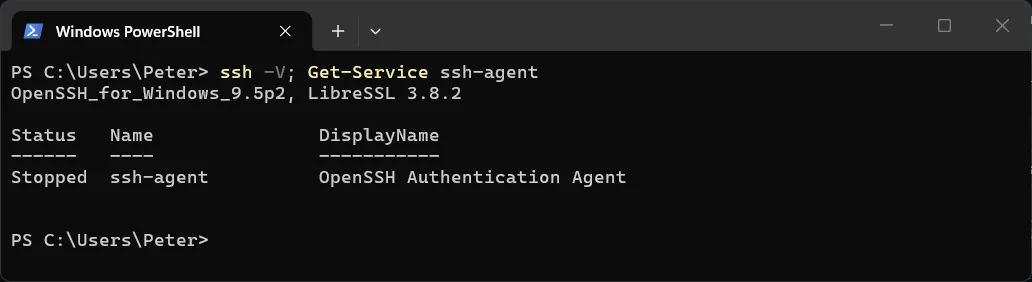
If ~\.ssh already holds an id_ed25519 and id_ed25519.pub pair, skip the generate step and go straight to the agent. GitHub’s own advice is to check first, because ssh-keygen will offer to overwrite an existing key with the same name and that is a mistake you cannot undo.
Generate the Key
ssh-keygen -t ed25519 -C "your_email@example.com"
Use the email address on your GitHub account as the comment. Press Enter at the file prompt to take the default, C:\Users\you\.ssh\id_ed25519, then set a passphrase. Yes, a passphrase. The point of the agent is that you type it once per login rather than once per push, so there is no reason to leave it blank. Ed25519 is the type GitHub recommends and it is also what Windows OpenSSH picks when you give no -t at all; the RSA 4096 form is only for old systems that cannot do Ed25519.
You get 2 files. id_ed25519 is the private key and Microsoft’s phrase for it is the right one: “the equivalent of a password”. id_ed25519.pub is the public half, the only one that ever leaves the machine.
Start the ssh-agent Service
This part needs an elevated window once. Open PowerShell as Administrator:
# disabled by default: make it start with Windows
Get-Service ssh-agent | Set-Service -StartupType Automatic
Start-Service ssh-agent

# should now say Running
Get-Service ssh-agent
Microsoft’s OpenSSH guide uses Automatic; GitHub’s page uses Manual and starts it by hand. Automatic is the one that makes the problem go away, because the agent is up before you open a terminal. Now close the elevated window and, in a normal PowerShell, load the key:
# add the private key (asks for the passphrase once)
ssh-add $env:USERPROFILE\.ssh\id_ed25519

# list what the agent holds
ssh-add -l
Do the ssh-add in a normal window, not the elevated one. GitHub’s instructions are explicit that the add step is “in a terminal window without elevated permissions”, and the service runs the same way for everyone, so the only step that ever needs Administrator is the one that turns the service on.
Add the Public Key to GitHub
# copy the public key to the clipboard
Get-Content ~\.ssh\id_ed25519.pub | clip
On GitHub: your profile picture, Settings, then SSH and GPG keys under Access, then New SSH key. Give it a title that says which machine it is, leave the type as Authentication Key, paste, and Add SSH key. The same public key can be added a second time as a Signing Key if you want signed commits later; that is a separate upload of the same text.
Test It
ssh -T git@github.com
The first time, it shows GitHub’s host key fingerprint and asks whether to continue. Check it against the fingerprints GitHub publishes and answer yes. The success line is “Hi USERNAME! You’ve successfully authenticated, but GitHub does not provide shell access.” That last clause is normal, not an error. Always test as the git user; GitHub’s troubleshooting page says connecting as your own username is one of the standard causes of Permission denied (publickey).
Make Git Use the Windows OpenSSH
This is the step that catches people. Git for Windows bundles its own ssh.exe under C:\Program Files\Git\usr\bin\, and Git uses that one by default. It cannot talk to the Windows ssh-agent service, so ssh -T works in PowerShell while git push still asks for the passphrase. On my machine the 2 are different builds entirely: Windows has OpenSSH 9.5, the Git bundle has OpenSSH 10.3. One setting fixes it:
git config --global core.sshCommand "C:/Windows/System32/OpenSSH/ssh.exe"

# optional, so SSH commit signing uses the same keygen
git config --global gpg.ssh.program "C:/Windows/System32/OpenSSH/ssh-keygen.exe"
Forward slashes are deliberate; Git reads the value as a shell command. The alternative GitHub offers is to re-run the Git for Windows installer and pick the external OpenSSH option, which does the same thing at install time. If Git is not on the machine yet, How to Install Git on Windows is the starting point.
Switch Your Remotes to SSH
# what you have now
git remote -v

# https://github.com/USER/REPO.git becomes this
git remote set-url origin git@github.com:USER/REPO.git

# new clones from now on
git clone git@github.com:USER/REPO.git
A remote that still starts with https:// never touches the key, however well the agent is set up. The longer version of this step, with the before and after, is How to Change Git Remote URL to SSH from HTTPS.
Other Considerations
The agent keeps the key across reboots. Once ssh-add has loaded it, the Windows service holds it in your user’s security context and hands it to ssh on every connection. Microsoft goes as far as recommending you back the private key up somewhere safe and then delete it from the machine, because the agent is now serving it. I would keep the file and protect it, but the point stands: you add it once.
More than one key. A second GitHub account, or a work key, means a ~\.ssh\config file with a Host block per identity, each with its own IdentityFile and IdentitiesOnly yes so the agent does not offer the wrong key first. That file is standard OpenSSH and the Windows client reads it from the same place.
WSL is a separate world. A key in C:\Users\you\.ssh is not a key in /home/you/.ssh, and the Windows agent is not the agent inside your distro. Set it up on each side you push from. Setting up SSH Keys in WSL is the Linux half of this post.
Diagnosing Permission denied (publickey). ssh -vT git@github.com shows the whole handshake. Look for Connecting to github.com port 22, then whether it offers an identity or prints -1 for every identity file. ssh-add -l should print your key’s fingerprint; if it prints nothing, the agent is empty. And compare the fingerprint with the keys listed on your GitHub settings page; GitHub’s advice on a key you do not recognise there is to delete it immediately.
Port 22 blocked. Some office networks drop outbound SSH. GitHub also answers SSH on port 443 at ssh.github.com, which goes in the same config file as a Host github.com entry with Hostname ssh.github.com and Port 443.
Frequently Asked Questions
ssh -T works but git push still asks for the passphrase. Why?
Git is using its own bundled ssh.exe, which cannot reach the Windows agent. Set core.sshCommand to C:/Windows/System32/OpenSSH/ssh.exe as above and try again in a new terminal.
Do I need to run ssh-add every time I log in?
No. With the service set to Automatic, the Windows agent keeps the key between sessions and reboots. If ssh-add -l ever comes back empty, add it again; that is the whole repair.
Should I use a passphrase?
Yes. The agent means you type it once, and the key file is then useless to anyone who copies it without the passphrase. Microsoft’s guide calls an empty passphrase not recommended for exactly that reason.
Can I use the same key from WSL?
You can point WSL at /mnt/c/Users/you/.ssh/id_ed25519, but the Linux side will complain about the file permissions and it will not use the Windows agent. The clean way is a second key inside the distro, added to GitHub as a second entry.
Which key type should I pick?
Ed25519. It is GitHub’s recommendation, Windows OpenSSH’s default, and the keys are short enough to read. Use RSA 4096 only for a server that cannot do Ed25519.
Is the key file safe where it is?
C:\Users\you\.ssh is inside your profile and only your account and administrators can read it, which is the same protection as the rest of your documents. The passphrase is the second layer. Never copy the private key into a repo, a share or a chat.
Related
- How to Change Git Remote URL to SSH from HTTPS
- Setting up SSH Keys in WSL
- How to Install Git on Windows
- Git Clone “Could not resolve hostname github.com” in WSL
- How to Install Posh-Git on Windows
- Git Log Command Examples
- Generating a new SSH key and adding it to the ssh-agent (GitHub Docs)
- Error: Permission denied (publickey) (GitHub Docs)
- Key-based authentication in OpenSSH for Windows (Microsoft Learn)
If SQL Server is part of your day job, my current work lives over at sqldba.blog: production DBA scripts, an error library and the SSMS guide.
Leave a Reply