PowerShell stops your command with this:
Select-String : A positional parameter cannot be found that accepts argument 'claude'.
    + CategoryInfo          : InvalidArgument: (:) [Select-String], ParameterBindingException
    + FullyQualifiedErrorId : PositionalParameterNotFound,Microsoft.PowerShell.Commands.SelectStringCommand
Read which argument it names. That is the value PowerShell could not place, and the name at the start of the line is the command it was trying to give it to. The command was handed one more loose value than it has slots for, so the fault is nearly always just to the left of the named argument: a missing line break, a missing quote, a missing dash or a missing comma.
The message is the same in Windows PowerShell 5.1 and PowerShell 7. Version 7 prints it on one line.
Two Commands on One Line
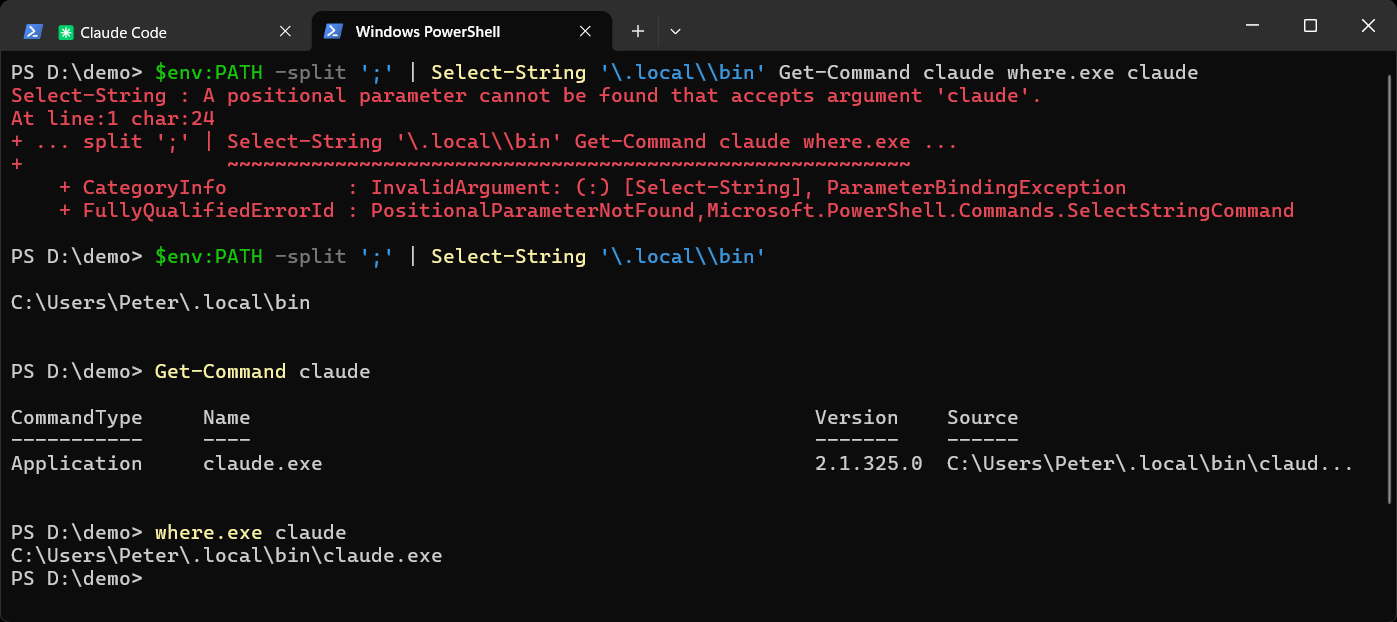
This is how I hit it. I copied a block of commands from a document, and the viewer had flattened the block onto one line:
$env:PATH -split ';' | Select-String '\.local\\bin'
Get-Command claude
where.exe claude
Select-String takes two loose values, a pattern and a path. It took '\.local\\bin' as the pattern and Get-Command as the path, and then had nowhere to put claude. Nothing was wrong with any of the commands. They needed to be on their own lines:
$env:PATH -split ';' | Select-String '\.local\\bin' Get-Command claude where.exe claude
Or keep them on one line with a semicolon between each:
$env:PATH -split ';' | Select-String '\.local\\bin'; Get-Command claude; where.exe claude
The same thing happens when lines of a script get joined, for example when a line break is lost in an email or a chat message.
A Path With a Space and No Quotes
Set-Location C:\Program Files
PowerShell splits on the space, so the command sees C:\Program and Files, and the error names 'Files'. Put the path in quotes:
Set-Location "C:\Program Files"
With a command that takes two paths, the argument it names can be a perfectly good one further along:
Copy-Item C:\Program Files\MyApp\app.config D:\Backup
Here the error names 'D:\Backup'. The two halves of the split path already filled both slots, so the real destination was the one left over. Look to the left of the named argument for the space.
A Parameter Name Without Its Dash
Get-Content C:\Windows\win.ini Tail 5
Without the dash, Tail is just another value, and the error names 'Tail'. With the dash it works:
Get-Content C:\Windows\win.ini -Tail 5
A misspelled parameter that does have its dash gives a different error, A parameter cannot be found that matches parameter name.
A List Without Commas
Get-Process -Name explorer winlogon
The error names 'winlogon'. A parameter only takes several values when they are separated by commas:
Get-Process -Name explorer, winlogon
Long Dashes and Curly Quotes From a Web Page
Commands copied from a web page or a Word document often have their hyphens and quotes swapped for the typographic versions, and that gets the blame for this error a lot. It is rarely the cause. PowerShell 5.1 and 7 both accept an en dash or an em dash in front of their own parameter names, and curly quotes around a string. Where a long dash does break a command is on programs that are not PowerShell commands, like git, which get the character as it is and do not read it as a dash.
To check a line, copy it and run this. Any output means there is a typographic dash or quote in it, and the fix is to retype that character:
Get-Clipboard | Select-String '[\u2013\u2014\u2018\u2019\u201C\u201D]'
Check What a Command Accepts
Get-Command Set-Location -Syntax
A name shown inside its own square brackets, like [-Path], can be left out and the value given on its own. Those are the positional slots. Set-Location has one, so a second loose value has nowhere to go. There is more on this command in Get-Command in PowerShell.
If you still cannot see it, paste the command and the error into Claude Code and ask what PowerShell is tripping on. That’s what it’s there for.
Related
If SQL Server is part of your day job, my current work lives over at sqldba.blog: production DBA scripts, an error library and the SSMS guide.
Leave a Reply