You ran a long command the other day and need it again. Do not scroll back through the Up arrow or retype it. Press Ctrl+R and type any part of it, and PowerShell finds it in your command history.

Here I typed date and it brought back the uptime command from checking the last reboot time, a command I did not want to type out again.
How Ctrl+R Search Works
- Ctrl+R starts the search. The prompt line changes to
bck-i-search:. - Type any part of the command, from the start, the middle or the end. The newest match shows up as you type.
- Ctrl+R again jumps to the next older match. Keep pressing it to cycle back through everything that matches.
- Ctrl+S goes the other way, if you pressed Ctrl+R once too often.
- Enter runs the command you found.
- Left or Right arrow leaves the search with the command on the line, so you can change it before running it.
- Esc clears the line and gets you out without running anything.
This comes from PSReadLine, the module that handles the command line in both Windows PowerShell 5.1 and PowerShell 7, so it works the same in either. The search covers commands from earlier sessions too, not only the window you have open.
Search by the Start of a Command
If you remember how the command starts, type the start and press F8. It fills in the most recent command beginning with what you typed, and each press of F8 goes one further back. Shift+F8 goes forward again. Type Get-Cim, press F8, and you are cycling through every Get-CimInstance you have run.
Get-History Only Covers This Window
Get-History lists the commands run in the current session, with an ID for each. Invoke-History runs one again by its ID, and r is its short alias:
Get-History | Select-Object Id, CommandLine

Invoke-History 5
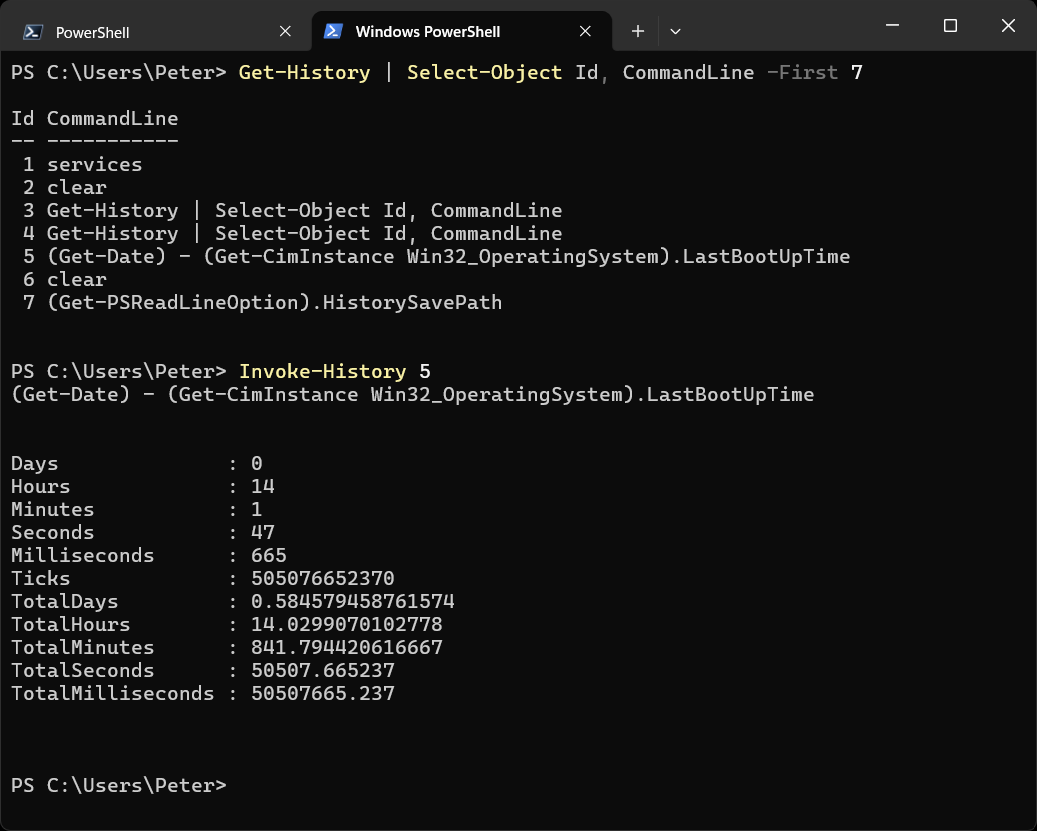
Here Invoke-History 5 runs the uptime calculation from the list again, without retyping it.
Close the window and that list is gone. Ctrl+R still finds those commands because PSReadLine keeps its own history in a file.
The PSReadLine History File
Every command you type is saved to a plain text file. This shows where yours is:
(Get-PSReadLineOption).HistorySavePath
On Windows it is normally %APPDATA%\Microsoft\Windows\PowerShell\PSReadLine\ConsoleHost_history.txt. Being a text file, you can search all of it at once, which helps when you want every match on screen rather than one at a time:
Get-Content (Get-PSReadLineOption).HistorySavePath | Select-String 'Get-CimInstance'
Worth knowing: anything you typed is in that file, including a password passed on the command line. Newer versions of PSReadLine skip lines that look like they hold a secret, but do not count on it. If something sensitive went in, open the file in Notepad and delete the line.
Related
If SQL Server is part of your day job, my current work lives over at sqldba.blog: production DBA scripts, an error library and the SSMS guide.
Leave a Reply