To get the hash of a file, run Get-FileHash on it:
Get-FileHash .\SomeInstaller.msi
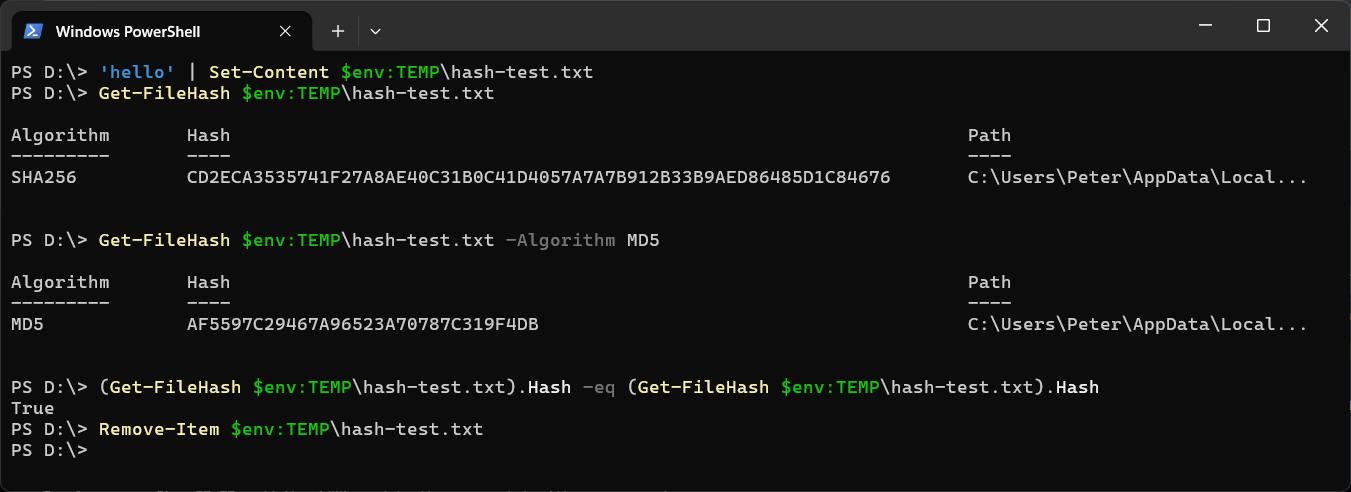
It uses SHA256 unless you ask for something else, and returns the algorithm, the hash and the full path:
Algorithm       Hash                                                                   Path
---------       ----                                                                   ----
SHA256          2CF24DBA5FB0A30E26E83B2AC5B9E29E1B161E5C1FA7425E73043362938B9824       C:\Users\you\Downloads\SomeInstaller.msi
The usual reason to want one is to check a download. The publisher lists a hash next to the file, you hash your copy, and if the two match, the file is the one they published and nothing was corrupted or swapped on the way.
Compare It to the Published Hash
Reading two 64-character strings by eye is how mistakes happen. Let PowerShell compare them:
(Get-FileHash .\SomeInstaller.msi).Hash -eq 'PASTE-THE-PUBLISHED-HASH-HERE'
True means a match. -eq ignores case, so a publisher that lists the hash in lowercase still matches PowerShell’s uppercase output.
A Different Algorithm
Get-FileHash .\SomeInstaller.msi -Algorithm MD5
Get-FileHash .\SomeInstaller.msi -Algorithm SHA512
Use whichever one the publisher lists. The algorithms you can pick from depend on the version, and this is the one difference between them:
- PowerShell 7: SHA1, SHA256, SHA384, SHA512, MD5
- Windows PowerShell 5.1: the same, plus MACTripleDES and RIPEMD160
Asking PowerShell 7 for RIPEMD160 fails with The argument "RIPEMD160" does not belong to the set "SHA1,SHA256,SHA384,SHA512,MD5". If you need one of those two, run it in Windows PowerShell 5.1.
Hash Every File in a Folder
Get-ChildItem C:\Installers -File | Get-FileHash | Select-Object Hash, Path
Pipe that to Export-Csv and you have a record to compare against later. How to Export Data to CSV in PowerShell has the options.
Without PowerShell: certutil
certutil -hashfile SomeInstaller.msi SHA256
This is built into Windows and works in Command Prompt. It prints the same hash in lowercase.
The Common Gotcha: a Space You Cannot See
If the comparison says False and the hashes look identical, check what you pasted. A hash copied from a web page often brings a trailing space or line break with it, and -eq compares that too. Trim it:
(Get-FileHash .\SomeInstaller.msi).Hash -eq 'PASTE-THE-PUBLISHED-HASH-HERE'.Trim()
The other way to get a false mismatch is hashing text you saved yourself. 'hello' | Set-Content hello.txt writes a line break after the word, so the file’s hash is not the hash of hello. A hash is of the exact bytes in the file.
Once the hash matches and Windows still blocks a downloaded script from running, Unblock-File is covered in Fix “.ps1 cannot be loaded because running scripts is disabled on this system”.
If a hash will not match and you cannot see why, paste both into Claude Code and ask what differs. That’s what it’s there for.
Related
If SQL Server is part of your day job, my current work lives over at sqldba.blog: production DBA scripts, an error library and the SSMS guide.
Leave a Reply