To find every file with one extension under a folder, newest first:
Get-ChildItem $env:USERPROFILE\Downloads -Recurse -File -Filter *.png |
    Sort-Object LastWriteTime -Descending |
    Select-Object -First 10 Name, @{n='KB';e={[math]::Round($_.Length/1KB)}}, LastWriteTime |
    Format-Table -AutoSize
The shot lists the ten newest PNG files in Downloads, with the size in KB and the time each was last written.
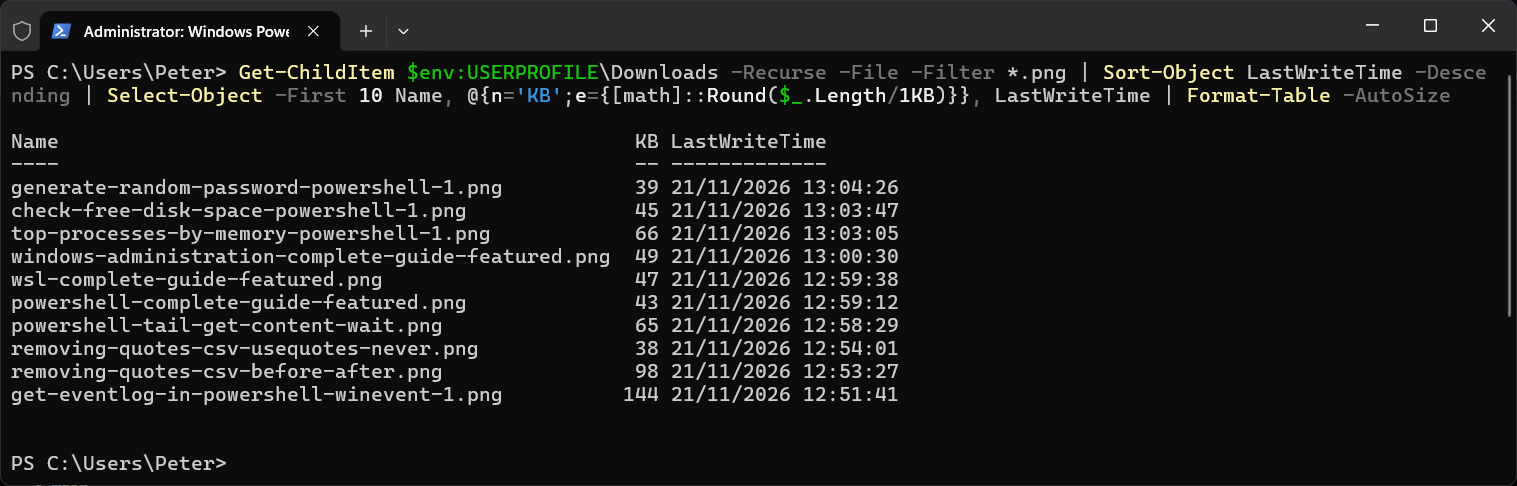
-Recurseincludes every subfolder.-Fileleaves folders out of the results.-Filteris handed to the file system, so it is much faster than getting every file and filtering in PowerShell.
Several Extensions at Once
-Filter takes one pattern. For more than one, use -Include:
Get-ChildItem $env:USERPROFILE\Downloads -Recurse -File -Include *.png, *.jpg
-Include only works with -Recurse or a path ending in \*. Without either, it returns nothing and gives no error.
Count and Size per Extension
Get-ChildItem $env:USERPROFILE\Downloads -Recurse -File |
    Group-Object Extension |
    Select-Object Name, Count, @{n='MB';e={[math]::Round(($_.Group | Measure-Object Length -Sum).Sum/1MB,1)}} |
    Sort-Object MB -Descending
Searching a Whole Drive
Point it at C:\ and you will get red Access to the path is denied errors for folders your account cannot open. Add -ErrorAction SilentlyContinue to hide them. All of the above works the same in Windows PowerShell 5.1 and PowerShell 7.
Related
If SQL Server is part of your day job, my current work lives over at sqldba.blog: production DBA scripts, an error library and the SSMS guide.
Leave a Reply