To have PowerShell suggest commands from your history as you type, shown as a list you can pick from:
Set-PSReadLineOption -PredictionSource History -PredictionViewStyle ListView
Then start typing. In the shot, typing get- in PowerShell 7 lists earlier commands that match, each marked [History], with <History(10)> on the right of the header.
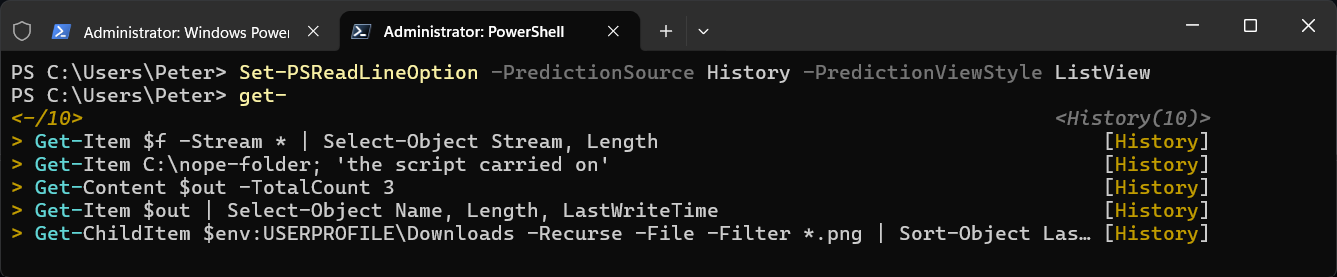
Using the List
- Up and Down arrows move through the suggestions and put the chosen one on the command line.
- F2 switches between the list and the inline view, which shows one suggestion in grey after the cursor.
- Right arrow accepts an inline suggestion.
- Esc clears the line if you want none of them.
The suggestions come from the same history file that Ctrl+R searches, so they include commands from earlier sessions.
Keep It On
Set-PSReadLineOption only lasts for the window it was run in. Add the line to your profile so every new window has it:
notepad $PROFILE
Paste the Set-PSReadLineOption line in, save, and open a new window. Find and Edit Your PowerShell Profile covers creating the file if it does not exist yet.
Windows PowerShell 5.1
Windows PowerShell 5.1 ships with PSReadLine 2.0.0, which has no prediction at all, so the line above fails with a parameter error. Newer PSReadLine versions still support 5.1, so you can update it from the PowerShell Gallery:
Install-Module PSReadLine -Scope CurrentUser -Force
Close and reopen the window afterwards. Check which version you have with Get-Module PSReadLine. PowerShell 7 comes with a recent PSReadLine already, which is the simpler route. See Install PowerShell 7 on Windows.
Related
If SQL Server is part of your day job, my current work lives over at sqldba.blog: production DBA scripts, an error library and the SSMS guide.
Leave a Reply